
 Share
Share
 Print
Print
|
|
|
|
|


To start Multiple Task Cards, select the 'Start' status. Right click into the W/O field and select a Work Order.
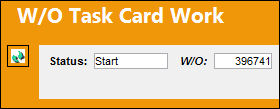
Select the Continue  button. The following appears. Right click in the Task Card field to select a Task Card.
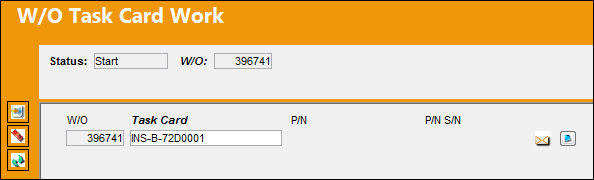
If the user selects a Work Order that does not contain any Task Cards, the Task Card drop down menu will have no Task Cards to choose from:
Select the New  button to add another Task Card.
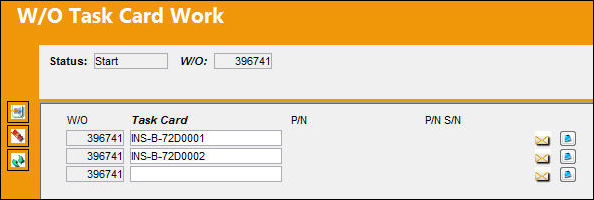
Select the Delete  button the delete a Task Card.
Select the Notes  button to attach a note to the Task Card.
If the Task Card contains a part number, this will be displayed as well as the serial number.
Select the Continue button. The technician will be required to enter a password and skill.
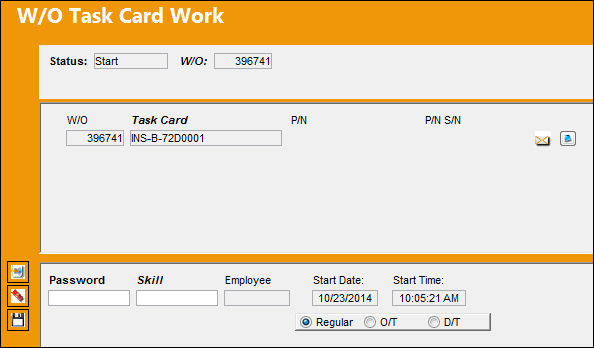
Select the Save  button to complete the Work Order Task Card.
Share
Print
|
©1997-2026 Trax USA Corp. All rights reserved. This manual may not be copied, photocopied, reproduced, translated, or converted to any electronic or machine-readable form, in whole or in part, without prior written approval from Trax USA Corp. |
 |