
 Share
Share
 Print
Print
|
|
|
|
|


Multi Task Card, W/O Task Card Work (Work In Progress)
The Task Card Work In Progress option is used by technicians to sign-on and sign-off Task Cards in a Work Order. The system will record the personnel that have worked on the Task Card and the amount of time that they took to carry out the task. This provides up-to-date analysis of the work in progress and the costs involved. For Third Party purposes, this will mean the ability to accurately bill the customer as required. The Work Order Task Card Work In Progress, Multi Task Card option allows one Mechanic to sign in to more than one Task Card.
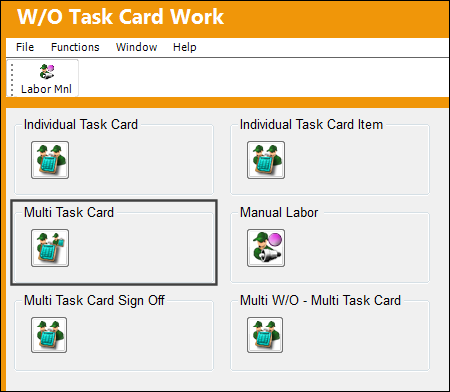
From the Work Order Task Card Work in Progress window, select the Multi-Task Card button.
Select the Status drop down menu. The following options for Multi Task Cards are available. Populate the Work Order from which multiple Task Cards can be accessed and select the Continue  button.
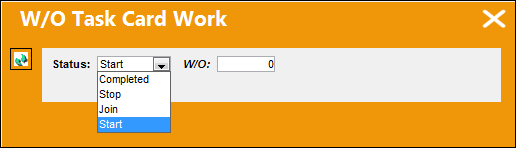
The following information/options are available in this window:
_____________________________________________________________________________________
Status
Action user would like to perform:
Start - This option is used to start the clock counting on a Task Card that is about to be worked on. For additional information, refer to Starting Multi Task Card via Work Order Task Card Work In Progress.
Join - This option allows a technician to join a task that has already been started by one or more technicians. For additional information, refer to Joining Multi Task Card, via Work Order Task Card Work In Progress.
Completed - This option allows a technician to complete a task once it is finished. This option allows one user to sign off every other user logged into that task. For additional information, refer to Completing Multi Task Cards via Work Order Task Card Work In Progress.
Stop - If required, Task Cards can be Stopped (for example when stopping for a break). This will stop the clock on the particular Task Card. To change the status, re-enter/find the Task Card and choose the Stop status.
The Status Selection is based on the Security Settings.
W/O
The Work Order used to categorize, manage, and schedule work requirements for aircraft maintenance.
_____________________________________________________________________________________
The following additional fields become available to allow the user to update/work on the Task Cards for this Work Order.
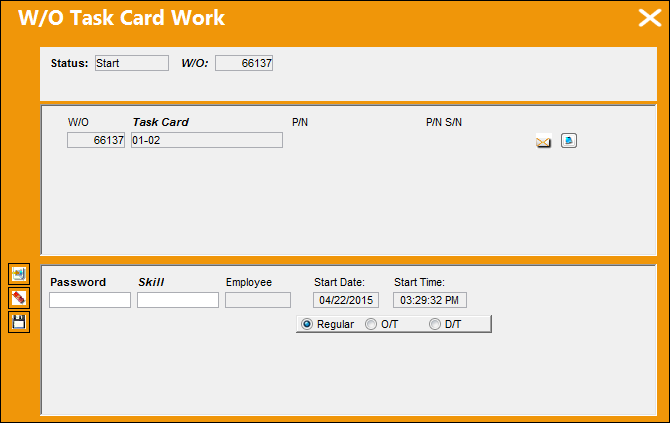
The following information/options are available in this window:
_____________________________________________________________________________________
Password
The Employee Wall Password as set up in the Security Explorer. An error message will appear if:
- The Wall Password is not valid
- The Employee is not part of the 'Users With Wall Security' section of the Wall By Program
Skill
The appropriate skill used to perform the task.
Employee
The employee performing the task.
Date
The date of the task.
Start Date
The date the labor started on the Task Card.
Start Time
The time the labor started on the Task Card.
Regular radio button
Select this button to indicate that regular work hours are being applied to this Task Card.
O/T radio button
Select this button to indicate that overtime hours are being applied to this Task Card.
D/T radio button
Select this button to indicate that doubletime hours are being applied to this Task Card.
_____________________________________________________________________________________
Share
Print
|
©1997-2026 Trax USA Corp. All rights reserved. This manual may not be copied, photocopied, reproduced, translated, or converted to any electronic or machine-readable form, in whole or in part, without prior written approval from Trax USA Corp. |
 |