
 Share
Share
 Print
Print
|
|
|
|
|


Individual Task Card Item, W/O Task Card Work (Work In Progress)
The Work Order Task Card Work In Progress option is used by technicians to sign-on and sign-off Task Cards on a Work Order. The Individual Task Card Item option allows technicians to sign off of individual items attached to a Task Card, without having to sign off of the Task Card itself. The system will record the personnel that have worked on the Task Card and the amount of time that they took to carry out the task. This provides up-to-date analysis of the work in progress and the costs involved. For Third Party purposes, this will mean the ability to accurately bill the customer as required.
This function allows the user to sign in to a single item of a Task Card. Users will be registered only for this specific item, not the complete Task Card.
From the Work Order Task Card Work In Progress window, select the Individual Task Card Item  button.
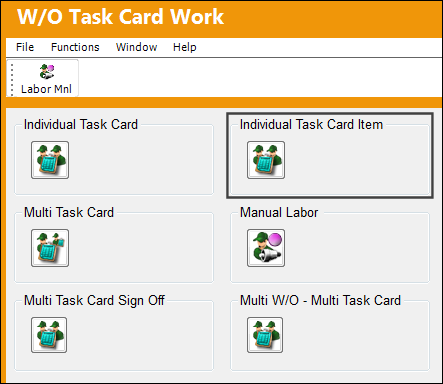
TRAX displays the following window.
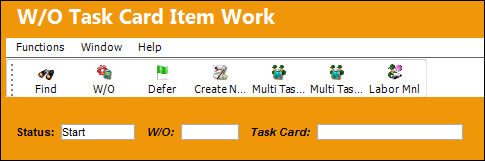
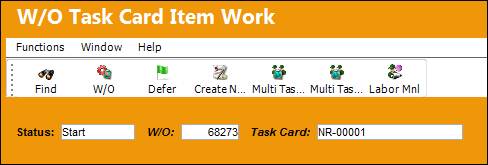
Populate the Work Order and Task Card the user would like to sign onto. Select the Find  button.
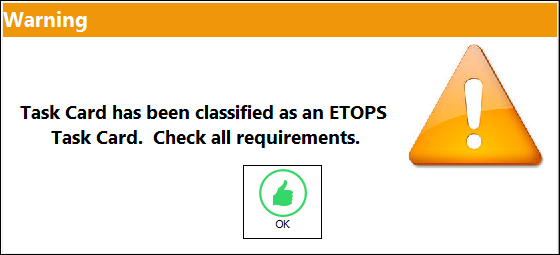
In the case that the Task Card is an ETOPS Task Card, TRAX alerts the user with this pop-up window. Select 'OK' to continue.
TRAX displays a pop-up window with the available Items.
Select the Task Card Item the user would like to sign in to from the table by double clicking on it.
The pop-up window displaying the Task Card Items can list the items by Task Card or Status priority just click on the appropriate radio button to re-list the items, if desired.
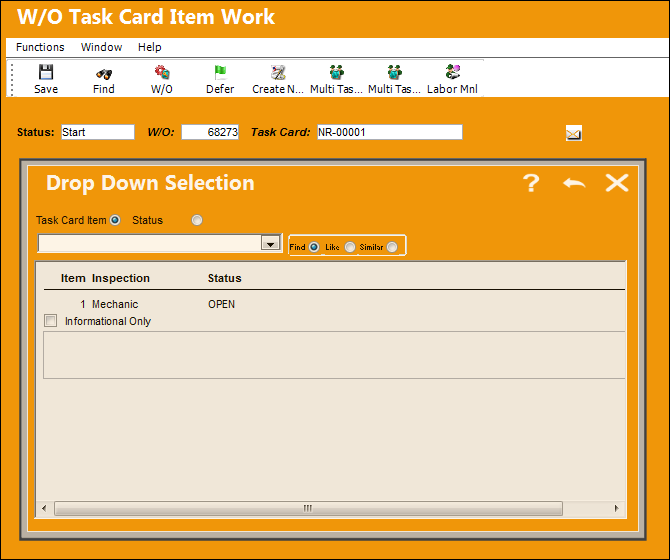
When the Item is selected the below appears.
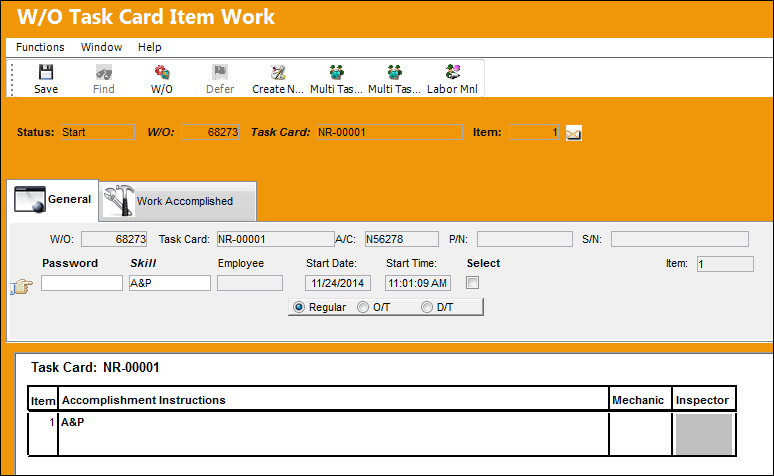
The following information/options are available in this window:
_____________________________________________________________________________________
W/O
The Work Order used to categorize, manage, and schedule work requirements for aircraft maintenance.
Task Card
The Task Card / Job Card that details the scheduled maintenance work.
A/C
The individual aircraft tail number.
P/N
The Part Number reference for the aircraft part.
S/N
The Serial Number for the specific serialized part.
Password
The Employee Wall Password as set up in the Security Explorer. An error message will appear if:
- The Wall Password is not valid
- The Employee is not part of the 'Users With Wall Security' section of the Wall By Program
Skill
The appropriate skill used to perform the task.
Employee
The employee performing the task.
Date
The date of the task.
Start Date
The date the labor started on the Task Card.
Start Time
The time the labor started on the Task Card.
Time (hrs/min)
The amount of time to be manually added. The maximum number of hours that can be input here is defined via System Administration/ Explorer/ System Transaction Configuration/ Production/ LABORTIM (Maximum Hours Allowed In Work Order Task Card Manual Labor).
_____________________________________________________________________________________
The following offer additional functionality:

Users may apply Manual Labor to individual Items via the Manual Labor  button. From the W/O Task Card Manual Labor notice the Item field listing is linked to the specific Task Card Item below.
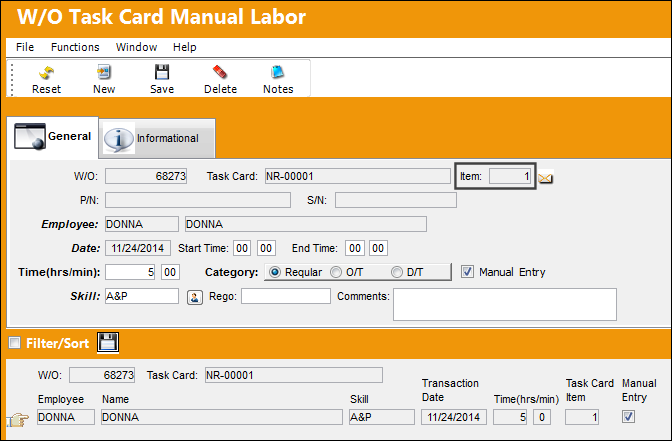
Completed Task Card Item
When the Task Card Item is to be signed off by the inspector for completion, TRAX displays the following screen:
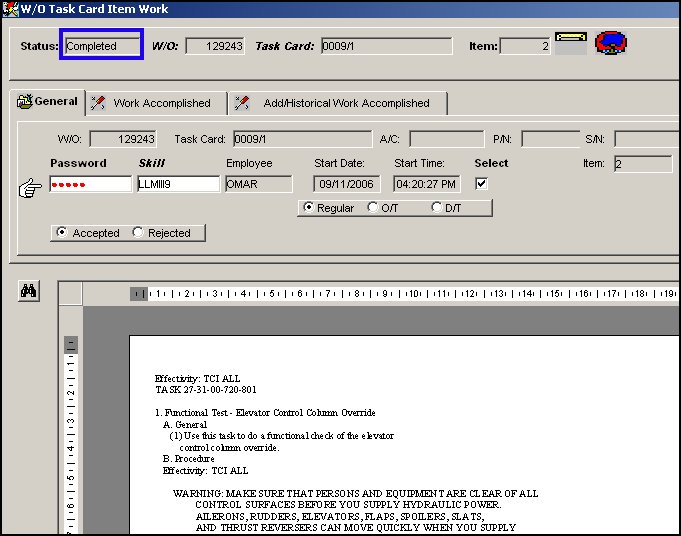
The inspector should first verify that the displayed Task Card Item information is correct and that all tasks are finished (see Work Accomplished Tabs).
The Status in the top field (General Tab) must display "Completed," and the inspector must enter his/her password to be able to save the record and finalize completion.
Select the Save  button.
The Task Card Item can only be completed after it has first been Started and all necessary tasks are finished.
Share
Print
|
©1997-2026 Trax USA Corp. All rights reserved. This manual may not be copied, photocopied, reproduced, translated, or converted to any electronic or machine-readable form, in whole or in part, without prior written approval from Trax USA Corp. |
 |