
 Share
Share
 Print
Print
|
|
|
|
|


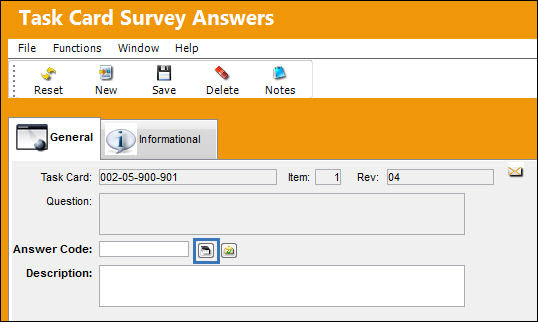
Once an Answer Code for the multiple choice question has been created, select the Answer  button to specify the E/C Control action to be taken when the user selects that answer when answering the survey question.
The system will display the Task Card Survey Schedule Control Window. Use the drop down menu to select an E/C Control action and populate the E/C to be actioned.
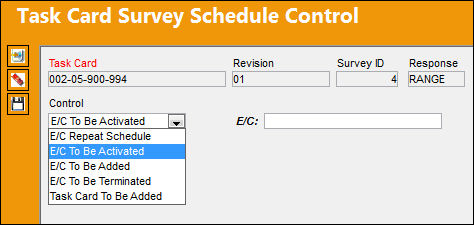
The following information/options are available in this window:
_____________________________________________________________________________________
E/C Repeat Schedule
When selected, the repeat schedule of the E/C can be changed. The E/C compliance parameter fields appear. The E/C repeat schedule parameters can be changed. Once the Survey is answered accordingly for the completed W/O T/C, the E/C's Repeat Schedule will be updated according to the values entered in the Survey.
E/C To Be Activated
Previously Terminated E/Cs can be automatically re-Activated when another E/C is Terminated depending on the setup of the Survey and the Task Card Survey Schedule Control window. For example, based on the response to the Task Card Survey below, E/C: X will be Terminated and E/C: Y will be Activated. Based on the response to the other Task Card Survey below, E/C: Y will be Terminated and E/C: X will be Activated. Now, in the event that E/C: X had previously been Terminated, the system will re-Activate it once E/C: Y is Terminated. The complied date of the Terminated E/C then becomes the Effective Date for the re-Activated E/C.
When Activating an E/C that already has an effective Date, re-Activating the E/C will not change/update the original Effective Date.
E/C To Be Added
Upon providing an Answer within the From To Range, the specified Engineering Control will be added to the Work Order to which the Task Card, along with its Survey, is associated to.
E/C To Be Terminated
The user may choose the Engineering Control to be terminated from the Work Order the Task Card is associated to upon answering the Survey question within the specified Range.
Task Card To Be Added
Upon providing an Answer within the From To Range, the specified Task Card will be added to the Work Order to which the Task Card, along with its Survey, is associated to.
_____________________________________________________________________________________
E/C Repeat Schedule:
When the 'E/C Repeat Schedule' control is selected, the repeat schedule of the E/C can be changed.
From the Task Card Survey window, select the Answer button and the Task Card Survey Schedule Control window appears.
Select 'E/C Repeat Schedule' from the Control drop down options. The E/C compliance parameter fields appear and the E/C repeat schedule parameters can be edited.
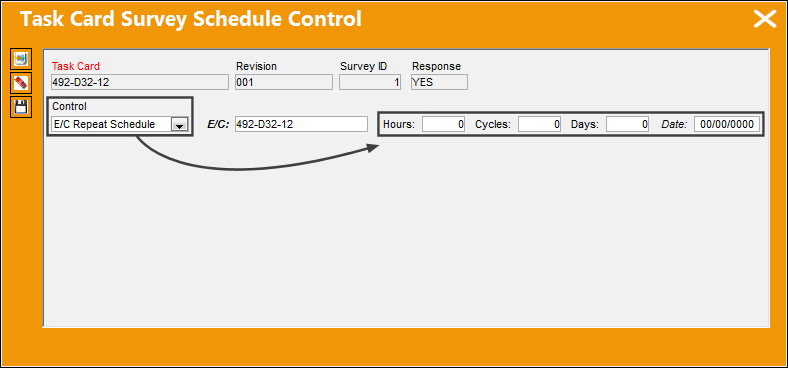
Once the survey is answered, the E/C's Repeat Schedule will be updated according to the values entered in the Task Card Survey Schedule Control parameters.
Activating/Terminating E/Cs:
Previously Terminated E/Cs can be automatically re-Activated when another E/C is Terminated depending on the setup of the Survey and the Task Card Survey Schedule Control window.
For example, based on the response to the Task Card Survey below, E/C: 492-D32-12 will be Terminated and E/C: 49-062-00 will be Activated.
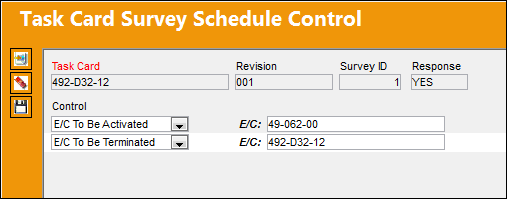
Based on the response to the other Task Card Survey below, E/C: 49-062-00 will be Terminated and E/C: 492-D32-12 will be Activated.
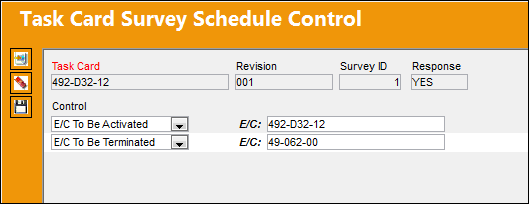
Now, in the event that E/C: 492-D32-12 had previously been Terminated, TRAX will re-Activate it once E/C: 49-062-00 is Terminated.
The complied date of the Terminated E/C then becomes the Effective Date for the re-Activated E/C.
When Activating an E/C that already has an effective Date, re-Activating the E/C will not change/update the original Effective Date.
After a T/C has been linked to a W/O, select the Survey  button. TRAX displays the Work Order Task Card Survey window. Select the Survey button again.
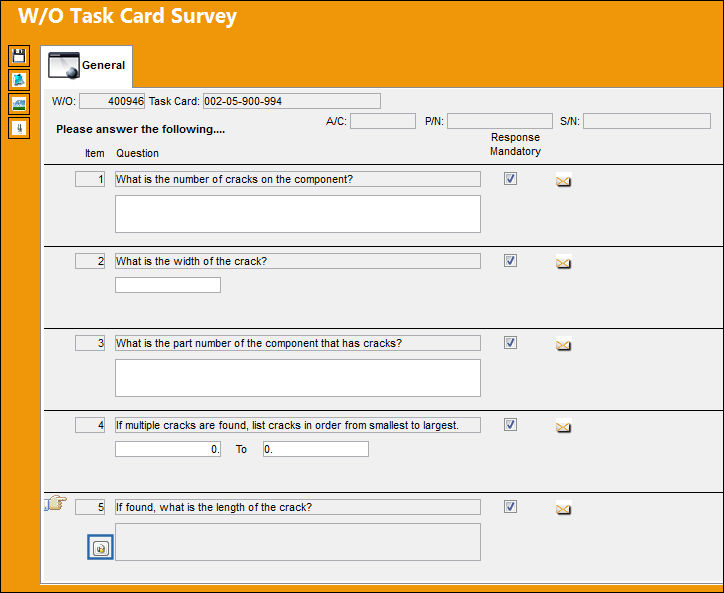
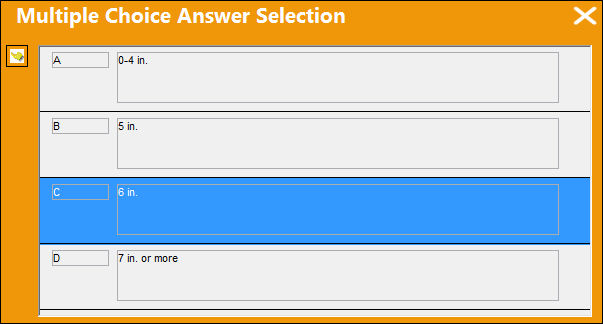
TRAX displays the Multiple Choice Answer Selection window. Select an answer and select the Select  button. In this case, answer C is chosen which will activate an E/C.
The answer is shown in the W/O Task Card Survey Window.
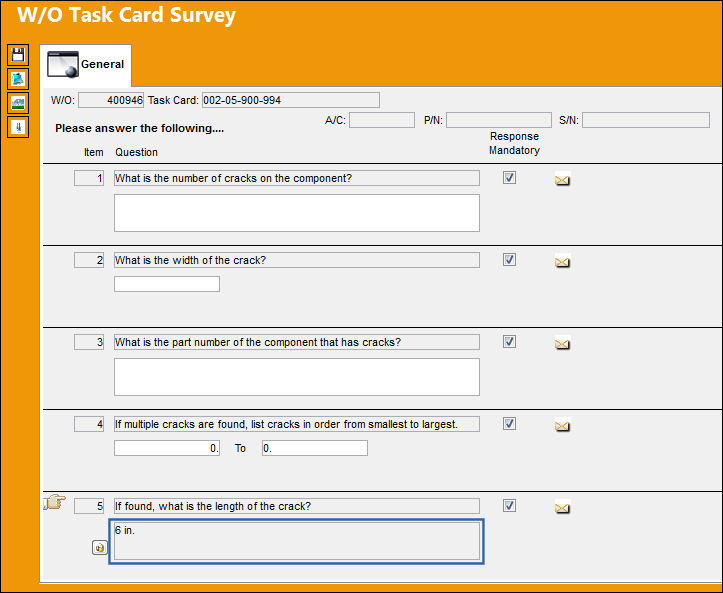
Before closing the W/O Task Card Survey window, be sure to answer all mandatory questions. If mandatory questions are left un-answered, the user will not be allowed to exit the above window.
Share
Print
|
©1997-2026 Trax USA Corp. All rights reserved. This manual may not be copied, photocopied, reproduced, translated, or converted to any electronic or machine-readable form, in whole or in part, without prior written approval from Trax USA Corp. |
 |