 Download Online Help
 Print
|
|
|
|
|


The Inventory Detail, General Tab displays batch information regarding the selected part, as follows:
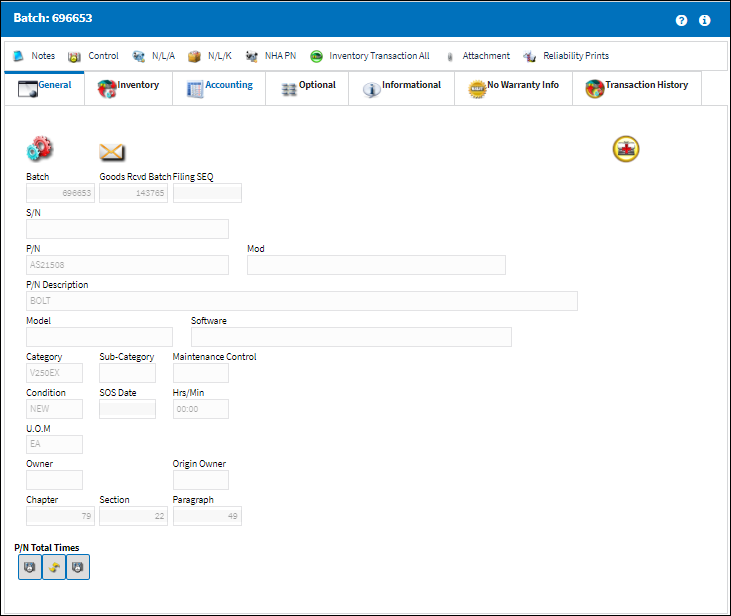
The following options/information is available in this window:
_________________________________________________________________________
Batch
The batch number that is associated with a part when introduced/received into the system.
Goods Rcvd Batch
The original batch number when the part was initially introduced/received into inventory.
Filing SEQ
Filing Sequence number.
S/N
The Serial Number for the specific serialized part.
P/N
The Part Number reference for the aircraft part.
Mod:
Module information.
Model
Model number.
Software
Software information.
Category
The category of the part as defined in Settings/ Explorer/ System Transaction Code Explorer/ Settings/ P/N Category (e.g. Rotable, Consumable, Repairable) and entered for the particular part in the P/N Master.
Sub-Category
The Sub Category for each part.
Maintenance Control
Maintenance Control code (hard time, condition monitored, etc.)
Condition
The condition of the part.
SOS Date
The date the part is designated as SOS, or Save or Spares. This field is only available when the part's SOS eligibility is not overridden.
Hrs/Min
The length of time the part is to be designated SOS. This field is only available when the part's SOS eligibility is not overridden.
UOM
The unit of measure. This will default if associated with a Part Number as defined in the P/N Master. Transactions for parts can be conducted in a different UOM than defined in the P/N Master. However, upon receiving the UOM, conversion will automatically adjust the quantities, providing that the conversion rate is defined in the UOM System Transaction Code (via Setting/Explorer/System Transaction Code).
Owner
The name of the owner of the part, when applicable.
Chapter/Section/Paragraph
The ATA chapter/section/paragraph, as applicable.
P/N Total Times
Total time accrued against a serialized part.
Hours
Number of hours accrued against a serialized part.
Cycles
Number of cycles accrued against a serialized part.
Days
Number of days accrued against a serialized part.
Calendar Days
The number of Calendar Days accrued against a serialized part. This field will only appear if Switch  PNBIRTHDAY is set to Yes. For additional information, refer to Switch PNBIRTHDAY via the Receiving Switches Manual.
Time As Of Date  button
Select this button to add a time to date to this part. For additional information, refer to the Time As Of Date Button, via the Inventory Transaction Detail, General Tab of the Inventory Training Manual.
Reset  button
Select this button to reset any times associated to this part. For more information, refer to the Reset Button, via Inventory Transaction Detail.
Time Break Down  button
Select this button to view a listing of all relevant times for a part. For additional information, refer to the Time Breakdown Button, via the Inventory Transaction Detail, General Tab of the Inventory Training Manual.
_________________________________________________________________________
Download Online Help
Print
|
©1997-2018 Trax USA Corp. All rights reserved. This manual may not be copied, photocopied, reproduced, translated, or converted to any electronic or machine-readable form, in whole or in part, without prior written approval from Trax USA Corp. |
 |