
 Share
Share
 Print
Print
|
|
|
|
|


Select the N/L W/O  button to add a sub Work Order to the currently selected Work Order. The button will allow for the creation of sub Work Orders and link the sub Work Orders to a Parent Work Order. Note that the Parent Work Order cannot be closed until all Sub Work Orders have been completed. The function allows for the capture of all associated costs accumulated at each Work Order on both levels. Costs may include items such as follow-up, Man-hours, skill, work being performed, Cost of items sent to third party, components rotable and expendables used, and in-house repair. When the Work Order is invoiced, it will display Parent Work Order and all sub-Work Order information (cost, labor and material used). To create a new Sub-Work Order, confirm that the Parent Work Order is selected.
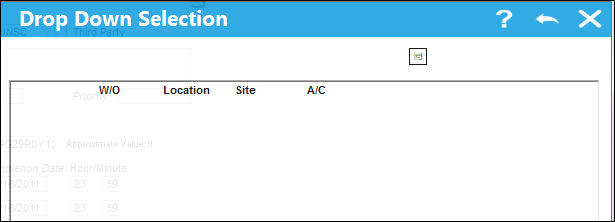
From the W/O window select the select the N/L W/O button. The following Drop Down Selection will appear. If any Sub-work Orders were previously attached to th Parent Work Order, they will appear int the drop down menu. To create a new Sub-Work Order select the New  button.
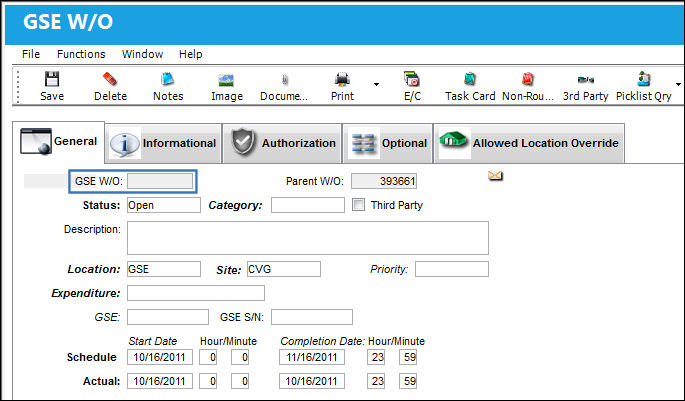
The W/O NLWO-1 window will appear. Notice that the Production W/O field is null. Populate all mandatory and additional fields. Select the Save  button.
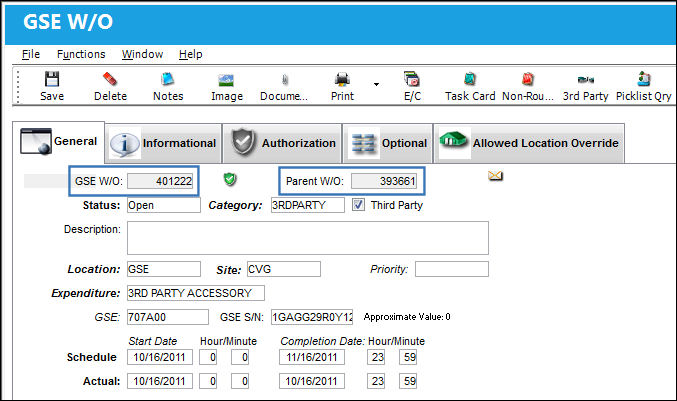
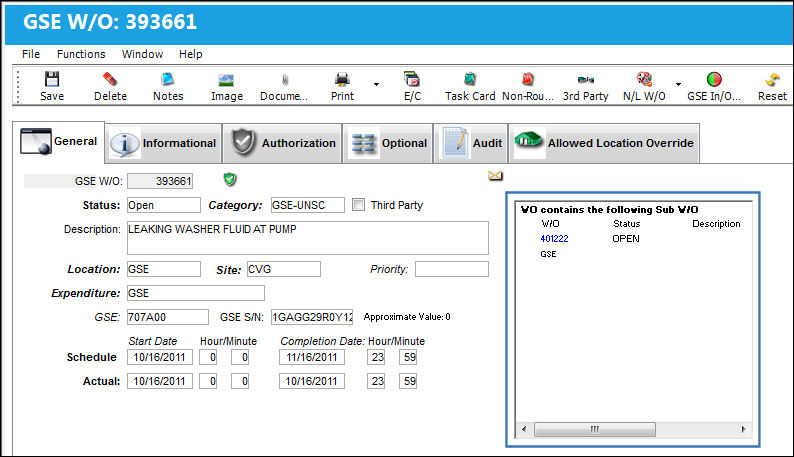
This Work Order is saved as a Sub-Work Order as shown below. The Work Order that contains Sub-Work Orders will indicate as such on the General Tab (WO Contains the following Sub W/O).
Repeat the process as many times as desired to add Sub-Work Orders to Parent Work Orders.
After creating and saving a Sub Work Order, exit to view all Sub Work Orders and their Sub Work Orders. Use the Expand  button and the Collapse
  button to view the N/L W/O Tree View of all Sub Work Order.
Tree View of Sub Work Orders:
Users are able to view a tree view of all Sub Work Orders and their Sub Work Orders.
Share
Print
|
©1997-2026 Trax USA Corp. All rights reserved. This manual may not be copied, photocopied, reproduced, translated, or converted to any electronic or machine-readable form, in whole or in part, without prior written approval from Trax USA Corp. |
 |