
 Share
Share
 Print
Print
|
|
|
|
|


Select the Gantt  button to view a Gantt Chart that presents Work Order and Task Card information in a graphical display. The Work Order information that appears on the W/O Gantt window is a result of any filtering performed on the Work Order header window.
 This button is security controlled via Shop/ Update/ W/O/ Shop WO Sel Gantt Chart. For more information, refer to the Security Explorer, via the System Administration Training manual.
The Gantt button also appears in the Production Work Order window and contains the same functionality for a Production Work Order.
Select the Gantt button to open the Work Order Gantt window.
For this example, the result of the search was one W/O.
All of the Work Orders that were searched for in the W/O header window will appear in the W/O Gantt header window. To the left of the window the Work Order will be listed with various informational fields. To the right the date range of the W/O will be resembled in a calendar graph. The color of the top bar of the W/O in the calendar area is indicative of the W/O Category (in this example the color is green). This color can be adjusted via Settings/Explorer/System Transaction Code/W/O Category.
The duration of the Work Orders are displayed in a graphical format where users can choose to view the Calendar Display by Day, Week or Month.
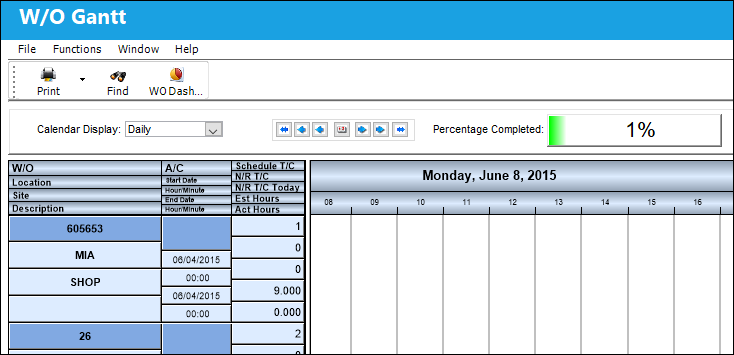
The following options are available for users to customize the chart display:
_____________________________________________________________________________________
Calendar Display drop down
Displays the chart in Days, Weeks or Months. The Day view is zoomed in to an hour by hour format as is the Week view with the hourly format compressed while the Monthly view contains a day by day view. The Day view is set as default.
Users can zoom into and out of the chart by holding the Control button on the computer's keyboard and scrolling up and down with the scroll wheel on the computer's mouse. Along with the Calendar Display options, this can help users adjust their view of the Work Orders.
Day Forward 
Moves the display date forward one day.
Month Forward
Moves the display date forward one month.
Year Forward 
Moves the display date forward one year.
Select Date 
Click to select a specific date to view.
Day Backward 
Moves the display date backward one day.
Month Backward
Moves the display date backward one month.
Year Backward 
Moves the display date backward one year.
_____________________________________________________________________________________
The information for each Work Order in the left area is listed differently than in the other informational fields within TRAX. The field titles are listed above the corresponding information (i.e. The W/O number above is 605653 while the Est. Hours is 9.000).
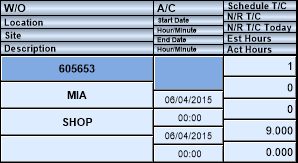
The following information is listed for each Work Order:
_____________________________________________________________________________________
W/O
The Work Order used to categorize, manage, and schedule work requirements for aircraft maintenance.
Location
The Location for maintenance events, inventory stores, orders, transactions, or training events.
Site
The Site where the work is to be carried out (if applicable).
Description
The description of the Work Order.
Start Date, Hour/Minute
The date/time that the work is scheduled to begin. The Start Date does not affect whether the Work Order may be deleted or not. However, if the work has been started, the Work Order may not be deleted.
End Date, Hour/Minute
The date/time that the work is scheduled to be completed.
Schedule T/C
The Task Card / Job Card that details the scheduled maintenance work.
N/R T/C
The Non-Routine Task Card that details non-scheduled maintenance work / findings.
N/R/T/C Today
The number of Non-Routine Task Cards created and attached on the current date.
Est. Hours
The estimated amount of hours needed to complete the Work Order.
Act. Hours
The actual amount of hours worked against the Work Order.
_____________________________________________________________________________________
The Work Order listing on the graphical pane of the window also contains several informational fields that contain work accomplished percentages.
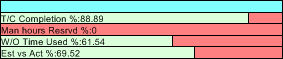
The informational fields provided are as follows:
_____________________________________________________________________________________
W/O Category
Work Order Category code.
T/C Completion %
The total percentage of Task Cards that have been completed against the Work Order.
Man Hours Reserved %
This is the total of reserved man hours (per man) to carry out the work. Formula = Man Hours x Men Required.
W/O Time Used %
The elapsed hours of the time taken to complete the work. (i.e. If a Work Order is scheduled for 6 days and was completed in 36 Man Hours, the W/O Time Used will equal 50%, because it only took 3 days to complete the work.)
Est vs. Act %
The percentage difference between the Estimated Hours and the Actual Hours remaining on the Work Order.
_____________________________________________________________________________________
Aside from the options available on the top of the window, users will have several other options from within the W/O Gantt header window.
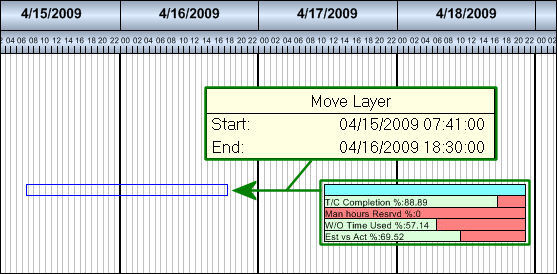
Users can adjust the time settings of Work Orders by selecting the W/O with the cursor then dragging and dropping the W/O on a desired time. The Move Layer hypertext field will pop-up while the Work Order is dragged to notify the user of the modified Start and End times. This alteration will also affect the informational Work Order Duration field to the left of the window.
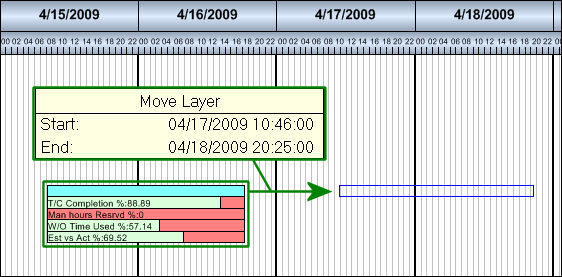
The same functionality can be applied when moving the W/O forward (see above details). To do so, select the W/O and drag it to wherever desired.
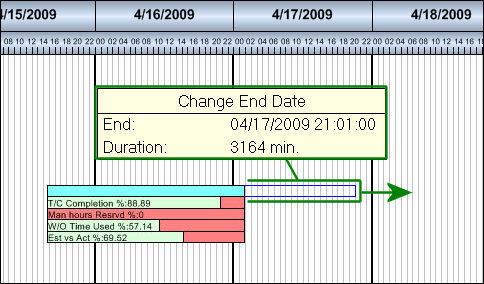
The Duration of the Work Order can also be altered by selecting the right end of the W/O then dragging and dropping it wherever desired. The End time can be added or shortened making the Duration greater or smaller. While altering the End Time, the Change End Date hypertext pop-up will appear to notify the user of the modifications. This alteration will also affect the informational Work Order Duration field to the left of the window.
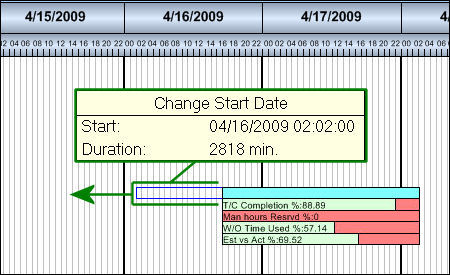
The same functionality can be applied when changing the Start Date (see above details). To do so, select the left end of the W/O and drag it to wherever desired.
Users can see detailed Task Card information for each Work Order by double-clicking the W/O listing. When a Work Order is selected the W/O Gantt detail window will appear.
Within the detail window users will be allowed to view Task Card information through three different tabs. Refer to the following topics for more information:
- Print Button
- Audit Print Button
- WO Dashboard Button
Share
Print
|
©1997-2026 Trax USA Corp. All rights reserved. This manual may not be copied, photocopied, reproduced, translated, or converted to any electronic or machine-readable form, in whole or in part, without prior written approval from Trax USA Corp. |
 |