
 Share
Share
 Print
Print
|
|
|
|
|


The T/C Work  button opens the W/O Task Card window and allows users to view and action the Task Cards associated to the Shop Work Order.
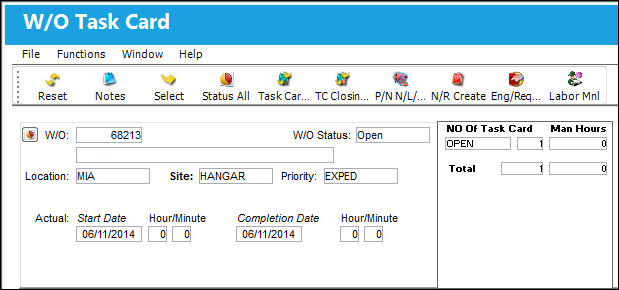
Confirm the desired record is selected and use the Select  button to view/edit the related data.
The status can be changed, or any other data entered as required. Completion notes can be edited or entered by clicking on the Notes button. If the status is changed to Defer, then the system will ask if you require to re-schedule the card, if answered Yes, then you will be presented with another window. If answered No, then the system will only change the status. The Open By, Open On, and the Open Station fields are used for recording the dates at which the appropriately related task was performed.
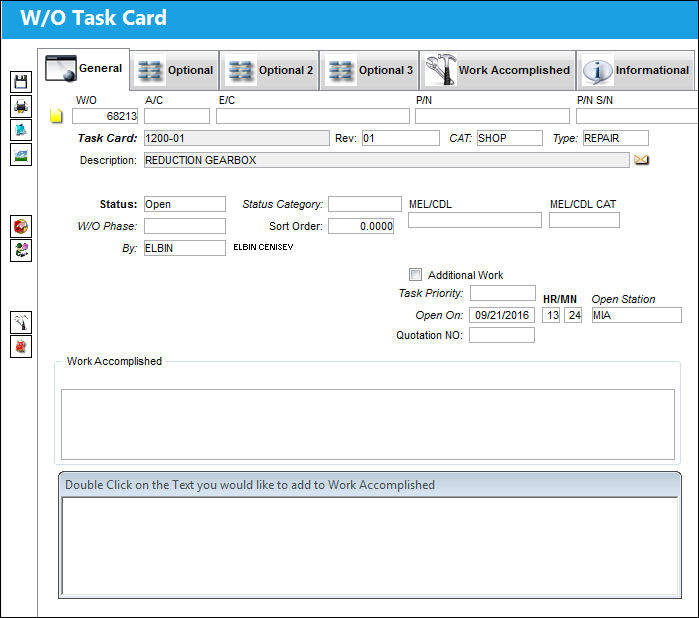
The W/O Task Card window offers additional functionality via the following buttons:
- Notes Button
- Status All Button
- Task Card Closing Button
- TC Closing Detailed Button
- P/N N/L/A Installation and Removal Button
- N/R Create Button
- Engineering/Request Button
- Labor Manual Button
- Close W/O Button
Additional information is available for the utilization of this functionality through the following:
- Shop W/O Task Card (Work) Detail
- Shop W/O Task Card Item Close
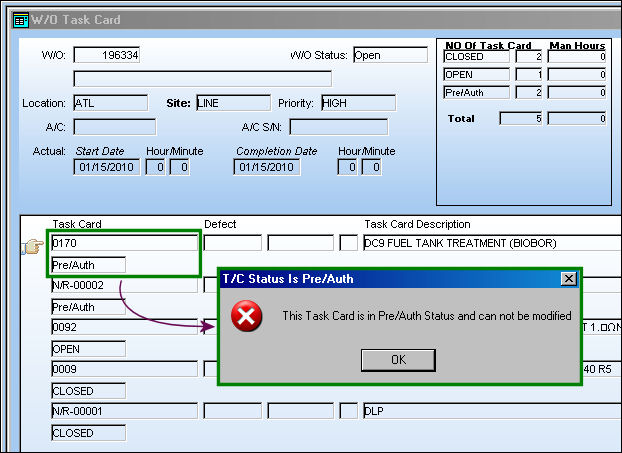
Pre/Auth Status:
Users may not modify Task Cards that are in 'Pre/Auth' status. TRAX will display the following error:
W/O Task Card Status:
When a W/O Task Card with an associated Engineering Control is reset, its W/O Task Card Status cannot be changed.
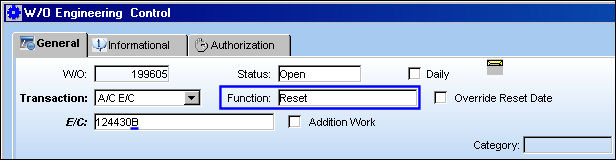
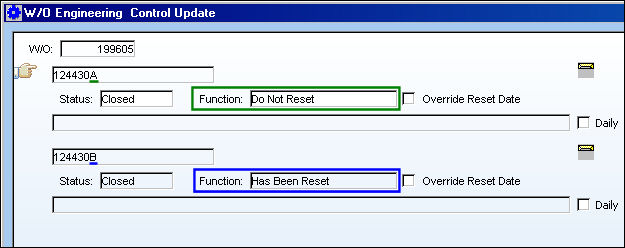
For example, the following two E/C Task Cards are attached to a Work Order. Notice the two different Functions for each.
E/C 'A' is set to 'Do Not Reset.'
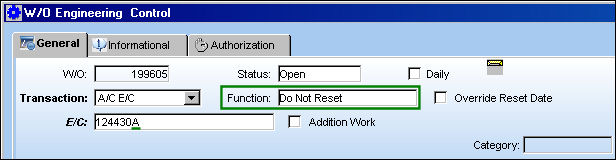
E/C 'B' is set to 'Reset.'
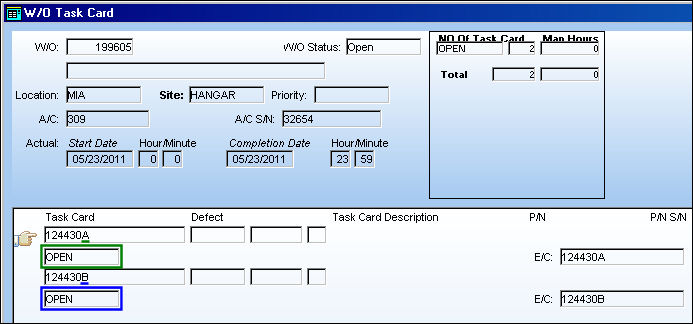
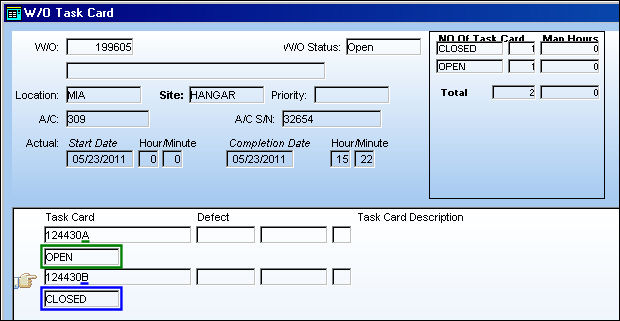
From the W/O Task Card window (via the T/C Work button), notice that both E/C Task Cards have been associated to the Work Order.
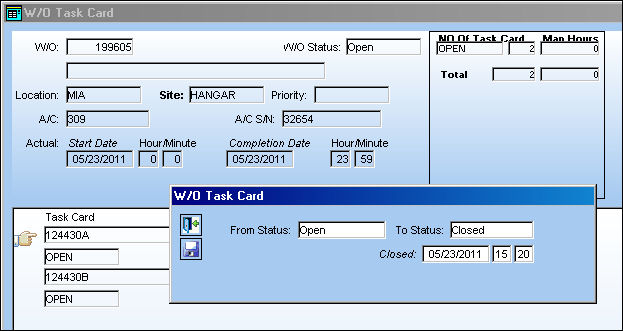
The statuses of the Task Cards are changed from 'Open' to 'Closed' through the Status All  button.
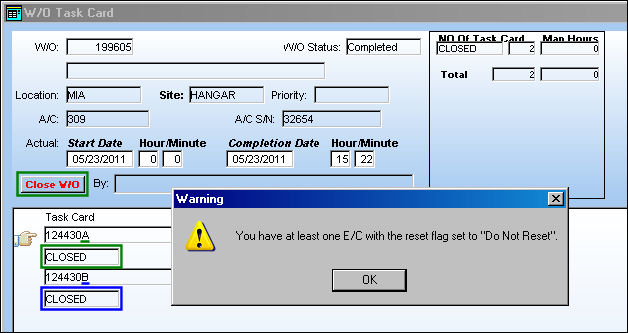
Once the W/O Task Cards are closed, the Work Order is closed by selecting the Close W/O  button. Closing the Work Order will cause the E/Cs to be reset. However, the following warning flag appears indicating that one of the E/Cs will not reset because it is set up not to be reset.
From the W/O Engineering Control Update window (via the Control button of the W/O window), after the W/O Task Cards are been closed, notice that the first E/C has not been reset while the second E/C has been reset.
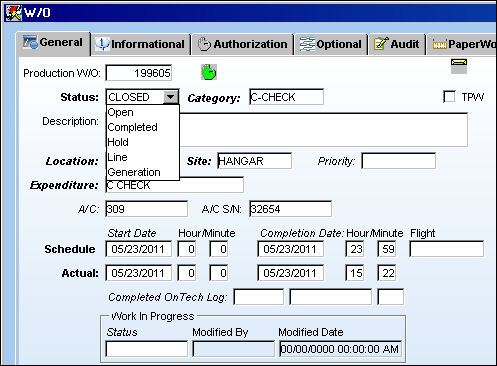
The W/O is then re-opened.
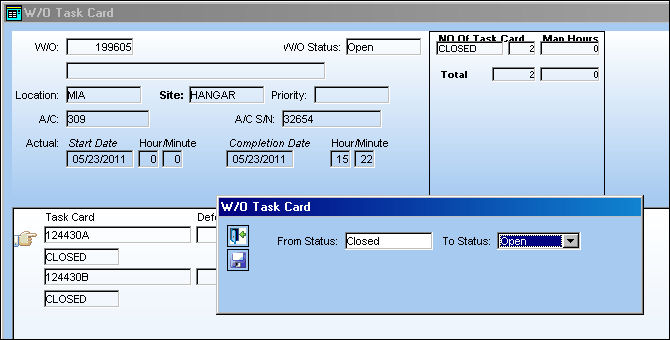
From the W/O Task Card window, the Status All button is used to change the W/O Task Cards from 'Closed' to 'Open.'
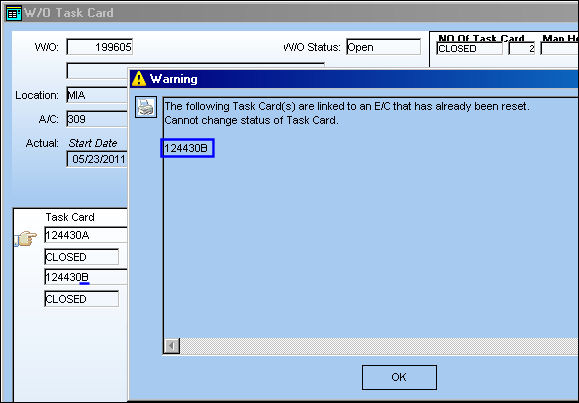
Once the statuses are updated, the following warning message appears indicating that the E/C that has already been reset cannot have its Status changed.
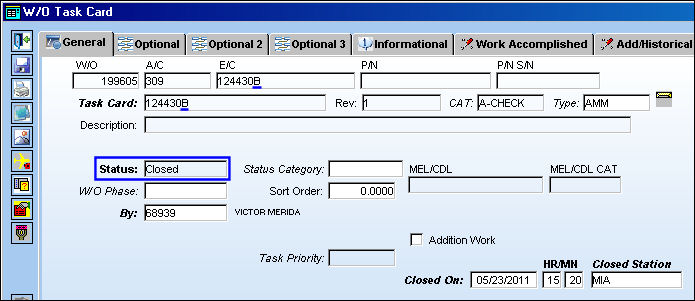
Notice that the E/C that has not been reset has been changed to 'Open,' while the E/C that has been reset remains 'Closed.'
Even when the E/C that has been reset is selected, the Status field is blocked and cannot be edited.
Share
Print
|
©1997-2026 Trax USA Corp. All rights reserved. This manual may not be copied, photocopied, reproduced, translated, or converted to any electronic or machine-readable form, in whole or in part, without prior written approval from Trax USA Corp. |
 |