
 Share
Share
 Print
Print
|
|
|
|
|


From the W/O Task Card window, select into a Task Card to view the W/O Task Card detail window.
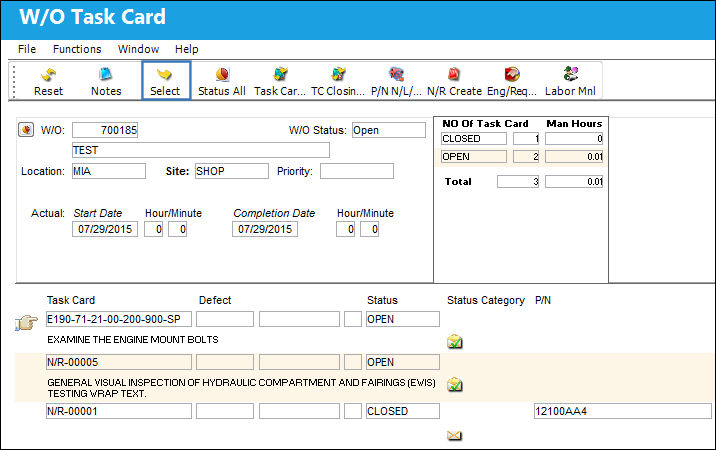
The W/O Task Card window appears, enter the required details.
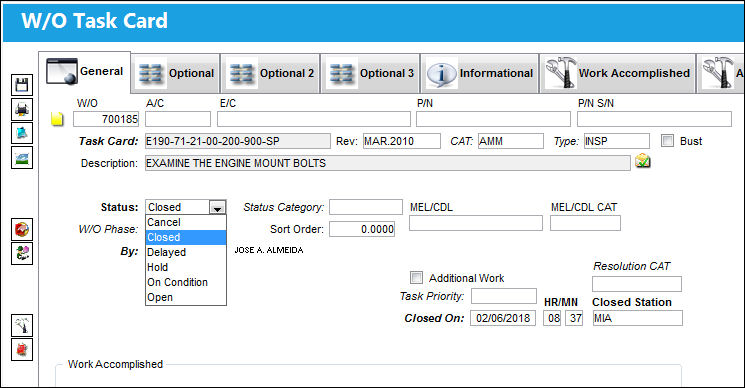
 The 'Delayed' options from the Status drop down for Shop W/O Task Cards is security-controlled via Shop/ Update/ Shop W/O/ Shop W/O Task Card Status Update - Delayed. For more information refer to the Security Explorer.
When Switch  WOTCCMPM is set to Yes, inactive employees cannot close a Task Card. For additional information, see Switch WOTCCMPM, via the Production Switches manual.
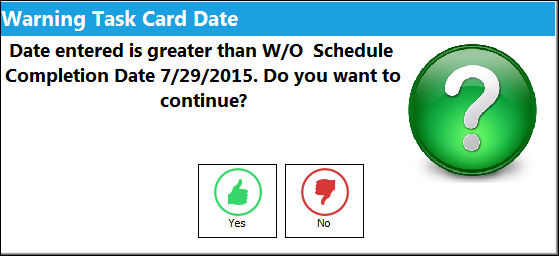
If the Closed On date is greater that the Shop W/O Schedule Completion Date, the following prompt will appear:
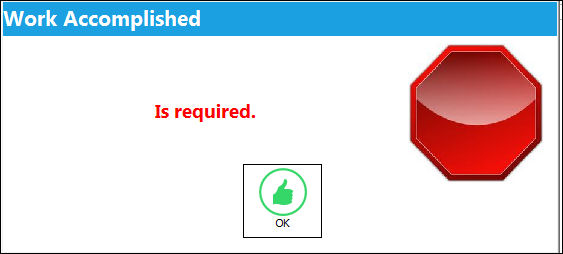
If nothing is entered in the Work Accomplished field, the following warning will appear:
If a survey created for a Task Card was not answered, a warning will appear.
The following buttons are available for additional functionality:
- Print button
- Notes button
- Image button
- Survey button
- W/O Task Card Discrepancy button
- W/O Task Card Manual Labor button
- W/O Equipment Use Charge button
- W/O N/R Creation button
Additional Functionality 1:
When a Task Card that is linked to an E/C is Canceled/Deferred, the following message appears, informing the user that another E/C may be linked to the Task Card and that compliance might be written for that E/C.
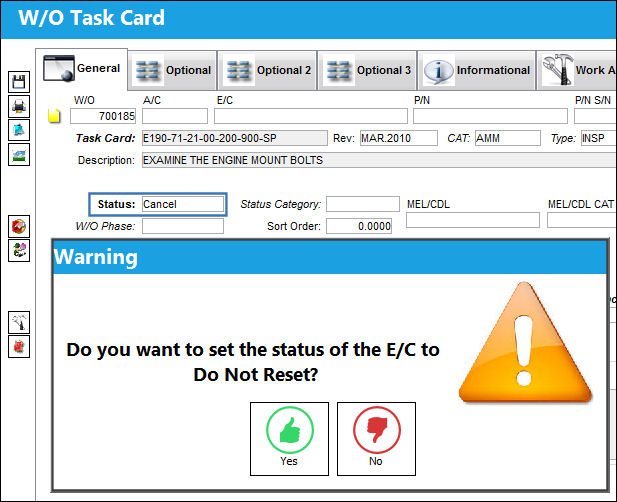
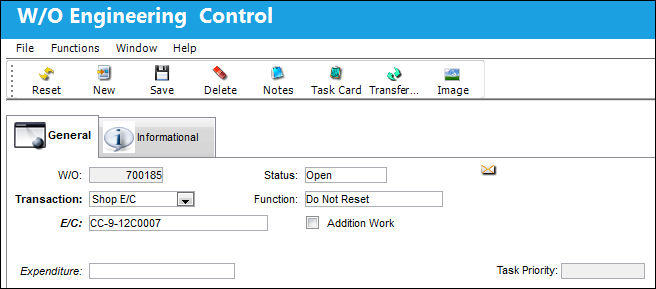
The associated E/C was automatically set to 'Do Not Reset':
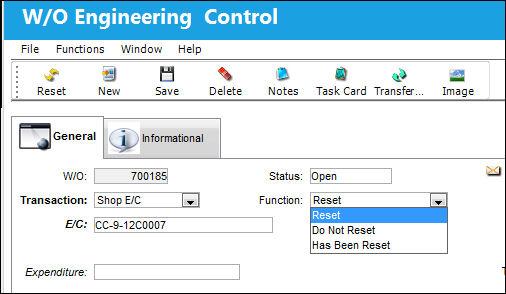
The E/C is set to 'Reset'. It is recommended to change this to 'Do Not Reset' to avoid having the system take compliance on this E/C since it is linked to the above Task Card.
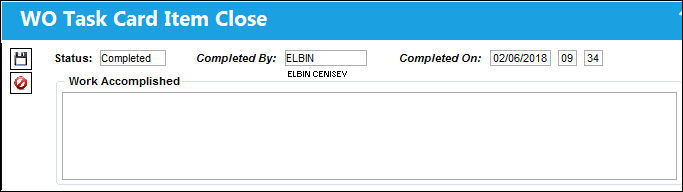
Additional Functionality 2: W/O Task Card Item Close
The Shop Work Order Task Card Item Close window allows users to close a T/C's Items individually before completing the entire T/C. When Production Switch WOTCITEMCL is set to Yes, this pop-up window opens when the Select  button is clicked.
Production Switch WOTCITEMCL must be set to Yes to access the W/O Task Card Item Close window. For more information refer to Switch WOTCITEMCL via the Production Switches Manual.
For example, go to the Shop Work Order window then select the T/C Work  button for the appropriate Shop W/O. Select the Task Card Item that needs to be closed.
The open Task Card must contain at least one open item.
Select the desired item(s) to be closed and populate the Work Accomplished field. Select the Save  button.
The following pop up warning appears. Select 'Yes' to save the changes.
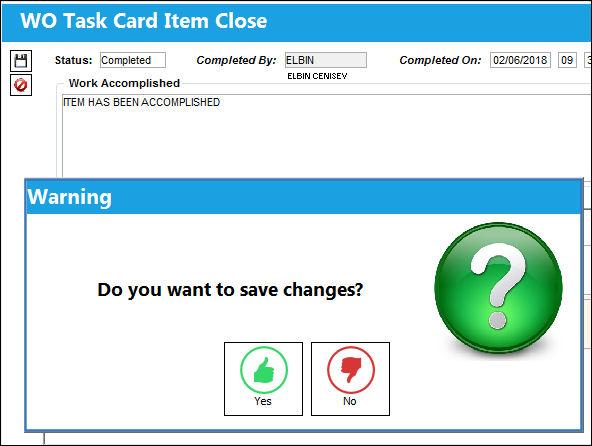
The following information/options are available in this window:
_____________________________________________________________________________________
Status
The current status of the Task Card. The status of the Task Card is helpful in determining the stage the Task Card is at with regard to it's completion. Ultimately, the completion of the Task Cards will result in the closing of the Work Order.
Cancel - The Cancel status is used if the Task Card must remain in the system but is not to be used. The system will not automatically Cancel Task Cards under any circumstances. If the user would like the Task Card to be completely removed from the system, the Task Card must be deleted using the Delete  button (Engineering/Update/Task Card). The Cancel status will not prevent the Work Order from being closed, but the Work Order will have to be closed manually if any associated Task Cards hold the Cancel status.
Security has been added to the Cancel status.
Completed - The Task Card has been completed. Once all associated Task Cards are closed, the Work Order will automatically change to Complete. To change the status of the Task Card to Open after the Work Order has been closed, you must change the Completion date of the Work Order to the date the Task Card is being re-opened or change the Scheduled Start date (on this window) to the completion date of the Work Order.
Open - The Task Card is in 'Open' status. This is the most common status of a Task Card.
Completed By
The name of the user who has competed the Task Card item.
Completed On
The date and time the item was completed.
Work Accomplished
The actual work that was accomplished against the W/O Task Card / Non-Routine Task Card.
Cancel All  button
Select this button to cancel all Items. Canceling all Items will close the Task Card.
 This button is security enabled via Production/ Update/ W/O/ W/O Task Card Item Close - Cancel All. For more information refer to the Security Explorer via the System Administration Training Module.
_____________________________________________________________________________________
The system displays the Shop W/O Task Card window because all items within the Task Card have been accomplished. Populate all mandatory and desired fields and save the record.
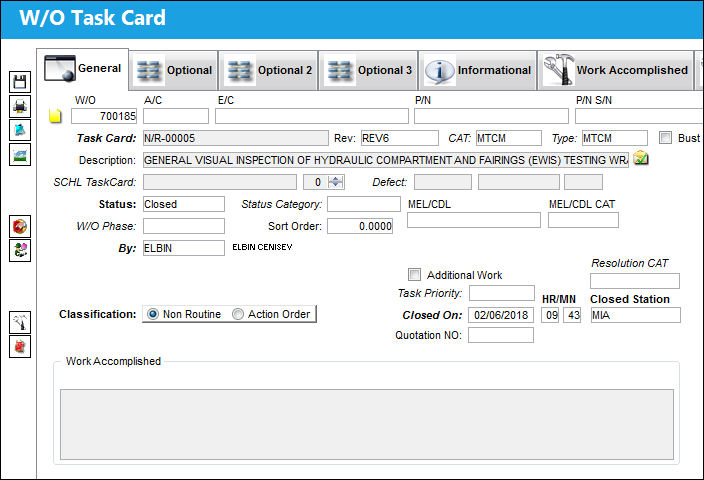
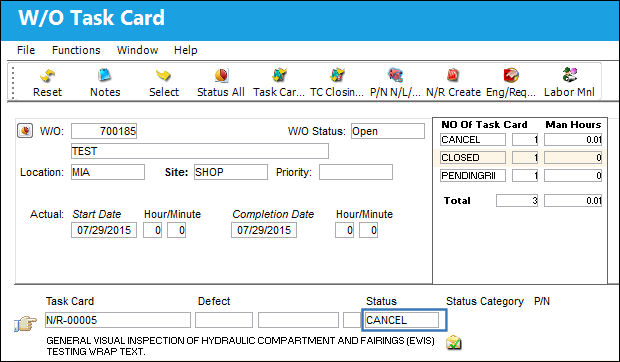
The Task Card is now closed as shown below:
Share
Print
|
©1997-2026 Trax USA Corp. All rights reserved. This manual may not be copied, photocopied, reproduced, translated, or converted to any electronic or machine-readable form, in whole or in part, without prior written approval from Trax USA Corp. |
 |