
 Share
Share
 Print
Print
|
|
|
|
|


The Shop W/O Non-Routine Task Card, General Tab allows users to attach Non-Routine Task Cards to a Shop Work Order. This window is accessed from the Shop Work Order Detail window via the Non-Routine Task Card  button.
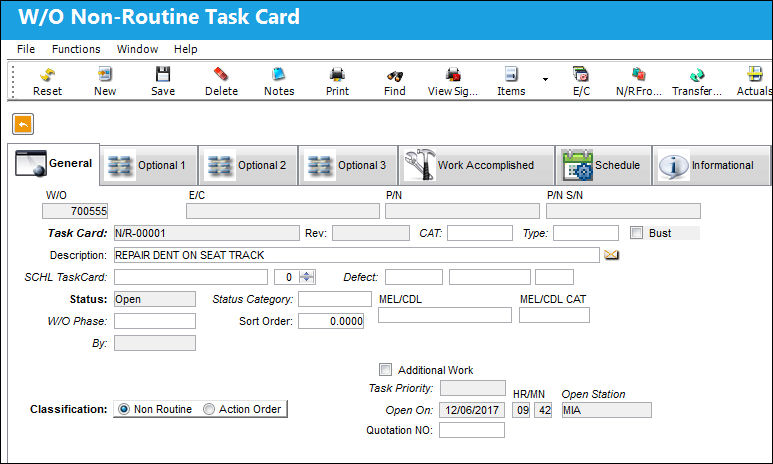
The following information/options are available in this window:
_____________________________________________________________________________________
Paper Copy Required  button
This button indicates that information related to this Work Order Task Card / Non-Routine Task Card has been printed and must be processed. For additional information, refer to the Task Card, Optional 2 Tab via the Task Card section of the Engineering - T/C Training Manual.
W/O
The Work Order used to categorize, manage, and schedule work requirements for aircraft maintenance.
A/C
The individual aircraft tail number.
E/C
The Engineering Control that specifies aircraft or component scheduled maintenance intervals.
P/N
The Part Number reference for the aircraft part.
P/N S/N
The Serial Number for the specific serialized part.
Material Necessary
Choose whether any material is necessary to complete the Task Card (Yes/ No). This is informational only.
Allow Edit Non Routine Data  button
Select this button to open the fields in the Non-Routine Task Card to allow for edit.
Task Card
The Non-Routine Task Card that details non-scheduled maintenance work / findings.
Revision
The Task Card's most recent authorized revision number.
CAT
The Task Card's Category, as defined in Task Card Category transaction code via the Engineering Transaction Codes. Task Card Authorization Steps are defined in System Transaction Codes by Task Card Category.
Type
The Task Card Type, as defined in the Transaction Code. This code can be used to sort and locate Task Cards.
Description
Brief text describing the Non-Routine Task Card.
Corrosion/Damage & Repair  button
This button allows the user to view the Corrosion Damage and Repair window. This window deals with the aircraft's Corrosion/Damage & Repair which is part of the maintenance program, especially in cases of aging aircraft.
 This button is available upon selecting the Dent, Corrosion, Airframe Crack, or Other radio button in the Shop W/O Non-Routine Task Card, Optional 1 tab. For additional information, refer to the Corrosion/Damage & Repair Button, via the Defect Report Detail, General Tab, via Defect Report of the Technical Records Training Manual.
SCHL Task Card
Allows for associating a scheduled or non-scheduled Task Card created via Engineering/ Update/ Task Card and associate it to the Non-Routine Task Card. This can also be used to specify a Task Card that triggered the Non-Routine Task Card.
This field is no longer mandatory when creating Non-Routine Task Cards for Third Party Shop Work Orders.
Either the SCHL Task Card or the Defect field is mandatory with Switch  WONRSCHDEF set to Yes.
Defect
The Defect Report associated with the Non-Routine Task Card. Once the defect associated to the Non-Routine Task Card has been completed, the Non-Routine Task Card will be closed and the Work Order will be completed.
This field is no longer mandatory when creating Non-Routine Task Cards for Third Party Shop Work Orders.
Either the SCHL Task Card or the Defect field is mandatory with Switch WONRSCHDEF set to Yes.
Defect  button
Select the Defect button to create a new defect to link to the Non-Routine Task Card. The Defer Task Card Transfer To Defect Reports window will appear allowing the user to create a new defect from the W/O Non-Routine Task Card window.
Allow Edit Data button
Select this button to be able to edit the status of the Task Card.
Status
The current status of the Non-Routine Task Card. The status of the N/R Task Card is helpful in determining the stage the Task Card is at with regard to it's completion. Ultimately, the completion of the Task Cards will result in the closing of the Shop Work Order.
Status Category
The sub-status of the card (hold/defer reason).
Work Order Phase
The particular phase of the work flow that this particular card pertains to.
Sort Order
The sort order (printing sequence) of this Task Card / Non-Routine.
Schedule Start Date/Time
The scheduled start date and time.
By
The employee who worked on the Non Routine Task Card and therefore triggered one of the following status':
- Open
- Cancel
- Closed
- Defer
- Delayed
- Hold
- On Condition
- WONRPROD - When set to Yes, the Open On, Hour/Minute, By, and Open Station fields become mandatory in the in the Shop Work Order Non Routine Task Card Window in the Productions module when the user tries to save a Shop Work Order Non Routine Task Card. When set to No, the Open On, Hour/Minute, and Open Station fields in Shop Work Order Non Routine Task Card are no longer mandatory.
Even if the By field is greyed out, even if the Non Routine Task Card has been printed, the user can update the By field by adjusting the status of the Non Routine Task Card in the Shop W/O Task Card window. The employee who last worked on the Non Routine Task Card, or modified it will be reflected/updated in the Shop W/O Non Routine Task Card, General tab. For additional information, refer to the Task Card Work Button, via the Shop Work Order Buttons of the Shop Training Manual.
Addition Work checkbox
This informational checkbox is selected when the invoiced Task Card (Routine or Non-Routine) was designated as additional work. For this to appear, the Task Card must have the Additional Work checkbox selected. For more information refer to the Shop W/O Task Card, Optional 2 Tab via the Task Card Button of the Production Training Manual.
Cador
Civil Aviation Discrepancy Occurrence Report. This is a number that is generated by Transport Canada and assigned to track IRs (Incident Reports) and SDRs (Service Difficulty Reports) that are reported.
Warranty checkbox
This is checked if the Work Order is associated with a warranty condition. This is informational only.
Damage checkbox
This is checked if the Work Order is associated with a damaged condition. This is informational only.
Open On
The date that the Non-Routine Task Card was opened.
Time
The scheduled start time.
Scheduled End Date/Time
The scheduled end date and time.
Task Priority
The priority level of the Task Card.
Classification (Non-Routine or Action Order)
Choose from Non-Routine or Action Order classification. The Action Order selection was created for a Trax customer requesting custom programming.
Open Station
The station opening the Non-Routine Task Card.
Quotation NO 
The Quotation Number for the Non-Routine Task Card. This information is entered manually and is informational only.
Due At A/C Hours
The Aircraft Hours that the item is due at.
Due At A/C Cycles
The Aircraft Cycles that the item is due at.
Due Date
The calculated due date of the item (rounded to the nearest date).
_____________________________________________________________________________________
Share
Print
|
©1997-2026 Trax USA Corp. All rights reserved. This manual may not be copied, photocopied, reproduced, translated, or converted to any electronic or machine-readable form, in whole or in part, without prior written approval from Trax USA Corp. |
 |