
 Share
Share
 Print
Print
|
|
|
|
|


The Engineering Control  button allows users to link one or multiple E/Cs to a Shop Work Order.
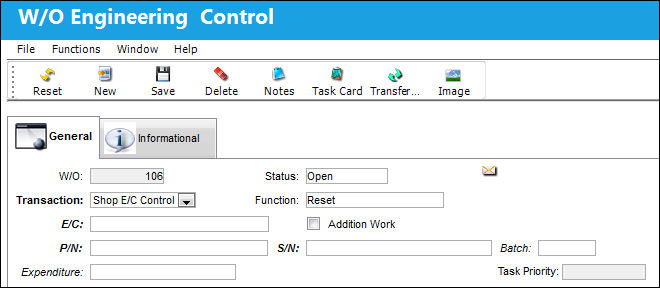
The following information/options are available in this window:
_____________________________________________________________________________________
W/O
The Work Order used to categorize, manage, and schedule work requirements for aircraft maintenance.This field is auto-populated and cannot be edited.
Status
The status of the E/C.
- Open
- Closed
Transaction drop down
The type of maintenance Schedule Control that is added to the Shop Work Order (A/C EC, P/N Control, P/N E/C).
When the P/N Control transaction type is selected, the following three fields appear:

When the P/N E/C transaction type is selected, the following field appears:

For the P/N E/C to be called via a P/N Control onto a work package, the P/N S/N must have effectivity at the P/N E/C level. For additional information, refer to the P/N Control Button, via the P/N Master of the Settings Training Manual.
Function drop down
This field defines how the Control's times will be treated once its requirements are met. The Function drop down has three selections, including Reset, Do Not Reset, and Has Been Reset.
Reset - Reset the time controls to zero.
Do Not Reset - Do not reset the time controls to zero.
Has Been Reset - The time control has already been reset to zero.
The only change that could be made at this stage is to change the Function from 'Reset' to 'Do Not Reset.'
From the T/C Work  button window, when a Task Card Status that is 'Cancel' or 'Defer' is changed to 'Open' or 'Closed,' the attached Engineering Control will be set to 'Reset.' For more information refer to the Task Card Work Button window.
When a Shop W/O Task Card with an associated Engineering Control is reset, its Shop W/O Task Card Status cannot be changed. For detailed information refer to the Task Card Work Button, via Shop Work Order Buttons in the Shop Training Manual.
Override Reset Date checkbox
Select this checkbox to indicate that the E/Cs Reset Date has been overridden.
Reset Date/Time
Enter the Reset Date and Time the E/C was overridden.
E/C
The Engineering Control that specifies aircraft or component scheduled maintenance intervals.
Additional Work checkbox
This informational checkbox is selected when the invoiced Task Card (Routine or Non-Routine) was designated as additional work. For this to appear, the Task Card must have the Additional Work checkbox selected.
P/N
The Part Number reference for the aircraft part.
S/N
The Serial Number for the specific serialized part.
Category
The category of this E/C.
Parent E/C
The Parent E/C associated with the E/C.
Not all E/Cs have Parent E/Cs.
Task Priority
The Priority level of the E/C.
Hierarchical View button 
Select the Hierarchical View button to view all E/Cs and P/Ns related to the Work Order. P/N E/Cs are indicated by a green  icon while GSE E/Cs contain a blue
  icon.
icon.
_____________________________________________________________________________________
The following is available for additional functionality:
Share
Print
|
©1997-2026 Trax USA Corp. All rights reserved. This manual may not be copied, photocopied, reproduced, translated, or converted to any electronic or machine-readable form, in whole or in part, without prior written approval from Trax USA Corp. |
 |