
 Share
Share
 Print
Print
|
|
|
|
|


Shop W/O Addbill, General Tab
The Shop W/O Addbill, General tab is used to query for Shop W/O Addbills based on the following search criteria. Enter any of the below search criteria to query for a desired W/O Addbill and select the Find  button.
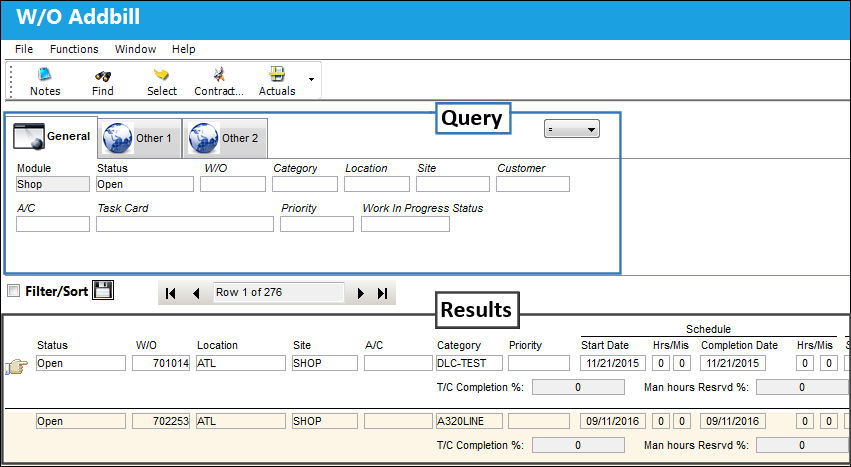
The following information/options are available in this window:
_____________________________________________________________________________________
Logic drop down 
Select one of the following logic functions to filter for data:
<= Less than or equal to.
<> Not equal to.
= Equal to.
>= Greater than or equal to.
Like Show data like or similar to.
Module
The current module the user is in.
Status drop down
The current status of the Shop Work Order. The following options are available:
Closed - Work Order is closed, no updates allowed. The Closed status indicates that the W/O Actuals are finalized and the financials are closed. Unused materials cannot be returned to stock to credit the W/O.
When Production Switch  PCWOFBR is set to Yes, a W/O's status cannot be changed from Closed to any other status, even if the user has security access to 'W/O Re-Open' (above). When set to No, a W/O can be changed from Closed status (as long as they have the above security access to 'W/O Re-Open'). For detailed information refer to Switch PCWOFBR via the Production Switches Manual.
 The Work Order can be re-opened with security access. This field is security-controlled via Production/ Update/ W/O/ W/O Re-Open. For more information refer to the Security Explorer via the System Administration Training Manual.
Open - The Work Order has been created and authorized (if applicable). The W/O is available for users to action tasks, track man hours, and issue parts while accomplishing tasks attached to the W/O.
If a part is issued to a W/O and later returned to stock (RTS) while the W/O is Open, the system will force the user to RTS Credit W/O, which may not be the desired transaction.
Completed - Once all Task Cards attached to the W/O are actioned (closed, deferred, canceled) the W/O status automatically changes from Open to Completed. At this point the W/O is completed but not closed, updates are allowed.
Hold - Work Order is on Hold, no updates allowed, but not closed.
Line - Work Order is for Line Maintenance Issues only (items returned will not require Credit Work Order). Because it is necessary for material to be issued to a Work Order on the system, some companies prefer to use specific Work Order's for this purpose. A Work Order could be created for every aircraft turn around but this may cause an unacceptable administrative burden. For the purposes of creating W/O's with material requirements, it is possible to select the Line status rather than Open status (when creating the new Work Order). The Line status will allow rotable parts to be issued to the Work Order and later returned U/S (if removed at a later time). For additional information, please refer to the Work Order closing section regarding closing Line Work Orders.
Generation - Work Order is in the process of being created and tasks are being attached. No technician or Mechanic will be able to log on to a Task Card until the status is changed to Open.
Planners create Work Order's with the status Generation. Upon completing the Work Order package, the planner should change the status to Open.
Post Completed - When the Post Completed status is set, compliance records are written for E/Cs, P/N E/Cs, P/N Controls, and defects, their repeat schedules reset, and unused material can be returned to stock (RTS) to credit the W/O. This status takes place before the W/O is officially closed.
- WOPOSTCM - W/O Post Complete Status - When set to Yes, the Close Material checkbox will not appear when closing the W/O. Upon save, the status of the Work Order will go from COMPLETED to POSTCOMPLT. When all unused materials have been returned to stock, go to W/O Closing Post Completion option to change status from POSTCOMPLT to CLOSED. When set to No, the Close Material checkbox will appear at Work Order Closing and be checked at default. Upon save, the system will update the status of the Work Order from COMPLETED to CLOSED.
 Parts that were issued to the Work Order can be returned to stock even after the W/O is in Closed status. For more information refer to the Batch in Inventory Audit (via the Return to Stock button) in the Inventory Training Manual.
 Note: In Version 15, switch WOPOSTCM must be set to Yes because the No setting is no longer supported. Work Order Statuses will only go from 'Completed' to 'Post Completed', and not from 'Completed' directly to 'Closed'.
W/O
The Work Order used to categorize, manage, and schedule work requirements for aircraft maintenance.
 It is important to set Customer Orders Switch 'CUST/ORD' at a much higher configuration number than the configuration number of Production Switch 'WOSEQ' to avoid Sales Orders and Work Orders from ever having the same order number. This will prevent inventoried parts from being misallocated.
Category
Work Order Category code.
In the Interactive Planner, the W/O Category can allow for graphical color assignment by category.
Location
The Location for maintenance events, inventory stores, orders, transactions, or training events.
Site
The Site where the work is to be carried out (if applicable).
Customer
The customer for whom the Work Order was created.
This field is also available in the Shop Work Order, Other 1 tab. If the Customer field is populated in the Shop Work Order, General tab, the system will not allow the user to utilize this field in the Shop Work Order, Other 1 tab.
A/C
The individual aircraft tail number.
Task Card
The Task Card / Job Card that details the scheduled maintenance work. Users can search for all Shop Work Orders linked to a particular Task Card.
Priority
The priority of the Work Order (e.g., Urgent).
Work In Progress Status
Select a System Transaction Code to query by. This field is informational only and used for the purpose of querying for specific Work Orders.
_____________________________________________________________________________________
Results:
_____________________________________________________________________________________
Status
The status of the Work Order.
W/O
The Work Order used to categorize, manage, and schedule work requirements for aircraft maintenance.
Description
The description of the Work Order.
Location
The Location for maintenance events, inventory stores, orders, transactions, or training events.
Site
The Site where the work is to be carried out (if applicable).
A/C
The individual aircraft tail number.
Customer P.O.
For Third Party purchase, if purchase is on behalf of a customer the PO number may be entered here. Additional Use - if a Sales Order is generated in the system for the service requirement, it may cross reference here as well. This is to be defined by the company procedures. This does not invoice or charge the customer for any service provided. It is only used as a reference number. Users can search for this field through the Shop Work Order, Other 2 tab.
Customer
The customer for whom the Work Order was created.
Category
Work Order Category code.
In the Interactive Planner, the W/O Category can allow for graphical color assignment by category.
Schedule T/C
The Task Card / Job Card that details the scheduled maintenance work.
N/R T/C
The Non-Routine Task Card that details non-scheduled maintenance work / findings.
N/R T/C Today
The number of Non-Routine Task Cards created and attached on the current date.
Part Reservation Status Indicator  icon
icon
The display of the Reservation Status Indicator  button allows planners to see when a part(s) has been reserved (all/partial/none).
Part Reservation Status Indicator icon - Indicates that a part that is required to complete the W/O has not yet been reserved.
Part Reservation Status Indicator  icon - Indicates that all part requirements for the W/O have been reserved.
Part Reservation Status Indicator  icon - Indicates that the part requirements for the W/O have only partially been reserved.
Part Reservation Status Indicator  icon - Indicates that more material was added to the W/O after the previous requirements had been reserved.
Schedule Start Date
The date/time that the work is scheduled to begin. The Start Date does not affect whether the Work Order may be deleted or not. However, if the work has been started, the Work Order may not be deleted.
Completion Date
The date/time that the work is scheduled to be completed.
T/C Completion %
The total percentage of Task Cards that have been completed against the Work Order.
Man Hours Reserved %
This is the total of reserved man hours (per man) to carry out the work. Formula = Man Hours x Men Required.
W/O Time Used %
The elapsed hours of the time taken to complete the work. (i.e. If a Work Order is scheduled for 6 days and was completed in 36 Man Hours, the W/O Time Used will equal 50%, because it only took 3 days to complete the work.)
TAT
Turn Around Time for the contract. This field is only applicable for Third Party W/Os and is assigned through the associated Production Customer Contract.
TAT Date
The Time After Turnaround Date. This field is only applicable for Third Party W/Os and is assigned through the associated Production Customer Contract.
Invoiced  icon
icon
This icon informs the user that the Third Party Work Order has been invoiced. The Shop Work Order must be in 'Closed' status for this icon to appear.
_____________________________________________________________________________________
Select the Shop Work Order to enter additional billing data for and click the Select  button.
The following window will appear:
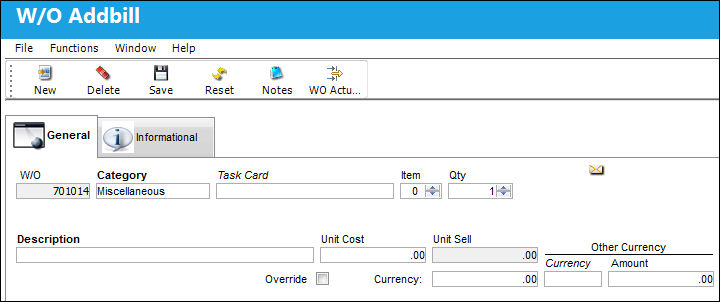
If an addbill is for a part, and the cost needs to be changed from the normal Sell cost, the OVR (Override) flag must be selected on.
These Addbill costs will show on an invoice if the Work Order is for a Third Party.
Auto Populate Unit Sell in W/O Addbill:
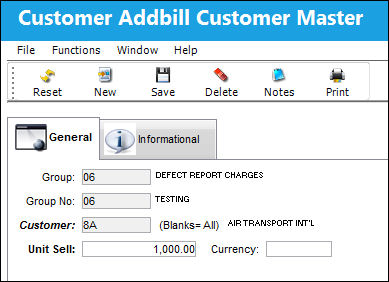
When the Group and Group Number fields are populated and the W/O Addbill window Save  button is selected, the Unit Sell field is automatically populated by the Group Number's Unit Sell amount.
For example, notice the following Unit Sell amount (1,000.00) for the Group and Group Number via the Customer Addbill Customer Master window.
From the Work Order Addbill detail window, the same Group and Group Number have been entered.
Once the the Save button is selected, the Unit Sell amount is automatically populated (1,000.00).
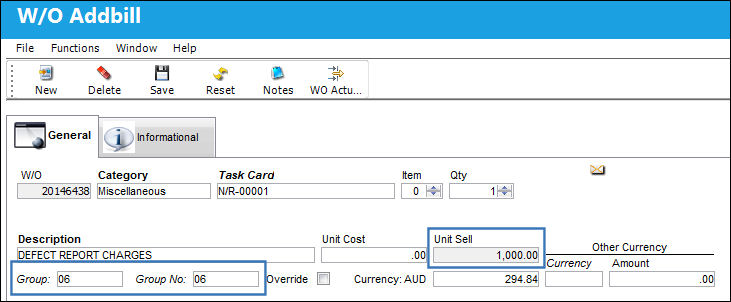
The Unit Sell amount can be changed to a number greater than '0' after the window is saved. If the Unit Sell is changed to '0', the original price will be reverted.
For more information refer to the Group Number Button, Via Customer Addbill Master Buttons of the Production Training Manual.
Share
Print
|
©1997-2026 Trax USA Corp. All rights reserved. This manual may not be copied, photocopied, reproduced, translated, or converted to any electronic or machine-readable form, in whole or in part, without prior written approval from Trax USA Corp. |
 |