 Download Online Help
 Print
|
|
|
|
|


The Security window is accessed by selecting the New User  button or the Update User
 button in the Security Explorer. Whether creating a new username or updating an existing user's profile, administrators are sent to the Security window. From this window administrators can manage all pertinent information regarding a user's security, passwords, log-on specifics, etc. For detailed information on the Security window refer to the Security, General Tab.
New User Option:
The New User button allows administrators to create new users within the system. It is a mandatory requirement to have at least one employee entered on the system. See the Settings manual/ Employee section for information on how to set up an employee. The window also allows administrators to create group profiles. A group profile allows administrators to create one set of security settings and then have other users adopt the security from that group profile.
Note: Most of the options available in the New User button are also available from the Update User button. For detailed information on all of these fields refer to the Update User Button (Security Explorer) via the System Training Manual.
To create a new user, go to the Security Explorer and click into any username. Select the New User button.
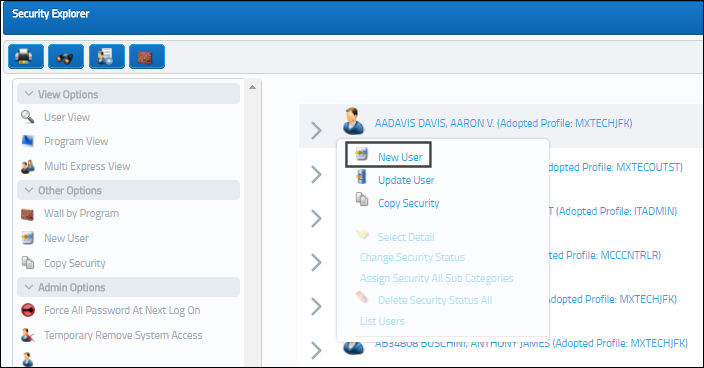
The New User option can also be accessed by selecting the New User button to the left of the Security Explorer window. Once selected, the Security window appears as follows. Notice that the User field and all other fields are blank. The new user information must be added here.
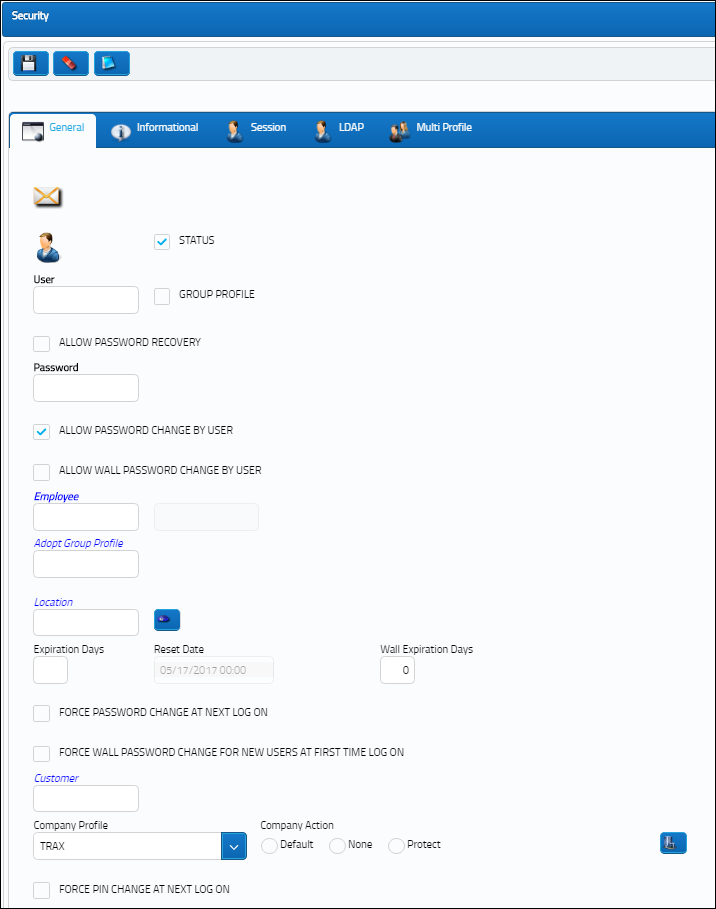
For more information refer to the Security, General Tab.
Update User Option:
To update an existing user, administrators must select the specific user. Click into their username and select the Update User button.
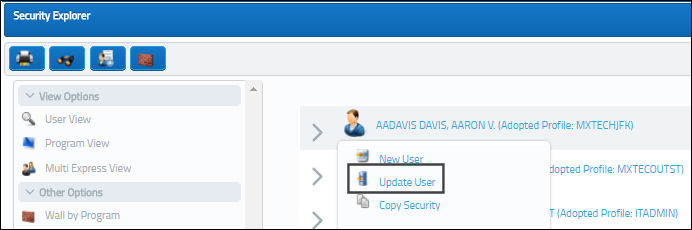
The Security window appears as follows displaying all of the selected user's information.
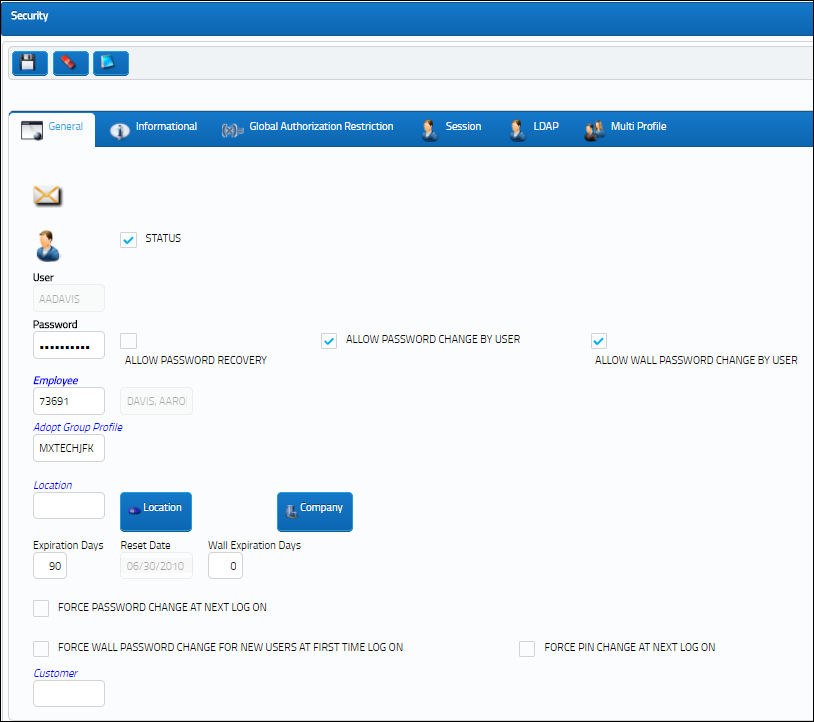
For more information refer to the Security, General Tab.
Download Online Help
Print
|
©1997-2018 Trax USA Corp. All rights reserved. This manual may not be copied, photocopied, reproduced, translated, or converted to any electronic or machine-readable form, in whole or in part, without prior written approval from Trax USA Corp. |
 |