 Download Online Help
 Print
|
|
|
|
|


Multi Company Examples: Material Movement
All companies utilizing the shared system can purchase, organize, and utilize their own company's parts from the same database.
- In Inventory Transaction, each part is linked to the company that placed the order (or initial loaded the part).
- At the order header level, users will enter the specific company into the Company field which will be linked with that airline's previously created G/L Account.
- After completing the transaction, the particular company will be affected through their Journal Entries within the same shared database.
- Further, if a part is removed from an aircraft belonging to one particular company, the part will retain the same company ownership once returned to the Inventory Transaction window.
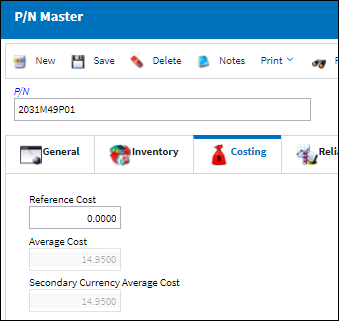
- Each P/N will have company-specific cost information in the P/N Master, Costing tab (see below).
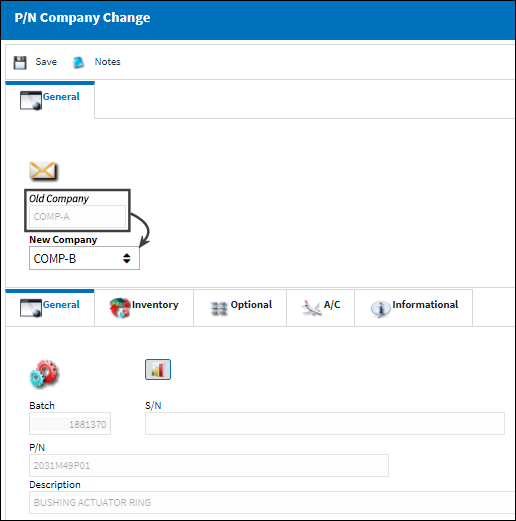
- If a part's ownership needs to be changed from one company to another, this can be achieved through the Change Company
 button in Inventory Explorer (see below). The P/N Master, Costing tab will be updated accordingly.
- When creating a Picklist, the system validates the Company of the part being Picklisted in inventory against the Company of the Picklist. For example, if a Picklist is created for a 'Company A' record, only available inventory linked to 'Company A' will be considered for the Picklist.
- A part belonging to one company in Inventory cannot be issued to an Exchange Order belonging to another Company. An error message will prevent the exchange from being issued: 'Exchange Order Company Not the same as P/N.'
The following example shows certain part movements in the system and how company ownership is retained throughout.
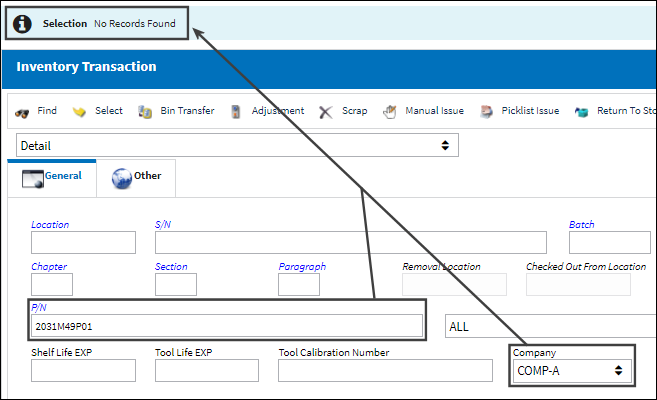
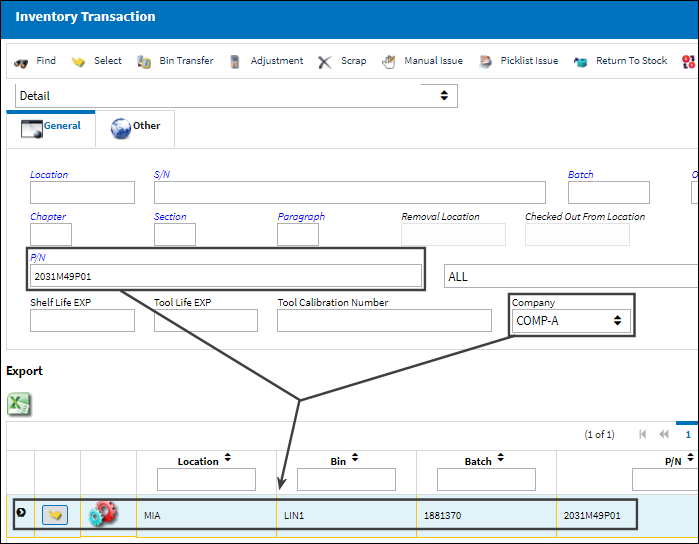
From the Inventory Transaction window, notice that the following part is not available for the selected Company.
Therefore a an order is created for the part. From the P/O header, specify the Company and the Currency for that same Company.
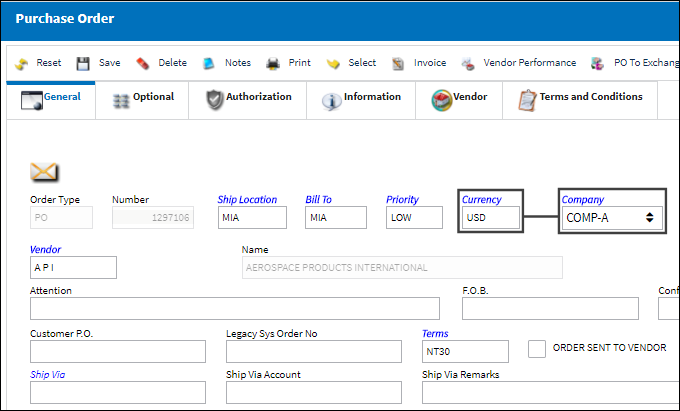
Note: In this example a Purchase Order is created, but the same Multi Company principles are in effect for all order types.
Note: Currencies should be created for each Company. (Example: 'USD' for 'Company A,' 'USD' for 'Company B,' etc.) For more information refer to Multi Company Configurations: Currency.
From the order's detail window, specify a G/L Account with the order's Company in the first field.
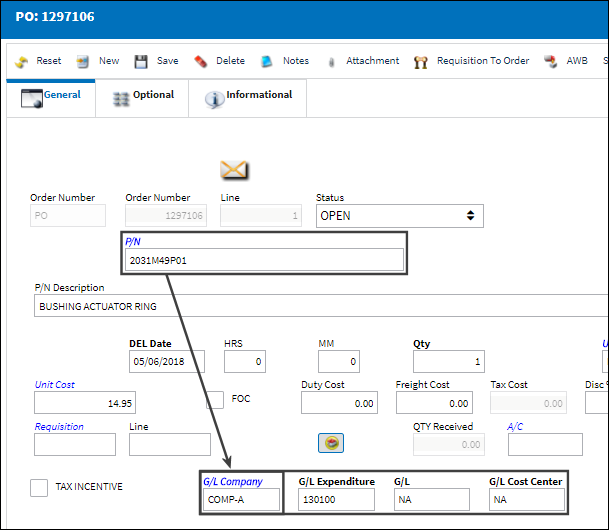
Note: Keep in mind that the same set of G/L Accounts should be created for each company in the system. The first field in the G/L Account should be the exact Company Code that is listed in the Company Profile window. For more information refer to Multi Company Configurations: G/L Accounts.
Once the order is authorized, it must be received. Orders that need to be received can be found by specifying the order Company.
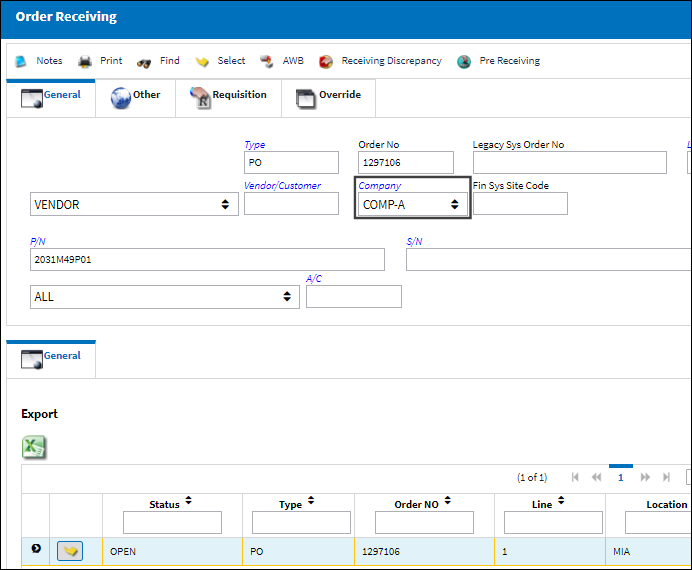
Once received, the part is displayed in inventory for the specific Company.
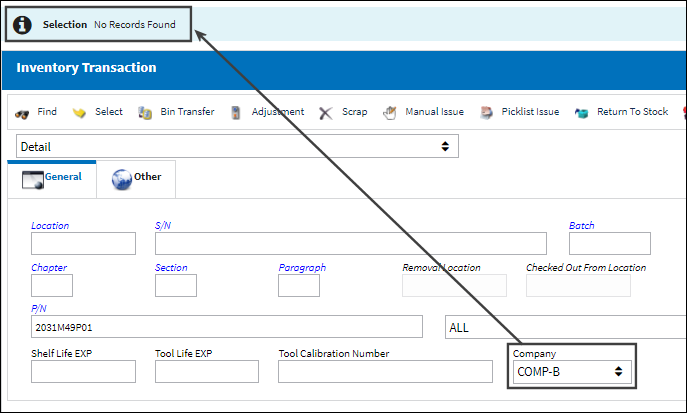
If the Company in the search field is changed, notice that the same part doesn't come up for that company. Only inventory for the particular company will be displayed. Only users with access to a particular company will be able access inventory for said company.
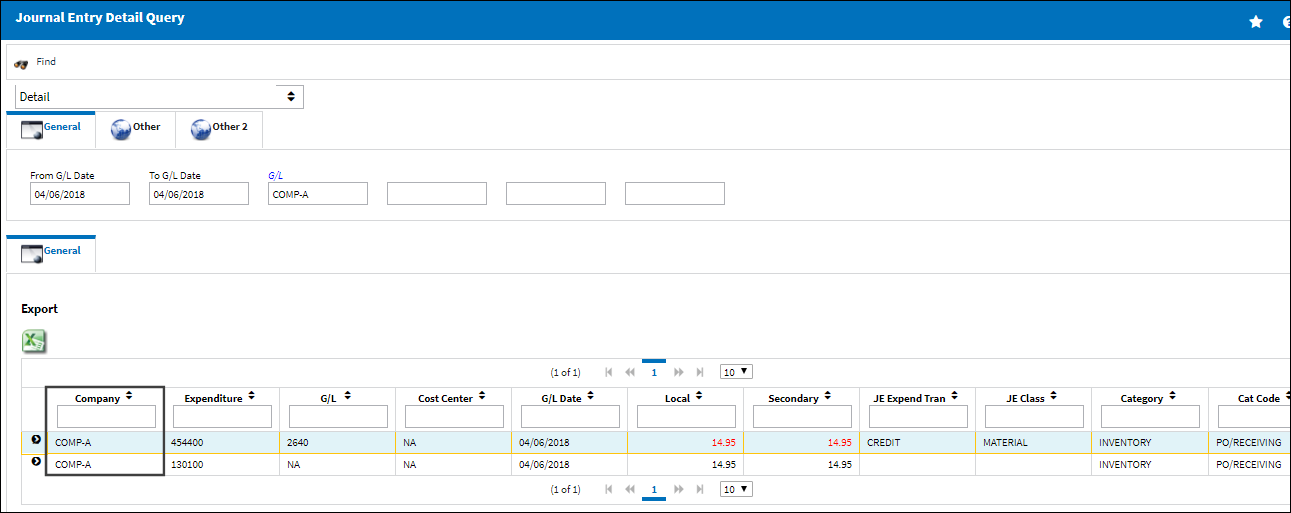
From the Journal Entry Detail Query, the received order records Journal Entries for the specified Company.
As the same part is ordered by other companies in the system, Journal Entries are written for each specific company.
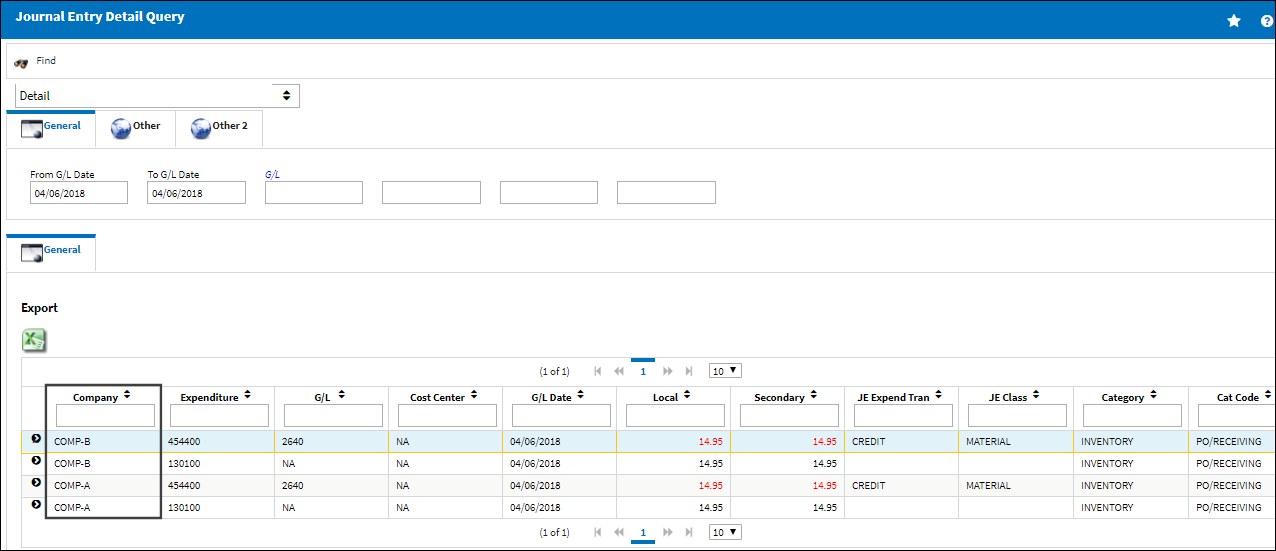
Note: Journal Entries can be searched for by the company entered in the first field of the G/L Account field.
P/N Master, Costing Tab
From the P/N Master, Costing tab, as multiple companies purchase the same part, the Average Cost (when applicable) is updated based on the costs for all companies.
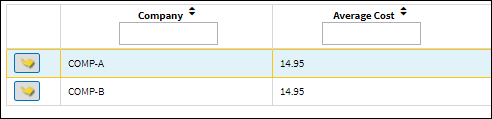
However, at the bottom of the Costing tab, each company that has purchased the part has an entry with Average Cost information that is specific to that company.
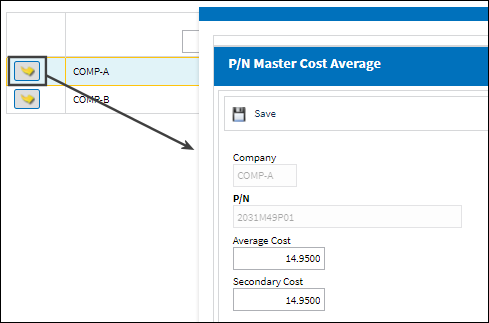
Select on a specific company to view the part's Average Cost details for that particular company.
Company Change Button
Through the Company Change button in Inventory Transaction, users can change the company ownership for any available part. For more information refer to the Company Change Button, via Inventory Transaction.
Download Online Help
Print
|
©1997-2018 Trax USA Corp. All rights reserved. This manual may not be copied, photocopied, reproduced, translated, or converted to any electronic or machine-readable form, in whole or in part, without prior written approval from Trax USA Corp. |
 |