
 Share
Share
 Print
Print
|
|
|
|
|


View Settings, via Settings
The View Settings allows the user to control how the appearance of the windows in the application will appear in a user-friendly manner. The user can choose whether the tabs in the windows will appear with 'Text and Images' or whether the tab position will be 'On Top' of the window or 'On Bottom'. Another highly innovative setting is the Row Indicator the user can select to have the current field highlighted by selecting the Current Field Highlight checkbox. These View Settings allow the user to customize how TRAX will respond to user actions and display information throughout the application.
 This is security controlled via System Administration/ Explorer/ Security Explorer/ System Transaction Configuration/ User Settings Menu - View Settings. For additional information, refer to the Security Explorer via the System Administration Training Manual.
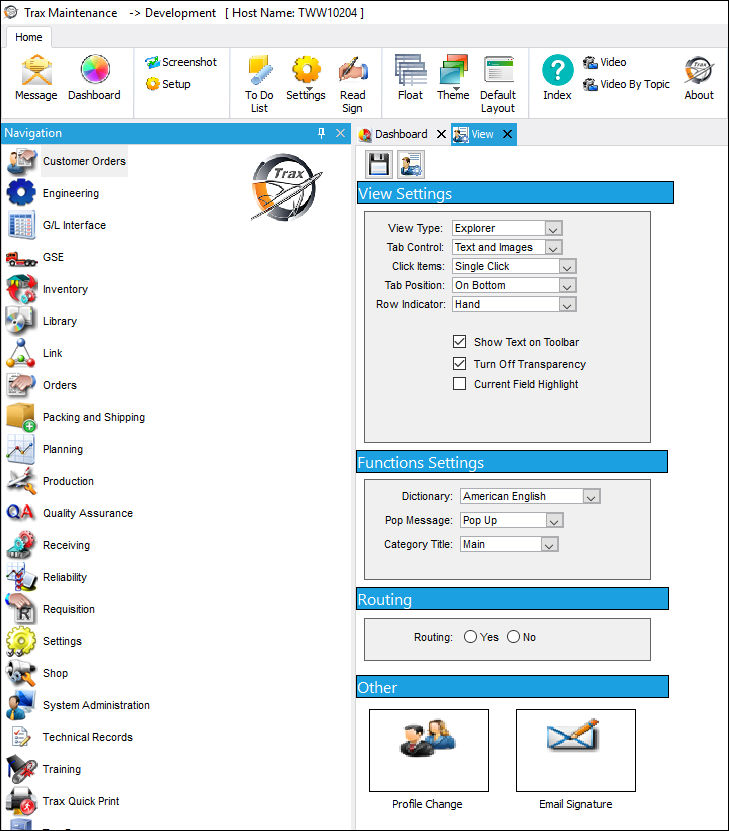
These are a few examples of how users can personalize their view settings.
Row Indicator:
The Row Indicator field under View Settings is set to 'Hand' by default.
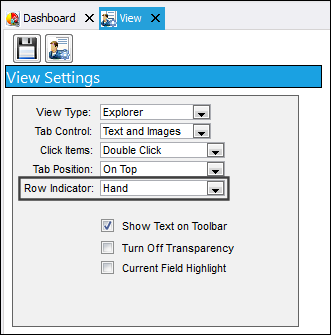
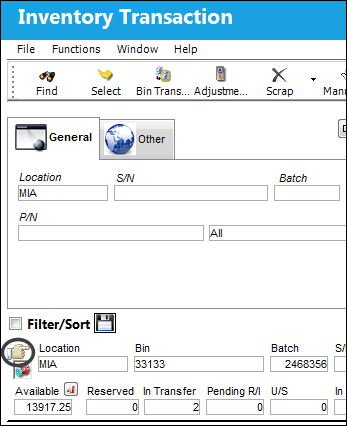
Consequently, whenever a selection is made inside any results table, a hand icon will appear to denote the selection.
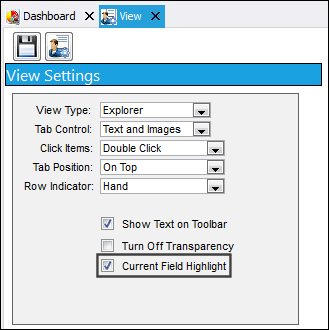
Current Field Highlight:
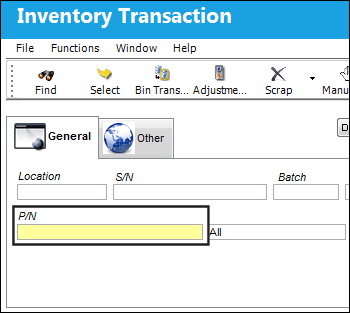
The Current Field Highlight option in the View Settings section controls whether or not the system will highlight selected fields in yellow.
Function Settings:
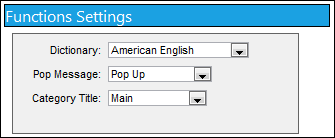
The Dictionary, Pop Message and Category Title options are available in the Function Settings section. These
The dictionary option allows users to change the default dictionary language which is used to spell-check user input throughout the system.
Other:
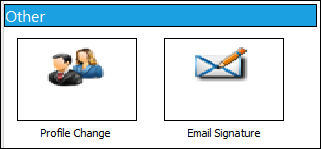
Under Other Settings, the user is able to change the Profile under which they are working and set up their email signature. The Email Signature function allows users to create an email signature to be used when sending an email.
Apply to ALL Option:
The Apply to ALL option allows the user to apply their View Settings to all TRAX users.
The Apply to ALL option is security controlled via Security Explorer/ System Administration/ Explorer/ User Menu Settings - View Settings - Apply to ALL. For additional information, refer to the Security Explorer via the System Administration Training Manual.
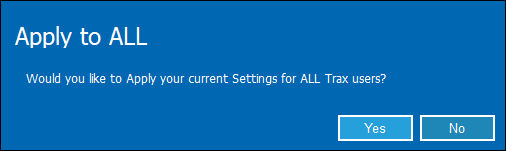
Select the Apply to ALL option.
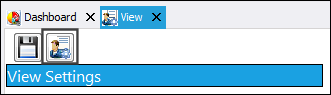
The following window will appear confirming the user's selection of this option:
Share
Print
|
©1997-2026 Trax USA Corp. All rights reserved. This manual may not be copied, photocopied, reproduced, translated, or converted to any electronic or machine-readable form, in whole or in part, without prior written approval from Trax USA Corp. |
 |