
 Share
Share
 Print
Print
|
|
|
|
|


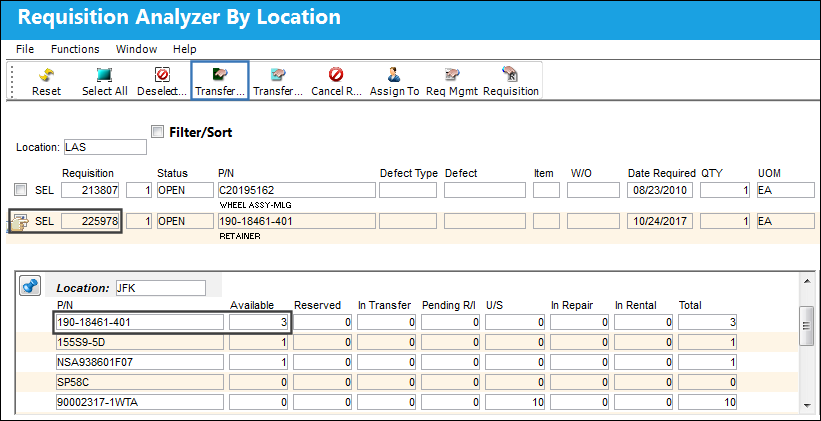
The Transfer Order  button allows the user to transfer a parts or parts from one location to another in response to a requisition.
In order to create a transfer order from a location which has the available parts required by the requisition, simply click on both, the location with the parts and the requisition, and then press the Transfer Order button.
The standard Save Prompt is displayed, as seen below:
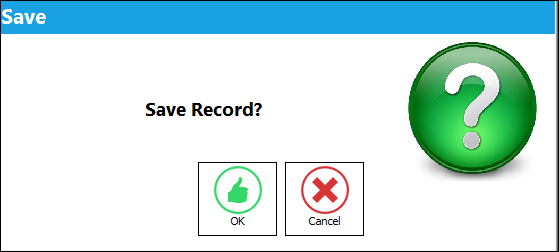
Select Cancel to abort the transaction, or
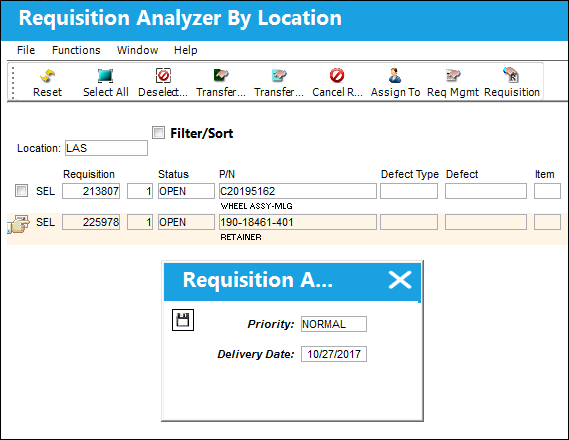
Select OK to proceed. The following pop-up window is displayed.
Enter the Priority Level and the Delivery Date in this window. Select the Save  button to complete the transaction.
The Transfer Order window as well as the Packing and Shipping requirements appear. Select 'Yes' if the part requires Packing and Shipping or 'No' if it does not.
In this example, the user is going to select 'Yes'.
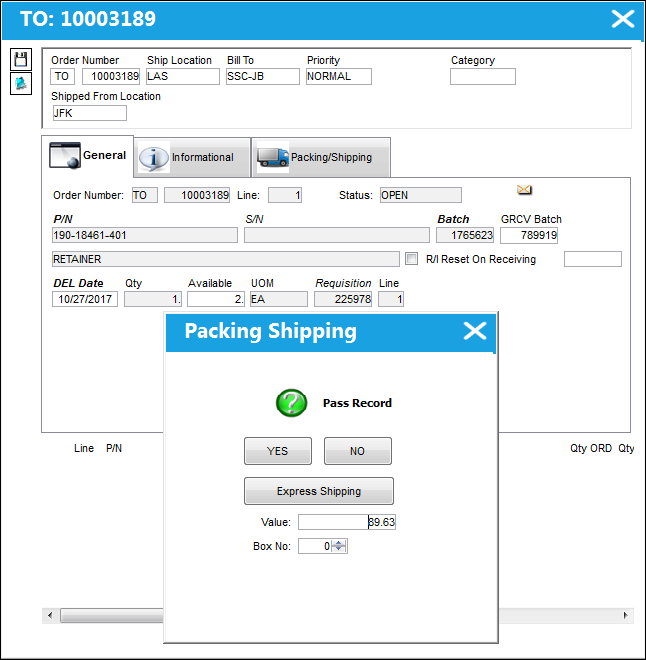
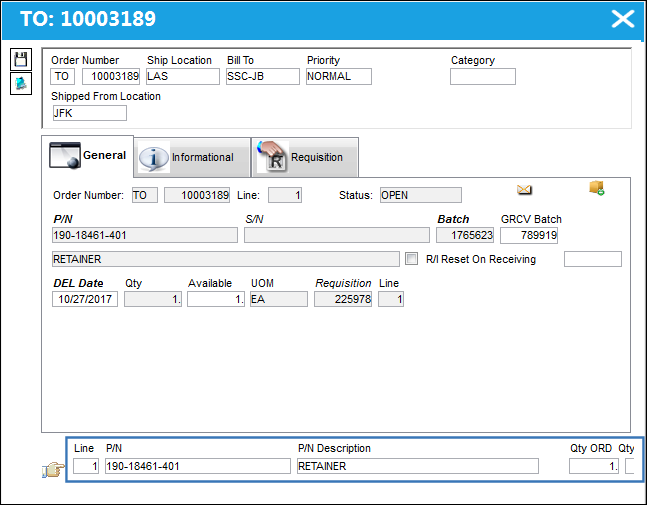
The line item for the Transfer Order is created. Save the transaction. The Save prompt appears.
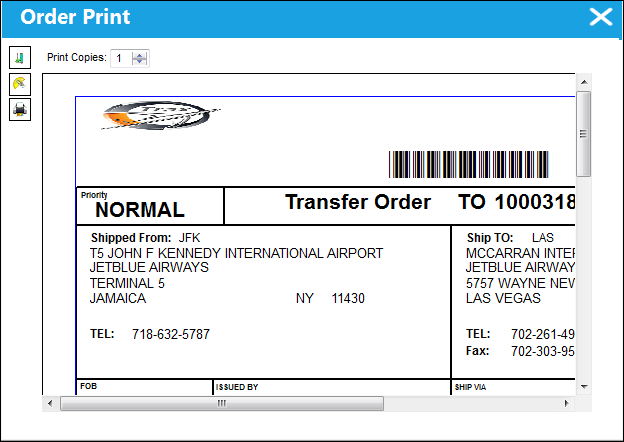
The Transfer Order print appears. Exit the print.
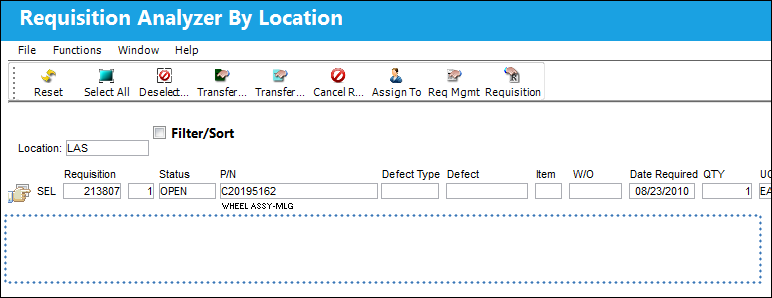
The requisition disappears from the queue because a transfer order has been issued for the requisition placing its status as ‘Ordered.'
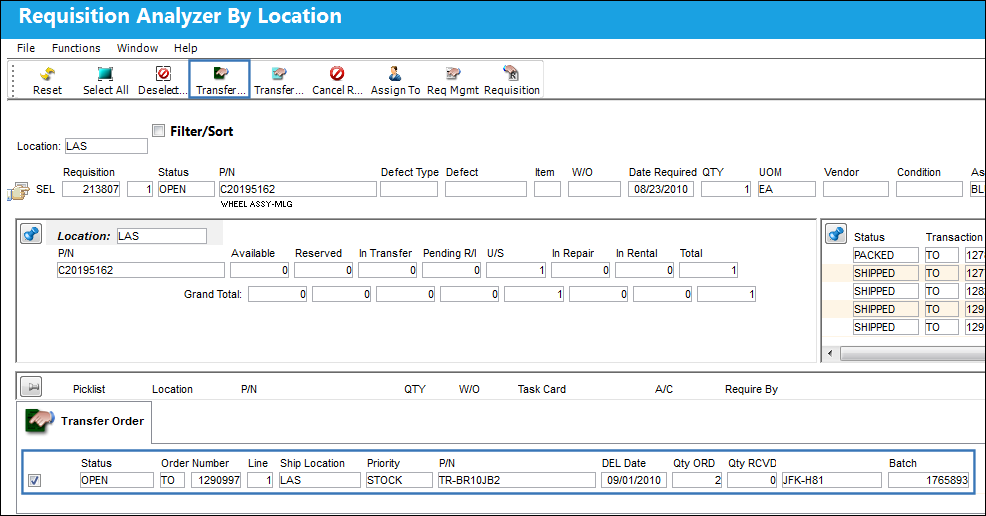
A Transfer Order can also be completed by adding a new TO to an existing Transfer Order.
Select the Transfer Order you would like create a new TO from. Follow the above steps. A new line item will be created against the below highlighted TO.
Share
Print
|
©1997-2026 Trax USA Corp. All rights reserved. This manual may not be copied, photocopied, reproduced, translated, or converted to any electronic or machine-readable form, in whole or in part, without prior written approval from Trax USA Corp. |
 |