 Download Online Help
 Print
|
|
|
|
|


Upload Custom Print
The Upload Custom Print window allows the user to create custom reports using a third party application outside of eMRO called JasperSoft Studio. This application allows the user to create custom reports and import them into the Upload Custom Print window via the Settings module. Once the report has been imported, it will appear under that modules Print menu. Reports can be stored for later use or deleted once they are no longer needed.
For information on the process on how to create reports using Jaspersoft Studio, please refer to Create Custom Reports via Reporting Options of the System Standards Training manual.
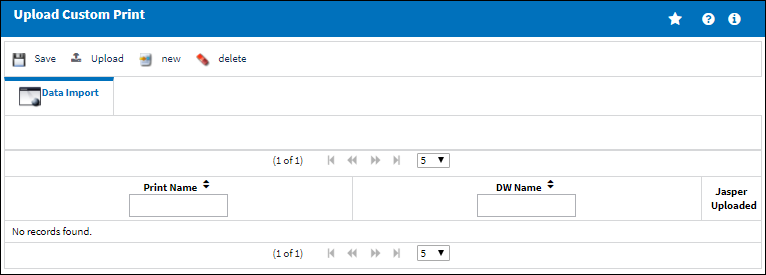
The Upload Custom Print window is displayed. Select the New  button.
The following options become available. Populate all mandatory fields. Once completed, select the Upload button.
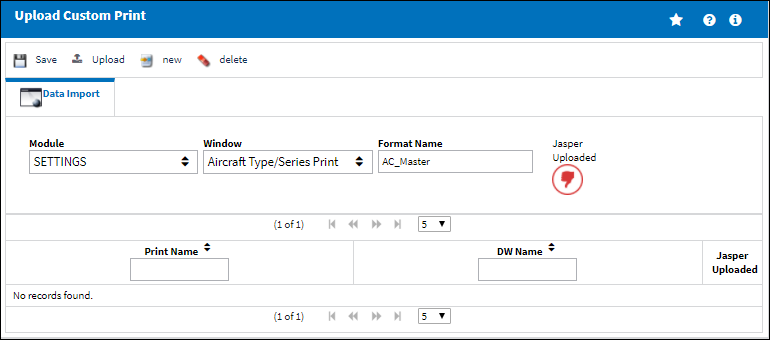
The following options/information is available in this window:
_________________________________________________________________________
Module
Select the system module the report will be listed under once imported.
Window
Select the window that the report will be listed under once imported.
Format Name
Enter the name of the report to be listed under the respective module and window.
Jaspersoft Uploaded
The Jaspersoft Uploaded icon indicates if a report has been uploaded or not.
Jaspersoft Uploaded  icon - When the Jaspersoft Uploaded icon is red, this indicates that a report has not yet been uploaded.
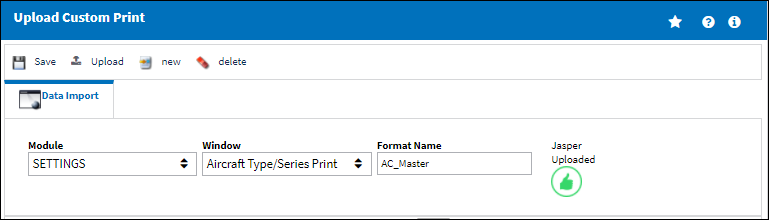
Jaspersoft Uploaded  icon - When the Jaspersoft Uploaded icon is green, this indicates that a report has been successfully uploaded.
Save  button
Select the Save button to save an uploaded report.
Upload  button
Select the Upload  button to upload a report that was created using Jaspersoft Studio.
New button
Select the New button to begin the process for uploading a new report.
Delete  button
Select the Delete button to delete a report(s) that has been uploaded and saved in the Upload Custom Print window. Once a report has been deleted, the report will be removed from this window.
_________________________________________________________________________
Once the report has been uploaded, the Jasper Uploaded icon will change from a red thumbs down, to a green thumbs up icon as indicated below.
Download Online Help
Print
|
©1997-2018 Trax USA Corp. All rights reserved. This manual may not be copied, photocopied, reproduced, translated, or converted to any electronic or machine-readable form, in whole or in part, without prior written approval from Trax USA Corp. |
 |