 Download Online Help
 Print
|
|
|
|
|


Capacity Window
Select the Capacity window to view all of the Site capacities for a Location. Upon selecting this window, the site capacity for the current date will be displayed. Once the desired date has been specified, the user can scroll down to view the site capacity for each site. An image of the site can be uploaded to this window and aircraft icons can be moved to be placed at the applicable site.
 This window is security controlled via Line Control/ Update/ Capacity. For additional information, refer to the Security Explorer.
The site capacity can be updated via the Add/Change Site Configuration Button via the Location Master via the main application. All updates via the main application will be reflected in the Capacity window. For more information, refer to the Site Configurations Button, via the Settings Training Manual.
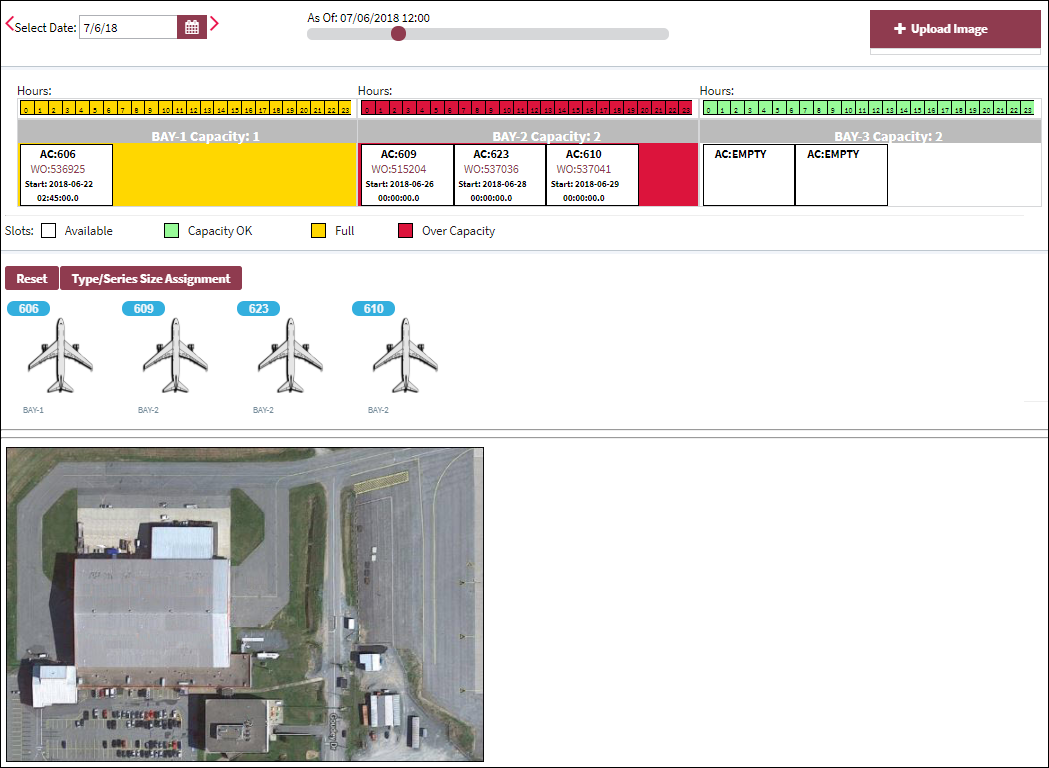
The following options/information is available in this window:
_________________________________________________________________________
Select Date selection
The user may use the following right and left arrows to view the site capacity for a different day, month and year.

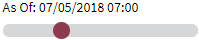
As Of slider
Controls the display of the scheduled Work Orders for a site in a 24 hour period. Only Work Orders with a current time between the Start/End will be displayed. Defaults to the current UTC time.
Upload Image button
Select this button to upload an image to the window.
Slots
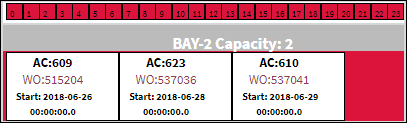
Indicates when work is scheduled at a site. Selecting on any 1 hour block will automatically move the As Of slider to the selected hour of that day. Provides a visual of scheduled work for a 24 hour time frame.
 - Available
 - Capacity OK
 - Full
 - Over Capacity
Reset button
Select this button to move the aircraft icons back to their original position.
Type/Series Size Assignment
Select this button to update the weight of an A/C Type/Series. Any changes will be reflected in the size of the aircraft icon(s) for the Type/Series that was updated.
_________________________________________________________________________
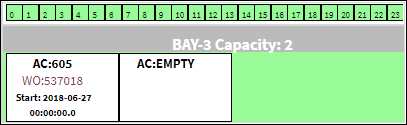
Green = Capacity for the site has not yet been reached.
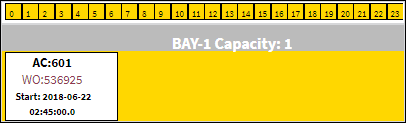
Yellow = Capacity for the site has been reached.
Red = Capacity of the site has been exceeded.
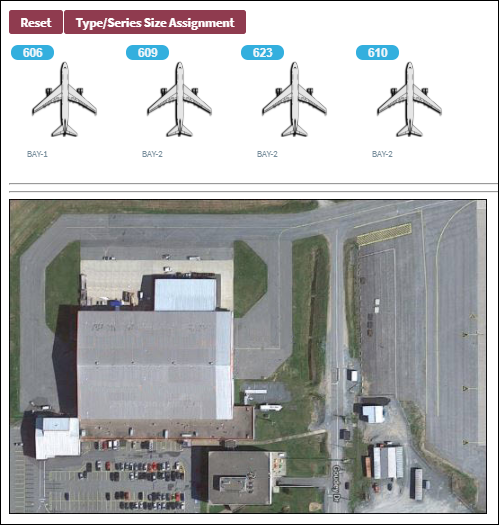
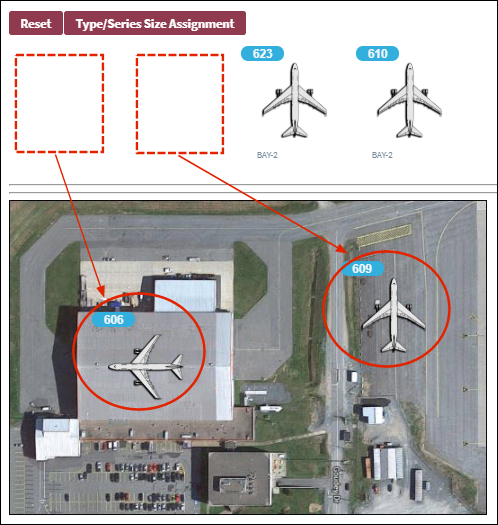
Move any of the below aircraft icons by dragging and dropping it to the desired location.
Single-click directly on the icon to rotate it.
Download Online Help
Print
|
©1997-2018 Trax USA Corp. All rights reserved. This manual may not be copied, photocopied, reproduced, translated, or converted to any electronic or machine-readable form, in whole or in part, without prior written approval from Trax USA Corp. |
 |