
 Share
Share
 Print
Print
|
|
|
|
|


Check the Select Checkbox for items that the user would like to automatically appear on the Work Orders that are created when the Work Order Auto button is used. The Select Checkbox is used with the Work Order Auto  button.
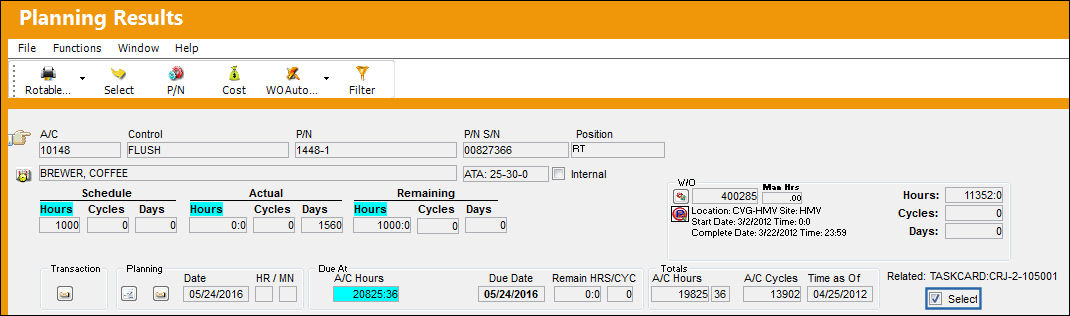
If a planning element is already associated to an Open, Generated or Completed Work Order, it will not be added to another W/O from the Planning Query using the Select Checkbox. It must be attached to the Work Order from the Production module via the W/O Engineering Control window.
Please note the following switches:
 ALWMULTTSK - When set to Yes, all A/C E/Cs, P/N E/Cs, P/N Controls and Defects will be brought on to a Work Order regardless of how many other Work Orders they are against. When set to No, the A/C E/Cs, P/N E/Cs, P/N Controls and Defects will not be brought on to a Work Order.
- PLNHISTML - When set to Yes, the user can use the Config Number field to determine the limit for the Planning History records. The Config Number field is set to 1 hour. When set to No, the Planning History records will default to 8 hours and the Planning Jobs in the Planning History Tab will remain in the Planning From History tab for 8 hours.
Share
Print
|
©1997-2026 Trax USA Corp. All rights reserved. This manual may not be copied, photocopied, reproduced, translated, or converted to any electronic or machine-readable form, in whole or in part, without prior written approval from Trax USA Corp. |
 |