
 Share
Share
 Print
Print
|
|
|
|
|


Selecting the Tag  button from within the P/N Information Tab, via Shop W/O Detail will display the P/N Identification Tag window.
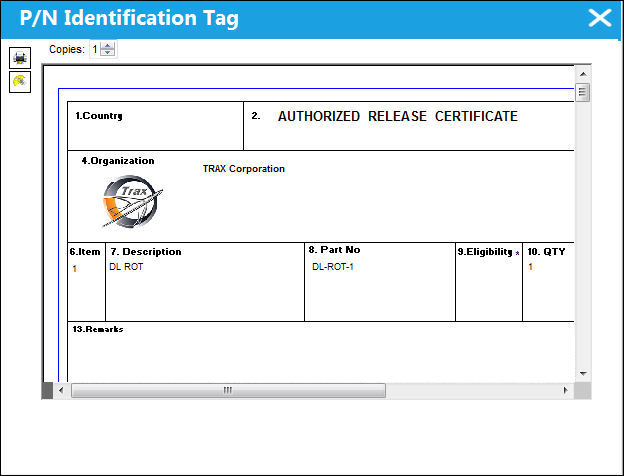
P/N Identification Tags are customized per customer.
Stamp Certified By/Certified Date Fields:
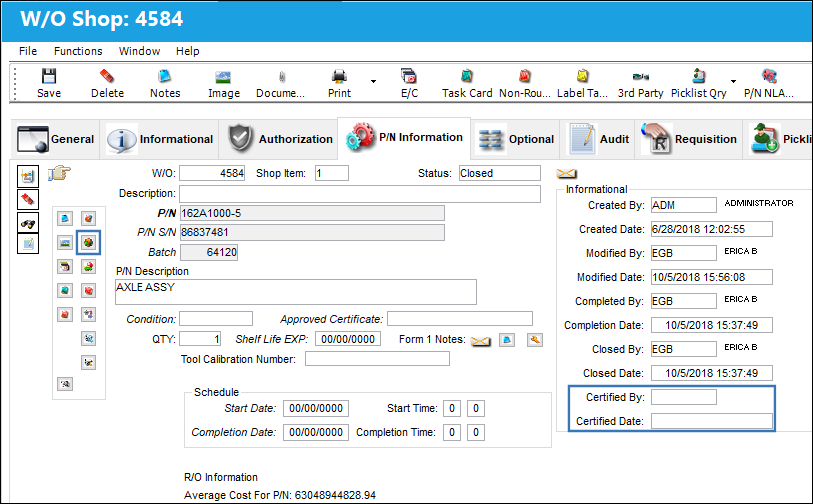
By default, the Certified By and Certified Date fields are left blank until a user either decides to print or e-mail an appropriate tag.
IN this example, note that the following record cucrently does not show a user inside the Certified By and Certified Date field. The user selects the Tag button in order to print a tag.
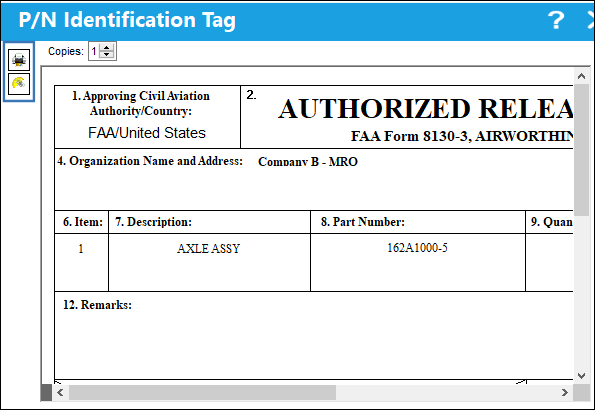
The P/N Identification Tag window is displayed. If the user selects either the Print  or E-Mail
  button, these two fields will get stamped with the user's name.
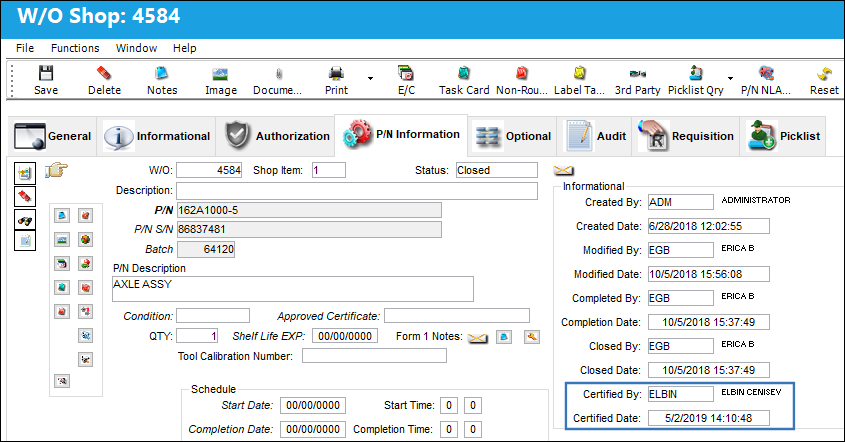
The user decides to print the tag, which certified the record.
Switch: SHOPFORMTIP:
This Shop Switch  SHOPFORMTIP allows users to change the name of the Tag button by changing the Config Other field inside the Switch Configuration window.
In this example, the Shop Switch is set to '1/8130'.
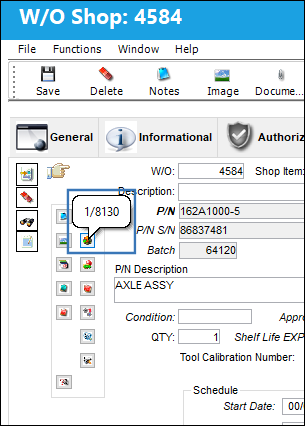
When the switch is set to No, the Shop Form One button will display the default 'Tag' tool tip hypertext.
Share
Print
|
©1997-2026 Trax USA Corp. All rights reserved. This manual may not be copied, photocopied, reproduced, translated, or converted to any electronic or machine-readable form, in whole or in part, without prior written approval from Trax USA Corp. |
 |