
 Share
Share
 Print
Print
|
|
|
|
|


Select the Shop Item P/N S/N Modify To  button to change the P/N S/N.
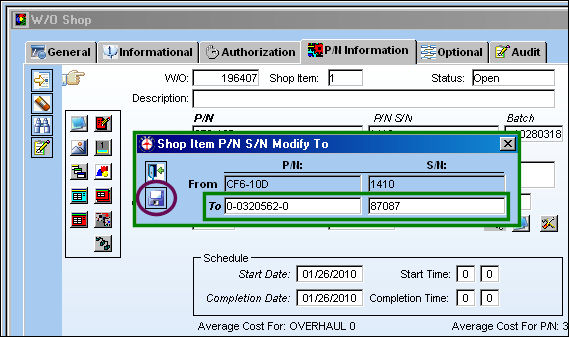
TRAX displays the Shop Item P/N S/N Modify To pop-up. Populate the To P/N and S/N and select the Save  button.
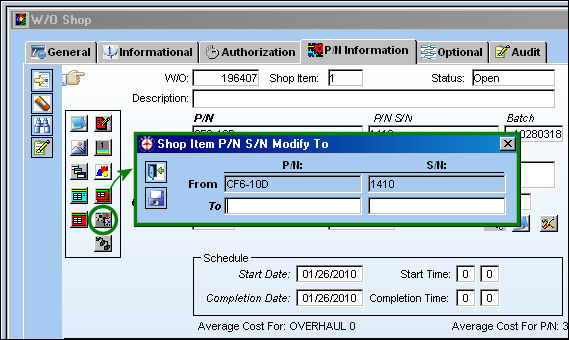
In the 'To' field select another P/N and enter a S/N. Select the Save button.
Select the P/N Identification Tag  button. TRAX displays the new P/N Tag which reflects the new P/N S/N:
The Change P/N  button replaces the P/N S/N Modify To button. Select the P/N Identification Tag
  button.
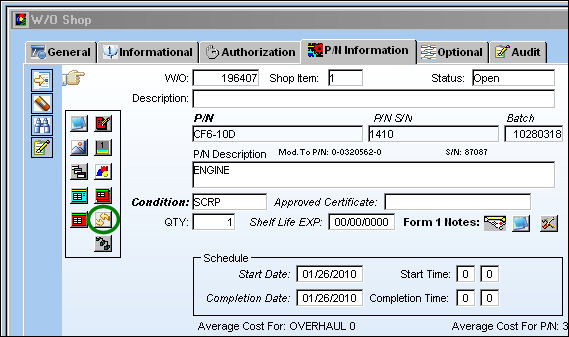
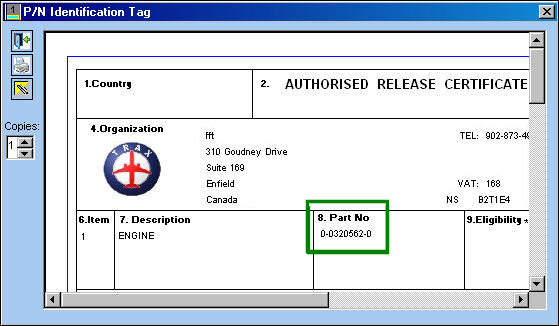
In order for the updated P/N S/N information to be listed in the P/N Identification Tag, your company-specific tag must be customized to show the modified P/Ns. TRAX customers can request this customization through a Modification log.
Share
Print
|
©1997-2026 Trax USA Corp. All rights reserved. This manual may not be copied, photocopied, reproduced, translated, or converted to any electronic or machine-readable form, in whole or in part, without prior written approval from Trax USA Corp. |
 |