
 Share
Share
 Print
Print
|
|
|
|
|


From the P/N Information tab, users can select the Return to Owner  button to return owned parts that are consigned or managed and is attached to a Repair Order back to their owner when the Shop W/O P/N Status is 'Completed' or 'Closed.'
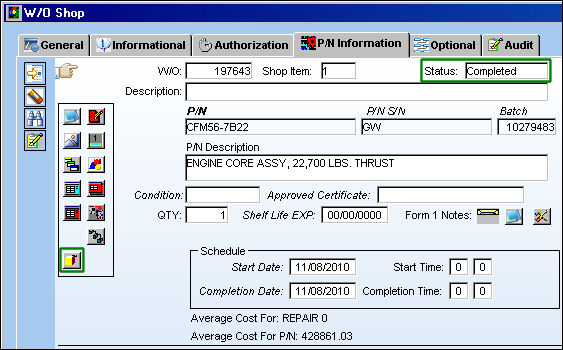
For example, notice from the Inventory Detail that the following P/N S/N is Consigned.
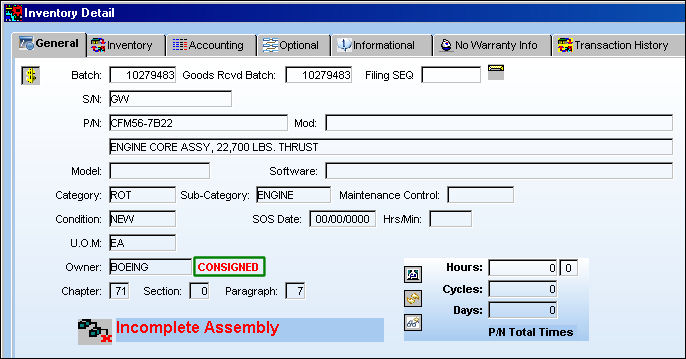
Create a Repair Order for the part.
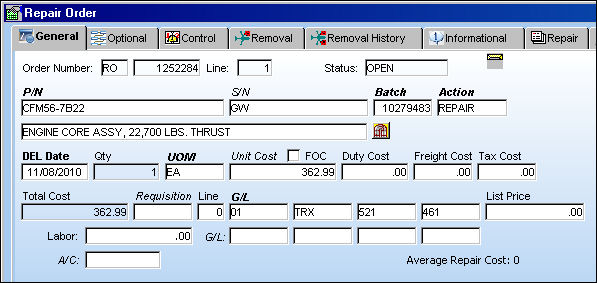
From the Repair Order header, select the W/O  button to create a Shop W/O for the R/O. Once created, enter the Shop W/O number in the W/O field.
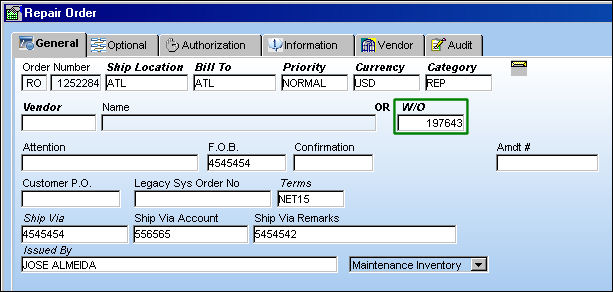
From the newly created W/O Shop, P/N Information tab, notice the part from the Repair Order. The R/O details can be viewed by selecting the R/O  button.
Also notice that the Return to Owner button is not available at the moment because the Status is 'Open.'
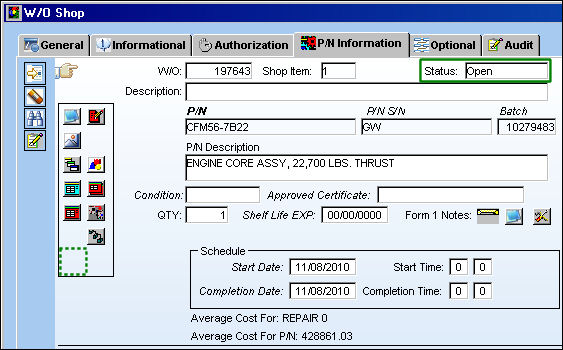
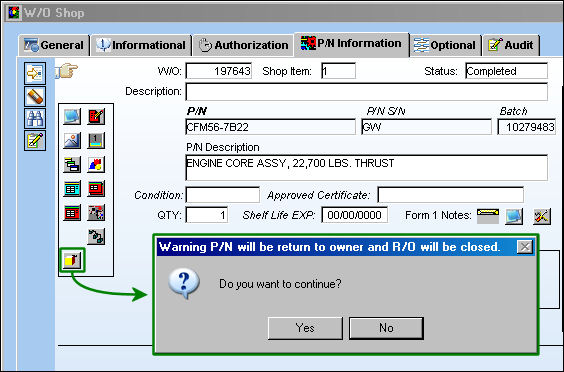
Once the Status is changed to 'Completed' or 'Cancel' the Return to Owner button becomes available.
When the button is selected, the following prompt appears. It states that the P/N will be returned to the owner and that the R/O will be closed. Select Yes to continue.
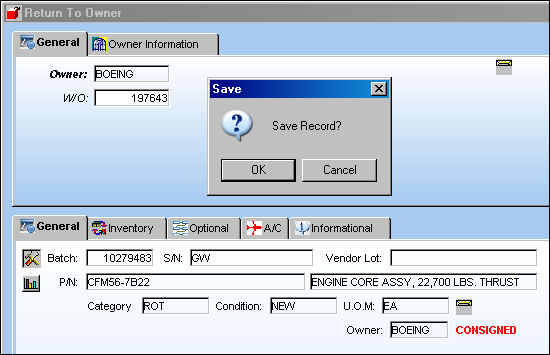
The Return to Owner field appears. Select the Save  button to return the part.
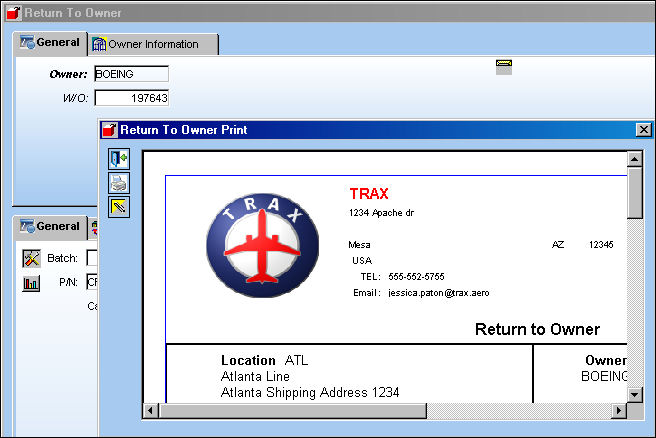
Once returned the Return to Owner Print window pops up.
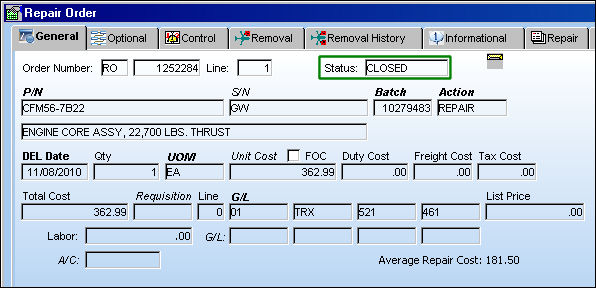
Once the part has been returned, the Status of the Repair Order is automatically changed to 'Closed'. This takes place without having to receive the R/O.
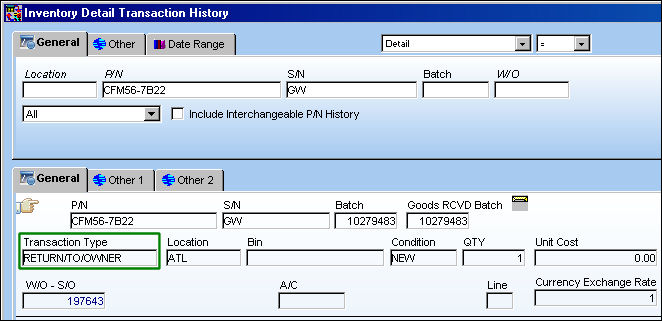
From the Inventory Detail Transaction History window, notice that a 'RETURN/TO/OWNER' Transaction Type has been created against the P/N S/N.
Share
Print
|
©1997-2026 Trax USA Corp. All rights reserved. This manual may not be copied, photocopied, reproduced, translated, or converted to any electronic or machine-readable form, in whole or in part, without prior written approval from Trax USA Corp. |
 |