
 Share
Share
 Print
Print
|
|
|
|
|


Inventory Transaction, General Tab
As with the majority of the query selections on the system, it is better to select as many parameters as required to minimize your search result.
Enter one or more of the following as search criteria for the General Tab. Select search criteria and click on the Find  button.
As with the majority of search queries in TRAX, it is recommendable to enter as many search filters as possible to minimize the search result.
The query result gives information about the part, its current location, its condition and the number of available parts, as seen below:
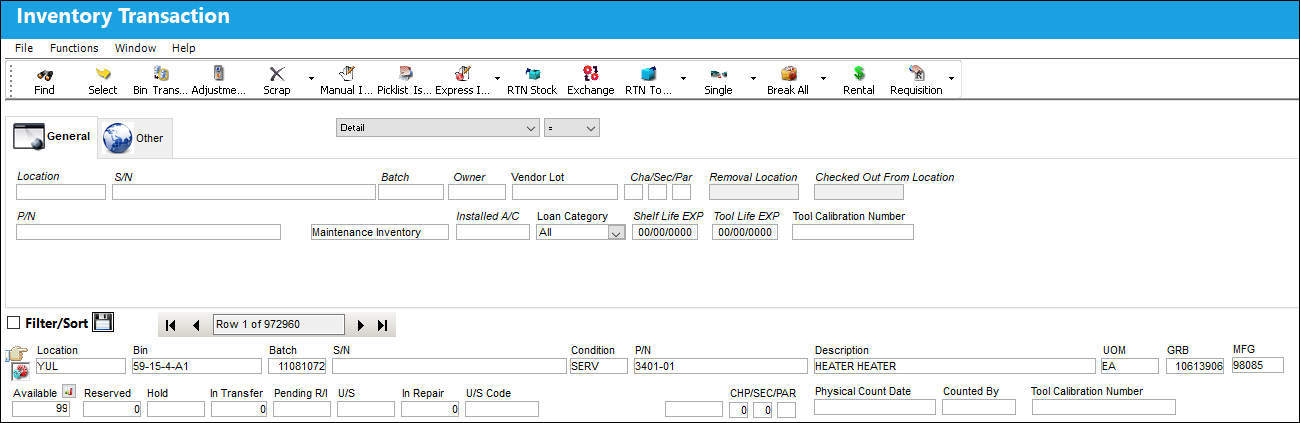
Query:
The following information/options are available in this window:
_____________________________________________________________________________________
Location
The Location for maintenance events, inventory stores, orders, transactions, or training events.
S/N
The Serial Number for the specific serialized part.
Batch
The inventory number that is currently associated with a part or group of parts. A part's Batch number can change after various types of transactions take place.
Owner
The name of the owner of the part, when applicable.
Vendor Lot
Vendor batch number of the part entered upon receiving or initial load, as applicable. This field can contain up to 20 characters.
Cha/Sec/Par
The ATA chapter/section/paragraph, as applicable.
Removal Location
Allows users to search for parts Pending Inventory via the location that the parts have been removed from.
This field is only available when the search type drop down is set to Pending Inventory.
Checked Out From Location 
The Location from which a Tool was originally checked out.
This field is only available when the search type drop down is set to Tools Locator.
This field cannot be utilized with the Protect Location checkbox selected in the user's Security settings. For more information, refer to the Security, General tab.
P/N
The Part Number reference for the aircraft part.
Inventory Type drop down
The type of inventory the item is registered as in the system. The available options are All, General, GSE and Maintenance Inventory. All is set as the default.
Installed A/C
The aircraft in which the part is currently installed.
Loan Category
Loan Part Category (short, long, consigned, manage or pool).
Short Loan - Loaned parts not to exceed one year.
Long Loan - Loaned parts one year or greater.
Pool - Parts belonging to a pool agreement with the vendor.
Consigned -Parts that are still associated with the owner and does not yet belong to the company.
Manage - Parts owned by an external company that are managed through a W/O.
Shelf Life EXP
The shelf life expiration date of the part, as applicable.
Tool Life EXP
The tool life expiration date of the part, as applicable.
Tool Calibration Number
This is a unique number used to define a tool.
_____________________________________________________________________________________
 Select Interchangeable From Main P/N:
When searching for a part number, the user may select the Interchangeable  button to view and select any interchangeable parts associated to the Main P/N.
From the following drop down menu, select the Interchangeable button for the Main P/N.
This option is system wide where ever part number selection applies.
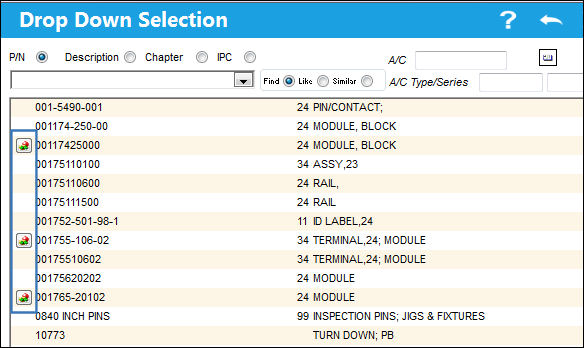
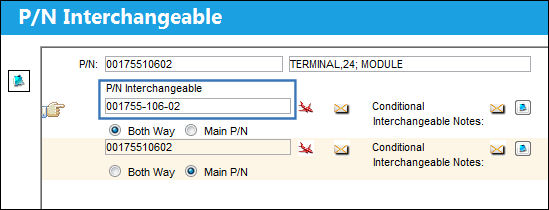
The P/N Interchangeable window appears displaying all of the interchangeable parts for the Main P/N. Select one of the interchangeable parts.
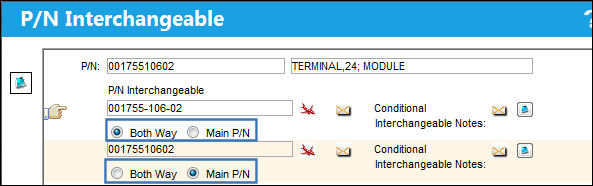
 The P/N Interchangeable window includes an indicator showing if the interchangeable parts are Both Way or the Main P/N. This cannot be changed from this window and is informational only.
The part with the Hand  pointer selected on the record will be selected.
By double-clicking on the part displayed, the Inventory Detail window opens. For information about the Inventory Detail window, refer to the Inventory Detail section of this manual. The Inventory Transaction window provides a number of ways to view inventory. To change the view, simply select from the drop down selection window.
Icons in Inventory Transaction Results:
_____________________________________________________________________________________
 - P/N is available in Inventory
 - P/N is in an U/S location
 - P/N is associated to an NHA
 - P/N is pending Technical Records
 - P/N is pending Inventory
 - P/N is pending Receiving Inspection
 - P/N is installed on an aircraft
 - P/N is an owned part
 - P/N is on short loan
 - P/N is out for repair
 - P/N is designated as missing.
_____________________________________________________________________________________
Results:
The following information/options are available in this window:
_____________________________________________________________________________________
Location
The Location for maintenance events, inventory stores, orders, transactions, or training events.
Bin
The specific storage bin within the inventory location.
Batch
The inventory number that is currently associated with a part or group of parts. A part's Batch number can change after various types of transactions take place.
S/N
The Serial Number for the specific serialized part.
Condition
The condition of the part.
P/N
The Part Number reference for the aircraft part.
Description
The description of the part.
UOM
The unit of measure. This will default if associated with a Part Number as defined in the P/N Master. Transactions for parts can be conducted in a different UOM than defined in the P/N Master. However, upon receiving the UOM, conversion will automatically adjust the quantities, providing that the conversion rate is defined in the UOM System Transaction Code (via Setting/Explorer/System Transaction Code).
GRB
The original inventory number assigned to the part or group of parts when initially introduced/received into inventory. This number will remain the same for a part even if/when the part's Batch number changes.
MFG
The manufacturer's code and name.
Available
Quantity of the part available.
Inventory Level  button
Select this button to view the different inventory levels per location for parts through the P/N Inventory Level window, set up through the P/N Master. For more information, refer to the Inventory Levels button, via P/N Master.
Reserved
Quantity of the part reserved.
Hold 
Quantity of the part on hold. For more information refer to the Hold Button.
In Transfer
Quantity of the part in transfer.
Pending R/I
Quantity of the part pending receiving inspection.
U/S
Quantity of the part that is unserviceable.
In Repair
Quantity of the part in repair.
U/S Code
Unserviceable Code that applies to the part, to be stored in a quarantine location.
Missing
Quantity of the parts designated as Missing. For more information, refer to the Missing Parts Process.
 This field is security controlled via Inventory/ Update/ Inventory Transaction/ Missing Column on Inventory Summary. For more information refer to the Security Explorer via the System Administration Training Manual.
Owner
The name of the owner of the part, when applicable.
Company
The G/L Company that the P/N was assigned to when entered into inventory or ordered. For more information refer to the multi-company functionality explained through Switch  COMPANYMULTI via the G/L Interface Switches Manual.
When a part is purchased or sold to another company within the organization, this information will be reflected in the Company field.
CHP/SEC/PAR
The ATA chapter/section/paragraph, as applicable.
Physical Count Date
The last date the Physical Count to include the record was generated.
Counted By
The name of the user who generated the last inventory count for the record.
Tool Calibration Number
This is a unique number used to define a tool.
_____________________________________________________________________________________
Summary View Linked to Detail View:
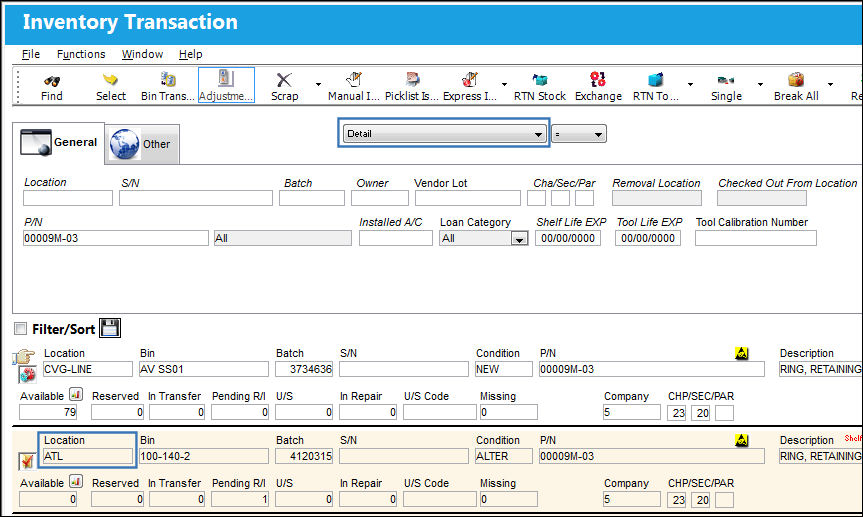
The search results of the Summary view are linked to the results of the Detail view. For instance, select Summary from the drop down then enter a Part Number and select the Find button.
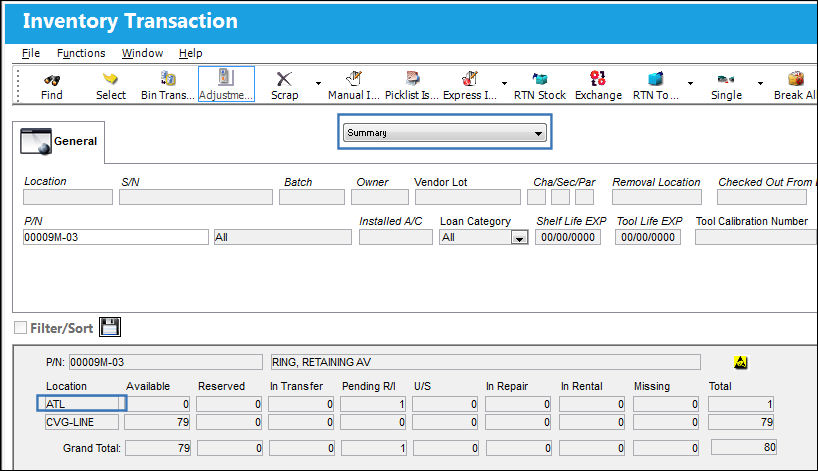
When the results appear, by clicking on any line item the Detail view will appear with all information for that part in the particular location.
Share
Print
|
©1997-2026 Trax USA Corp. All rights reserved. This manual may not be copied, photocopied, reproduced, translated, or converted to any electronic or machine-readable form, in whole or in part, without prior written approval from Trax USA Corp. |
 |