
 Share
Share
 Print
Print
|
|
|
|
|


Spec2000 Messages
The System Transaction Codes are displayed with both the Code Names and Descriptions. The Code Descriptions directly illustrate their functionality and role in the system, as fields are populated and tasks are performed.
Transaction Code: |
Spec2000 Messages |
General Description: |
To display the major message contents in the Spec2000 message window. |
Are Authorization Steps Available? |
N |
Is System Notification Available? |
Y |
Trax Control Panel Path(s): |
Settings/Explorer/System Transaction code/Orders/Spec2000 messages |
Windows(s): |
w_po_order_header_eu; w_po_order_detail_eu; w_po_order_header_eu; w_order_print; w_po_order_detail_spec2000_message; w_po_order_spec2000_sel; w_requisition_po_eu; w_requisition_quote_eu; w_requisition_quote_request_print; w_requisitions_quote_vendors |
Related Switch(s): |
Not applicable. |
Functions: |
Exchange PO/Invoice/Shipment/Quotations information with Spec2000 service providers. |
Reports: |
Not applicable. |
Available Functionality:
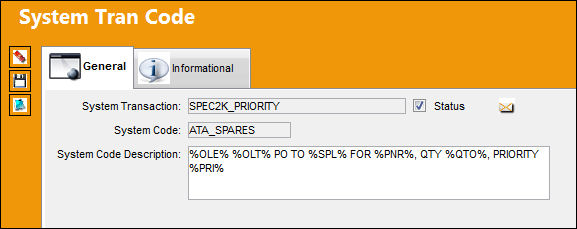
Users can customize the System Code Description field for a Spec2000 System Tran Code by setting place holders which are put in between two %s.
In this example, the System Code Description is “%OLE% %OLT% PO TO %SPL% FOR %PNR%, QTY %QTO%, PRIORITY %PRI%”. “%OLE% %OLT%, %SPL%, %PNR%, %QTO%, %PRI% are place holders, they represent “Rejection Code”, “Rejection Reason”, “Vendor”, “Part Number”, “Quantity”, and “Priority” respectively. These place holders will be replaced with the data from the specific purchase order.
Notification Alert in TRAX:
Users can setup notification as e-mails or TRAX internal message alerts from here when you receive or send a Spec2000 message. The notification alert is also used when an error happens during message transmission. SPEC2000_ERROR_ MESSAGE messages will be sent to notification recipients when errors occur.
TRAX displays the System Notification Window.
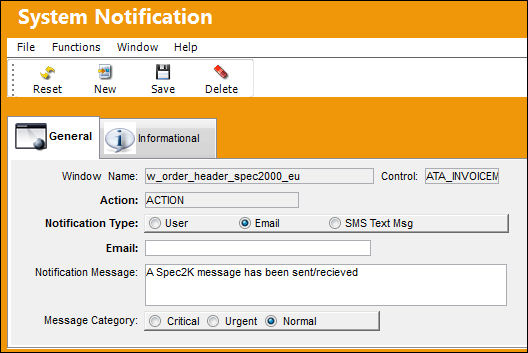
The following information/options are available in this window:
_____________________________________________________________________________________
Window Name
Screen/window affected by this functionality.
Control
Switch or Transaction Code that affects this functionality.
Action
How this functionality affects TRAX.
Notification Type
The method by which notification will reach the necessary individuals.
User Radio Button
Select this radio button to have the notification sent through a user.
Email Radio Button
Select this radio button to have the notification sent through email.
SMS Text Msg Radio Button
Select this radio button to have the notification sent through an SMS Text Message.
User
Name of user.
This field only appears when the User Radio Button is selected.
Email address of recipient of the email notification.
This field only appears when the Email Radio Button is selected.
Country Code/Phone
The country code/area code and telephone number of the recipient of the SMS Text Message.
This field only appears when the SMS Text Msg Radio Button is selected.
Notification Message
The actual text that will appear in the notification message. This may be edited by user.
Message Category
The priority of the notification (i.e. Critical, Urgent, Normal). Select the appropriate Message Category Radio Button.
_____________________________________________________________________________________
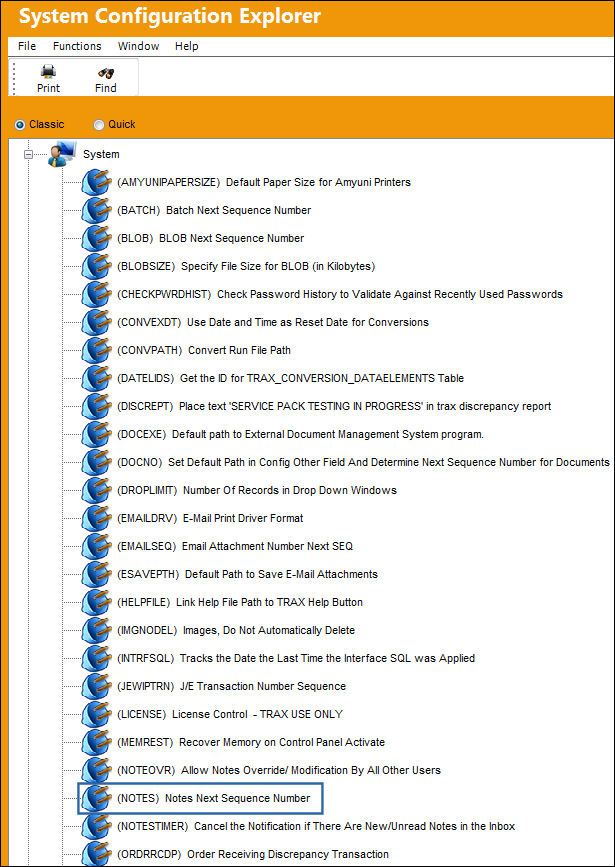
Be sure that the "NOTES" switch is on when setting up TRAX internal message alerts.
Share
Print
|
©1997-2026 Trax USA Corp. All rights reserved. This manual may not be copied, photocopied, reproduced, translated, or converted to any electronic or machine-readable form, in whole or in part, without prior written approval from Trax USA Corp. |
 |