
 Share
Share
 Print
Print
|
|
|
|
|


The Engineering Control Tab allows the user to view all E/Cs related to the Work Order in the Display By Area.
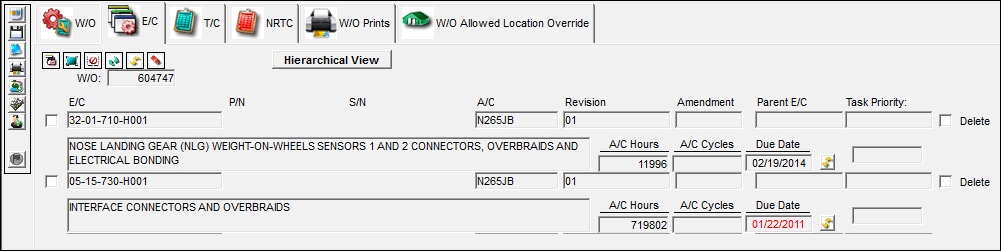
The following information/options are available in this window:
_____________________________________________________________________________________
W/O
The Work Order used to categorize, manage, and schedule work requirements for aircraft maintenance.
E/C
The Engineering Control that specifies aircraft or component scheduled maintenance intervals.
P/N
The Part Number reference for the aircraft part.
S/N
The Serial Number for the specific serialized part.
A/C
The individual aircraft tail number.
Revision
The Engineering Control Revision number.
Amendment
The Amendment field normally relates to the AD amendment number. This is alphanumeric.
Parent E/C
The Parent E/C associated with the E/C. This is in the E/C which contains the schedule. When the Parent is selected, it will bring in all dependent E/Cs (Child E/Cs) on to the Work Order as required. For more information, please refer to the Engineering Control, Schedule Tab via the Engineering - E/C Training Manual.
Not all E/Cs have Parent E/Cs.
Task Priority
The Priority of the E/C.
Description
A description of the E/C.
A/C Hours
The Aircraft Hours that the item is due at.
A/C Cycles
The Aircraft Cycles that the item is due at.
Due Date
The Due Date of the E/C.
Refresh Due At Info  button
Select the Refresh Due At Info button to refresh the Due At field information upon compliance of the E/C.
Delete checkbox 
Users can select each E/C they wish to delete by selecting this checkbox to the far right of each E/C. Once all selections have been made, select the Delete E/C(s)  button.
_____________________________________________________________________________________
The following information/options are available in this window:
_____________________________________________________________________________________
Engineering Control  button
Select the Engineering Control button. TRAX takes the user to the W/O Engineering Control window. For more information, regarding the W/O Engineering Control window, please refer to the E/C Button.
Select All  button
Click on the Select All button to select all E/Cs associated to the Work Order.
Deselect All  button
Click on the Deselect All button to deselect all E/Cs associated to the Work Order.
Transfer E/C  button
Select the Transfer E/C button to. For more information, refer to the Transfer E/C Button.
Refresh Due At Info All E/Cs button
Select the Refresh Due At Info All E/Cs button to refresh the A/C Hours, A/C Cycles and Due At field information upon compliance of the E/C.
Delete E/C(s) button 
Deletes the selected E/Cs. E/Cs can be selected for deletion by selecting the Delete checkbox located to the far right of each E/C.
_____________________________________________________________________________________
Share
Print
|
©1997-2026 Trax USA Corp. All rights reserved. This manual may not be copied, photocopied, reproduced, translated, or converted to any electronic or machine-readable form, in whole or in part, without prior written approval from Trax USA Corp. |
 |