
 Share
Share
 Print
Print
|
|
|
|
|


The following is an example of Engineering Compliance record against an aircraft:
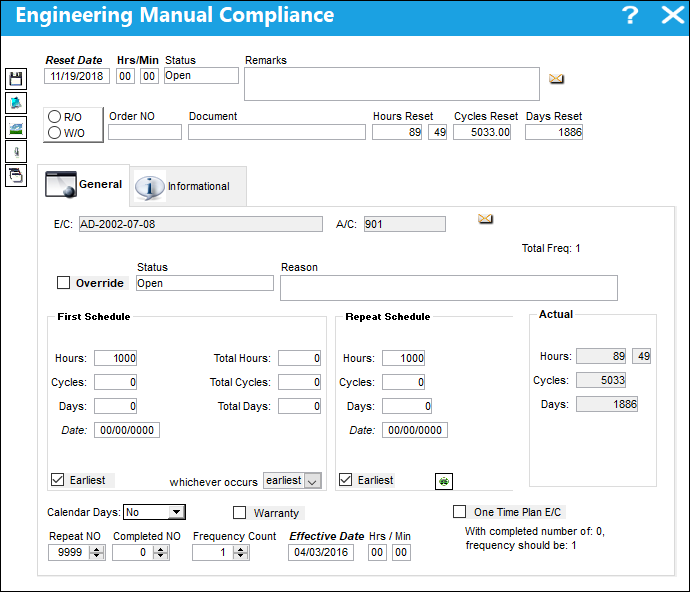
The following information/options are available in this window:
_____________________________________________________________________________________
E/C
The Engineering Control that specifies aircraft or component scheduled maintenance intervals.
A/C
The Aircraft registration number. All items within this window will only pertain to this A/C and may not match the default blanket schedule on the Engineering Control, Schedule Tab due to override information added.
Total Freq
Displays at which frequency the E/C is currently on (out of the E/Cs total frequency, as defined in the E/C Schedule tab). For additional information refer to the Engineering Control, Schedule Tab via the Engineering - E/C Training Manual.
Override checkbox
If selected, the checkbox identifies if the E/C has been put in an override status for this A/C tail number or P/N S/N. Edits cannot be made in the Engineering Manual Compliance window, therefore the Override checkbox cannot be selected/de-select.
Status
The current E/C status for the Aircraft. For additional information regarding definition of each status, see the Engineering Control, General Tab via the Engineering - E/C Training Manual.
If the status is manually changed to a status which prevents the E/C from appearing in Planning Forecast, the Reason field will become mandatory for the saving of the record.
Reason
The Reason field allows for additional notations to be added against the Engineering Effectivity Override for a particular A/C.
First Schedule
The First Schedule is the parameter and threshold for the initial occurrence and compliance of the E/C, as some E/Cs may have multiple schedules. The First Schedule only takes effect if there is no previous compliance against the E/C. The Effective Date based schedule is the initial Schedule Hours/Cycles/Days threshold parameter for this E/C. The hours/cycles/days are being calculated based on the effective date of the E/C. The system will default to the Earliest occurrence of these parameters, unless the Earliest flag is unchecked, then it will be the latest occurrence. For additional information on the First Schedule field, refer to the Engineering Control, Schedule Tab via the Engineering - E/C Training Manual.
First Schedule within the Engineering Effectivity Override window only applies to the selected A/C and E/C. If the Override checkbox remains selected then this A/C will have its own schedule and will not be reset/changed by any changes made on the blanket schedule (Engineering Control, Schedule Tab).
 The Schedule fields are security controlled via Engineering/Update/Engineering Control/E/C Edit Schedule. The same functionality is also available when this window is accessed through the Engineering Control Supervisor window. For more information refer to the Security Explorer via the System Administration Training Manual.
Repeat Schedule
If the E/C has a Repeat Number greater than 1, then the Repeat Schedule is the parameter for the subsequent repetitive occurrences of the E/C for repeat compliance requirements. As with the First Schedule, some E/Cs may have multiple schedules. When an E/C has multiple schedules, the Earliest checkbox is pivotal in the configuration as the E/C may call for the compliance to be accomplished at the latest occurrence. The First Schedule information must be entered in order for the Repeat Schedule to be applicable. For additional information on the Repeat Schedule field, refer to the Engineering Control, Schedule Tab via the Engineering - E/C Training Manual.
Repeat Schedule within the Engineering Effectivity Override window only applies to the particular A/C and E/C. If the Override checkbox remains selected then this A/C will have its own schedule and will not be reset/changed by any changes made on the blanket schedule (Engineering Control, Schedule Tab).
Actual
The time accrued against the E/C since the A/Cs last compliance/effective date.
Earliest checkbox
The Earliest checkbox option is selected if the E/C Schedule parameters are to be planned at the earliest occurrence. By selecting the Earliest checkbox, the schedule will be determined by which occurrence comes first: the Hours, Cycles, Days, or Date. For the latest occurrence, this checkbox should not be selected. This same logic is used independently by the parameters of the Effective Date-based Schedule (left) and of the Total Schedule (right).
If a combination of the Schedule Hours, Schedule Cycles, Schedule Days, and Schedule Date fields are populated with a schedule, checking the Earliest checkbox will make the E/C become due at whichever schedule option comes due first.
Calendar Days
The Calendar Days drop down allows the user to determine how the E/C's due date will be calculated in the planning forecast:
- - The planning forecast calculates the E/C's due date based on calendar days starting from the E/C's Effective Date (reset/last compliance date).
- - The planning forecast calculates the E/C's due date based on calendar days starting from the P/N S/N installed date (if the P/N S/N's installed date is after the E/C's Effective Date). For P/N E/Cs Only.
 No Fly - The planning forecast calculates the E/C's due date based on calendar days starting from the A/C last flight date or E/C last compliance date, whichever is more recent. For A/C E/Cs Only. Note: In Trax Version 12.5, the Calendar Days drop down has replaced the Calendar Days checkbox. The Calendar Days drop down appears regardless of the Planning Switch
  PN_EC_INSTDAYS setting, however the available drop down options are dependent upon if the switch is set to Yes or No. When Calendar Days is set to Yes, the planning forecast will account for and track:
1. Off-wing days, between installations and removals; and
2. Manually entered days that represent historical time accruals. In TRAX Version 11, the Calendar Days checkbox has replaced the P/N E/C Use E/C Effective Date checkbox. The Calendar Days checkbox is only available if Planning Switch PN_EC_INSTDAYS is set to Yes.
For more information, refer to Switch P/N_E/C_INSTDAYS via the Planning Switches Training Manual.
Warranty checkbox
This will show as selected to indicate that warranty information is applied for a particular tail number of this A/C Type/Series.
One Time Plan E/C checkbox
Indicates that the Child E/Cs schedule is being overridden as a one-time only E/C for the selected Aircraft. For Child E/Cs that are adopting its parent E/Cs schedule for a Work Order, if the Child E/C is transferred from that Work Order to another W/O, then this checkbox is selected for the W/Os specific Aircraft. Once the Child E/C is complied with for that Aircraft, the checkbox is automatically deselected. The One Time Plan checkbox should only be used through the functionality of Switch ECCHLDTRC (when set to Yes). The functionality of this checkbox is for correcting purposes through the switch's automated functionality, and should therefore not be selected manually from the override window.
When Switch ECCHLDTRC is set to Yes, when a Child E/C is transferred or canceled (via Task Card cancelation) from a W/O, the Child E/C will set to One Time Plan automatically. After the Child E/C takes its next compliance, the One Time Plan checkbox will automatically be de-selected. This functionality works if the Child E/C has it own schedule; if not, the system will prevent the transfer/cancel.
The Child E/C must be brought onto the Work Order via a Parent E/C for this to function correctly.
Repeat NO
The number of occasions the E/C will be repeated. If the Repeat Number is set to 1, the E/C is a one time only E/C and only the First Schedule is applicable. If the Repeat Number is set to 9999, the E/C will be carried out on the First Schedule 1 time and then the Repeat Schedule indefinitely. If the Repeat Number is a specific number, such as 5, the E/C will be carried out on the First Schedule 1 time and then be repeated 4 times according to the parameters configured on the Repeat Schedule (and then terminated).Complete NO
The number of times that the E/C has been complied with against the A/C.
The Frequency Count and Completed NO fields must match the Completed/Frequency Flag for the proper E/C Called On functionality to work.
Frequency Count
Displays at which frequency the E/C is currently on (out of the E/Cs total frequency, as defined in the E/C Schedule tab). For additional information refer to the Engineering Control, Schedule Tab via the Engineering - E/C Training Manual.
The Frequency Count and Completed NO fields must match the Completed/Frequency Flag for the proper E/C Called On functionality to work.
Effective Date Hrs/Min
The Effective Date is the date from which hours/cycles/days accumulate. It is used to calculate times accrued and due dates in the Planning Query.
If the effective date is greater than the current date, planning will not forecast for this E/C until the effective date has been met.
Display Compliance History  button
Select to view historical compliance records for this A/C E/C. For additional information, refer to the Display Compliance History button, via the Engineering - E/C Training Manual.
Completed/Frequency flag
The Completed/Frequency flag indicates that with the Completed NO being 'X' then the Frequency Count should be 'Y'. For proper E/C Called On functionality it is required that the Completed NO and Frequency Count fields match the Completed/Frequency Flag. For example, if an E/C has a frequency of 4, after being complied with 9 times the Frequency Count should be 2.


_____________________________________________________________________________________
Share
Print
|
©1997-2026 Trax USA Corp. All rights reserved. This manual may not be copied, photocopied, reproduced, translated, or converted to any electronic or machine-readable form, in whole or in part, without prior written approval from Trax USA Corp. |
 |