
 Share
Share
 Print
Print
|
|
|
|
|


MEL Master, Linked MEL Tab
The MEL Master, Linked MEL tab allows the user to create Linked relationships between parent and child MELs. When a parent MEL is associated to a Defect Report, the system will allow users to create new Defects using the Linked (Child) MELs. When creating a defect using the Linked MEL functionality, the original Defect's MDDR number will be assigned to the resulting Defect(s). For additional information, refer to the Link MEL Button via Defect Reports of the Technical Records Training Manual.
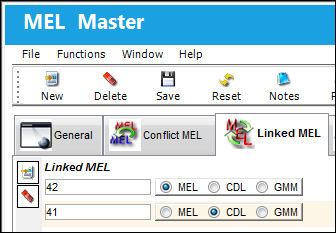
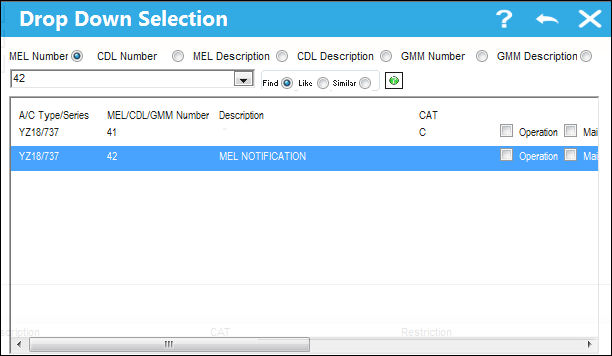
The following drop down selection appears. Select an MEL for the A/C Type and Series. Once selection is highlighted, (in blue) double click on it.
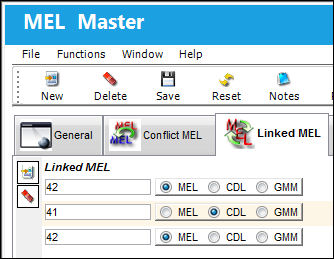
Once the Called On MEL is populated in the below field, select the Save  button.
The sub-MEL is now linked to the MEL.
Example:
In this example, the user has created a MEL. This MEL will serve as the parent MEL for the Linked relationship.
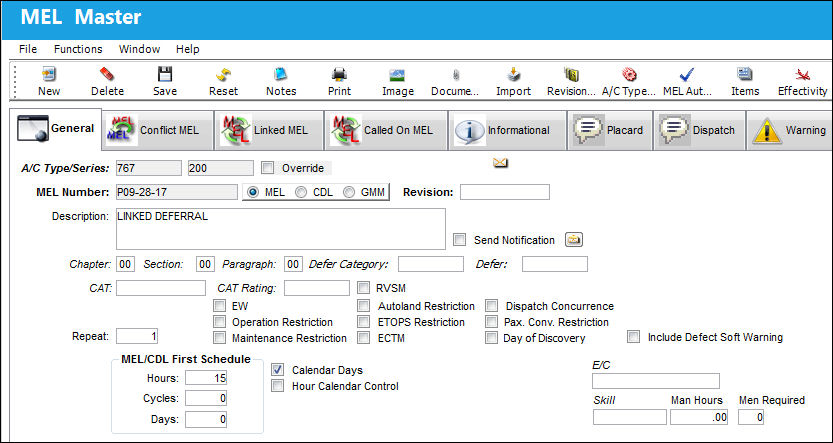
Another MEL, which will serve as the child MEL in the Linked relationship, has also been created.
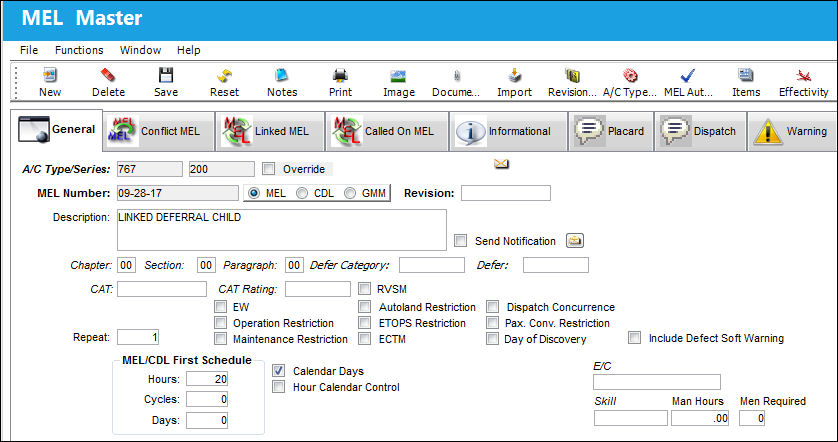
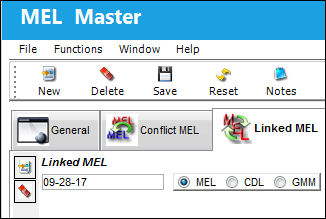
The relationship has then been set up in the Linked MEL tab of the Parent MEL. The child MEL has been specified in the Linked MEL field.
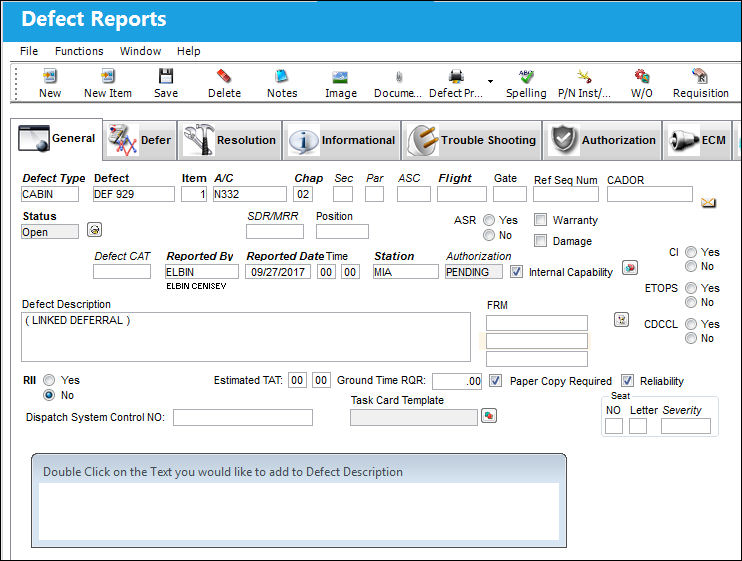
The user selects a Defect Report for deferral.
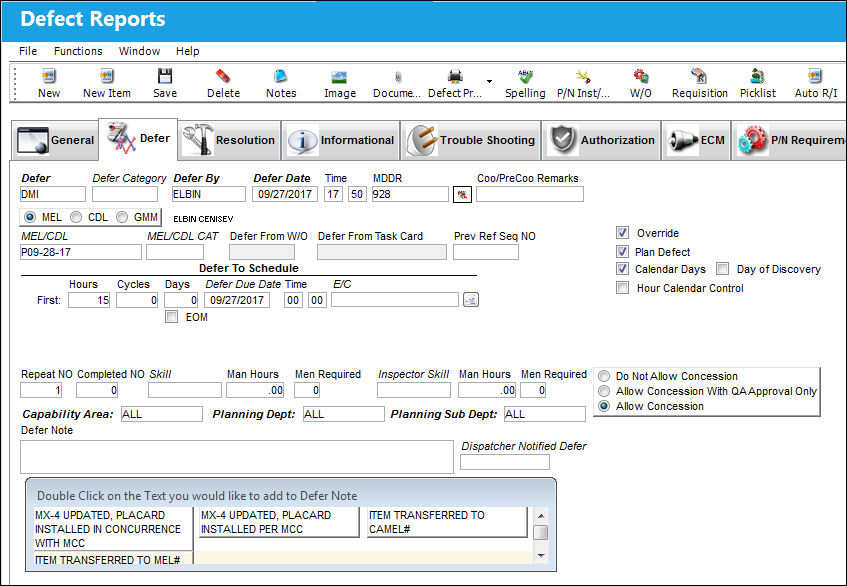
In the Defer Tab of the Defect Report, the user specifies the parent MEL in the MEL field (note that the MEL radio button has also been selected) and saves the record.
Since the parent MEL has been set to Link To the child MEL, the system then issues a warning which asks whether or not a separate Defect should be created for the child MEL.
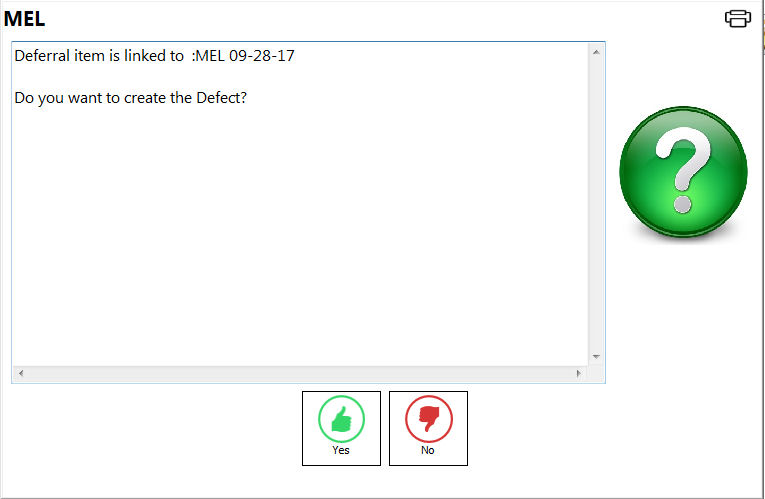
Depending on the setting of Technical Records Switch  LIMEMULTEXT, the text displayed in this warning may be different.
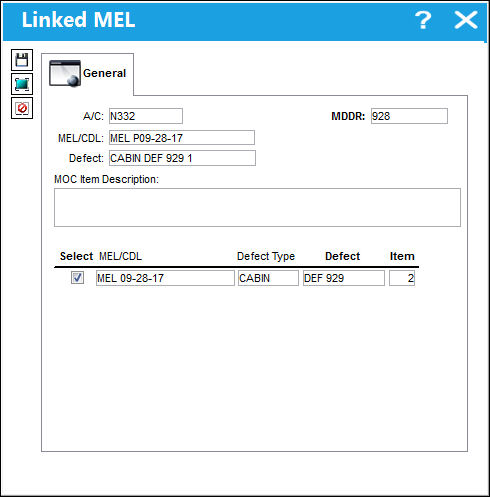
The user has decided to create a separate Defect and has then been redirected to the Linked MEL window. Here, the user selects the child MEL from the list and specifies that the new Defect should be created as an additional item to the original Defect (instead of creating an entirely new Defect). The record is then saved.
The Linked Defects tab now appears in the Defect Reports window. Here, the new Defect Item which was deferred using the Child MEL is displayed in the list. The user selects into by double-clicking on the record in the list.

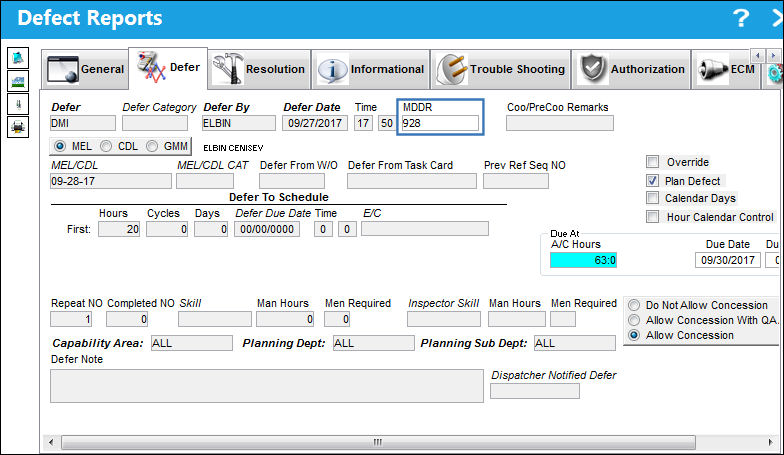
A new Defect Report window will open. In the Defer Tab, we can see that the specified MEL is the child MEL. Note also that the MDDR number for this record is identical to that of the original Defect due to this being a Linked relationship.
Share
Print
|
©1997-2026 Trax USA Corp. All rights reserved. This manual may not be copied, photocopied, reproduced, translated, or converted to any electronic or machine-readable form, in whole or in part, without prior written approval from Trax USA Corp. |
 |