
 Share
Share
 Print
Print
|
|
|
|
|


MEL Master, General Tab
An MEL's primary information is entered in the MEL Master, General tab.
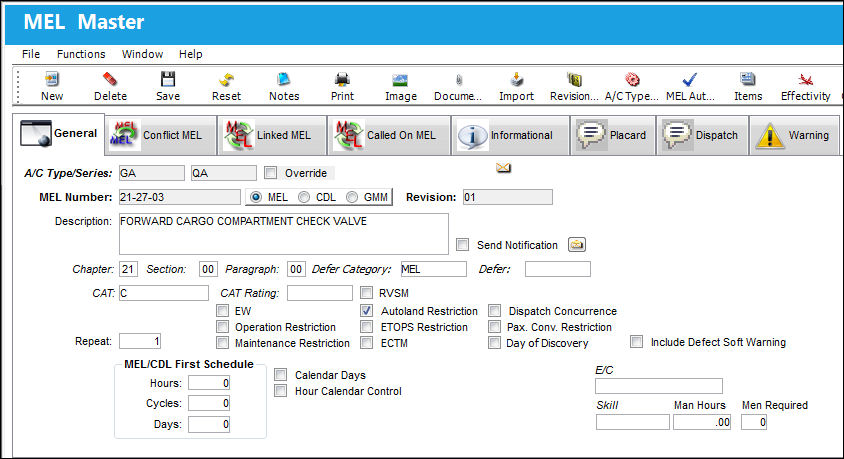
The following information/options are available in this window:
_____________________________________________________________________________________
A/C Type/Series
The Aircraft Type and Series/Fleet assignment. The MEL entered in this window will only be applicable to this specific fleet.
Override checkbox
This checkbox is selected upon the Effectivity for a specific, or multiple, aircraft being removed.
MEL Number
The Minimum Equipment List number. Specify either MEL, CDL, or GMM with the appropriate radio buttons.
 Note: The MEL Number field has a 20 character limit.
Note: When either MEL or CDL is selected, the Warning tab is available. For more information refer to the MEL Master, Warning Tab via the Settings Training Manual.
Revision
The current revision number of the MEL. When changes are made the MEL record, the MEL's revision number should be adequately updated.
Description
A free-text description of the MEL.
Send Notification checkbox
Select this checkbox to send appropriate MEL notification once the MEL is used to defer an applicable Defect Report. The notification itself is configured via the System Notification  button for the MEL.
System Notification button
A system notification can be set up to be sent when an MEL is created, closed, or both for a Defect Report. Once this MEL is linked to defer an applicable Defect Report, the System Notification becomes applicable. For information regarding the set up of a system notification, refer to Setup - System Notification via the Settings Training Manual.
 This button is security controlled via the Security Explorer/ Settings/ MEL Master/ MEL Notification Button. For additional information, refer to the Security Explorer via the System Administration Training Manual.
Chapter / Section / Paragraph
The ATA chapter/section/paragraph, as applicable.
Defer Category
Category of the deferment. This is the reference if the deferral is operational, or performance related. This field may be used to reference if the deferral is related to a General Maintenance Manual or a Standard Practice Manual. For additional information, refer to the Defer Category Code via the Technical Records Transaction Code Manual. The Defer Category linked to the MEL. This code is automatically populated in the Defect Report when the MEL is used to defer the Defect.
CAT
The MEL/CDL Category code that is linked to the MEL. This code is automatically populated in the Defect Report when the MEL is used to defer the Defect. This transaction code can contain a default First Schedule for the deferal (refer to MEL/CDL First Schedule below).
Defer
The Defer Code that describes the reason for the deferral. When the MEL is input in the Defect Report, Defer tab, this Defer code will be applied to the deferred Defect Report.
CAT Rating
The Category Rating as entered through the System Transaction Code Cat Rating via Settings. The CAT Rating is the description of the type of A/C landing system and is informational only. This field is typically for navigational parts.
RVSM checkbox
The RVSM (Reduced Vertical Separation Minimum) value for the MEL.
RVSM FL
Enter the according RVSM Value in the fields that come up when the RVSM checkbox is selected. Reduced Vertical Separation Minimum. This allows the A/C to safely fly more optimally (i.e. gain fuel savings, increase airspace capacity). This offers the opportunity to reflect the required parts for reduced vertical separation flights.
EW checkbox
Elementary Work such as such as removing and replacing tires, inspection plates, spark plugs etc. When selected, a checkbox will appear next to the MEL number in the A/C Controller Panel. For more information refer to the A/C Controller Panel via the Technical Records Training Manual.
 Note: When the EW checkbox is selected in the MEL Master it will cascade to the Defer tab in the Defect Report detail if the MEL is applied. If the EW checkbox is flagged in the Defer tab, then the relevant MEL Master record associated with the defect will also have the EW checkbox updated in the MEL Master.
Autoland Restriction checkbox
When selected, and a Defect is deferred with the specified MEL/CGL/GMM, this checkbox will appear on the Aircraft Defect Detail print, via Technical Records/ Print/ Defect Report Print.
Dispatch Concurrence checkbox
When the Dispatch Concurrence checkbox is selected for an MEL/CDL or GMM and a Defect is deferred by the specified MEL/CDL or GMM, the Dispatcher Notified Defer field in the Defect Report Detail, Defer tab will be mandatory.
Repeat
The number of times the MEL schedule must be repeated when linked to a Defect Report. If '1' is entered, then the MEL/CDL First Schedule must be run once only; if '2' or more is entered, then after the First Schedule is applied, the MEL/CDL Repeat Schedule must be applied for each following repetition of the MEL. Use the Revision Number.
Operation Restriction checkbox
Check to indicate that Operation Restriction exists for the MEL.
Maintenance Restriction checkbox
Check to indicate that Maintenance Restriction exists for the MEL.
ETOPS Restriction
Check to indicate that ETOPS Restriction exists for the MEL.
ECTM
Engine Condition Trend Monitoring. Check to indicate that ECTM exists for the MEL.
Pax. Conv. Restriction
Check to indicate that Pax. Conv. Restriction exists for the MEL.
Day of Discovery
The Day of Discovery checkbox helps determine the Due Date from when the Defect is established. When selected, it will have the same date as produced from calendar days, but will be listed in black indicating that it is not overdue throughout the final day to give the user until the end of the day (23:59) before it is overdue. When deselected, the Due Date will have the same date as produced from calendar days, but will be listed on black or red, thus indicating whether or not it is overdue, depending on the time of day the Defect was deferred.
The MEL Master may contain the Day of Discovery checkbox status which may be overridden against the Defect.
Include Defect Soft Warning checkbox 
Select this checkbox in order for Technical Records Switch  DEFREPMEL to be in effect:
- When set to Yes, when a Defect Report is deferred to an MEL/CDL, a soft warning message appears if the Aircraft has not completed the specified number of cycles from the last Closed Defect that was deferred to an MEL/CDL with the same ATA Chapter, Section, Paragraph. The switch's Config Number field defines the number of cycles between each deferred defect for the same A/C with the same MEL/CDL Chapter, Section, and Paragraph.
- When set to No, when a Defect Report is deferred to an MEL/CDL, a soft warning is not displayed if the Aircraft has not completed the specified number of cycles from the last Closed Defect that was deferred to an MEL/CDL with the same ATA Chapter, Section, Paragraph.
This checkbox will be selected by default for MELs that are imported to the MEL Master via the MELCU doctype through TraxDoc.
MEL/CDL First Schedule (H/C/D)
The First Schedule is the parameter for the initial occurrence of the MEL.
MEL/CDL Repeat Schedule (H/C/D)
This is the schedule to be followed after the First Schedule has been met. If the Repeat Number is '2' or greater, then the Repeat Schedule is the parameter for the subsequent repetitive occurrences of the MEL. Refer to the Repeat field above for more information.
Calendar Days
Select to indicate that Calendar Days apply to the Defect Report deferal schedule(s). If a deferment is limited by a number of days (the Days field is populated), selecting this checkbox would indicate that the limit is by calendar days rather than by flight days. This checkbox is selected by default. If a deferment is limited by a number of flight days (Days field) then this checkbox should not be selected. This checkbox is selected by default. Therefore, if de-selected, only days in which the aircraft flew would be counted against the defect's actual time. If the MEL linked to the deferred Defect Report has the Calendar Days checkbox selected, the Calendar Days checkbox for the Defect Report will also be selected (but it can be manually overridden from that window). For more information refer to the Defect Report Detail, Defer Tab via the Technical Records Training Manual.
Hour Calendar Control
Check to indicate that Hour Calendar Control apply to the schedule(s).
E/C
The Engineering Control that specifies aircraft or component scheduled maintenance intervals. This E/C is linked to the MEL.
Skill
Select the required skill related to the E/C associated to the MEL.
Man Hours
The amount of work hours (per person) required for this E/C associated to the MEL.
Men Required
The number of personnel required for this E/C associated to the MEL.
_____________________________________________________________________________________
Share
Print
|
©1997-2026 Trax USA Corp. All rights reserved. This manual may not be copied, photocopied, reproduced, translated, or converted to any electronic or machine-readable form, in whole or in part, without prior written approval from Trax USA Corp. |
 |