
 Share
Share
 Print
Print
|
|
|
|
|


A/C Controller Panel
The A/C Controller Panel option allows users to quickly view the status of all aircraft in the fleet along with any pending discrepancies.
 This window is security controlled via Technical Records/ Update/ A/C Controller Panel. For more information, refer to the Security Explorer, via the System Administration Training manual.
The option allows the Maintenance Controller to:
- record reported Defect Reports
- notify mechanics of work that needs to be performed
- determine how outstanding Defect Reports will impact aircraft operation and flight scheduling
- monitor aircraft In/Out of Service Status
Information is obtained from the Technical Records and Production modules. Pending Defect Reports and Work Orders will appear in conjunction with each aircraft.
The user can create new Defect Reports to associate with each aircraft directly via the A/C Controller Panel. Alternatively, the user can create the Defect Report via Technical Records/Update/Defect Reports.
The A/C Controller Panel is a customized window. This window will not appear the same way for all customers, therefore the windows below may not contain all customer specific functionality. For additional information, consult a TRAX Administrator.
The appropriate switches must be set for proper functionality of this option. To set system switches, go to System Administration/Explorer/System Transaction Configuration/Technical Records.
 DACOUTSERV - (Default Flight Status radio button to In Service/Out of Service depending on configuration of switch DACOUTSERV). If the configuration switch is set to Yes, the Out of Service tab will default to 'In Service' in the Defect Report Window. The system will not bring the A/C in service if the defect has been deferred. If the user has set the record to in service, and a defect is closed, only then will the A/C go back in service. If the configuration switch is set to No, the Out of Service tab will default to 'Out of Service' in the Defect Report Window.
- ACTRLTRAN - (Control life time of transactions on the A/C Controller Panel). Populate the Config Other field with the length of time the historical data will remain in the background tables of the A/C Controller Panel. This switch does not have Yes/No functionality.
- ACCPRR - (A/C Control Panel Refresh Rate) - If set to Yes, the system automatically refreshes the A/C Control Panel's screen every 'X' number of seconds. The number of seconds is defined in the Config Number field on the Configuration tab. When set to No, the A/C Controller Panel window will not automatically refresh. The user would have to close then reopen the window manually in order to refresh the data.
If a Defect Report is created, certain criteria must be met in order for that Defect Report to appear in the A/C Controller Panel. For additional information, refer to the Defect Type Tran code via the Technical Records System Transaction Code manual.
A/C which are placed in Out-of-Service Status will roll to the top of the A/C Controller Panel.
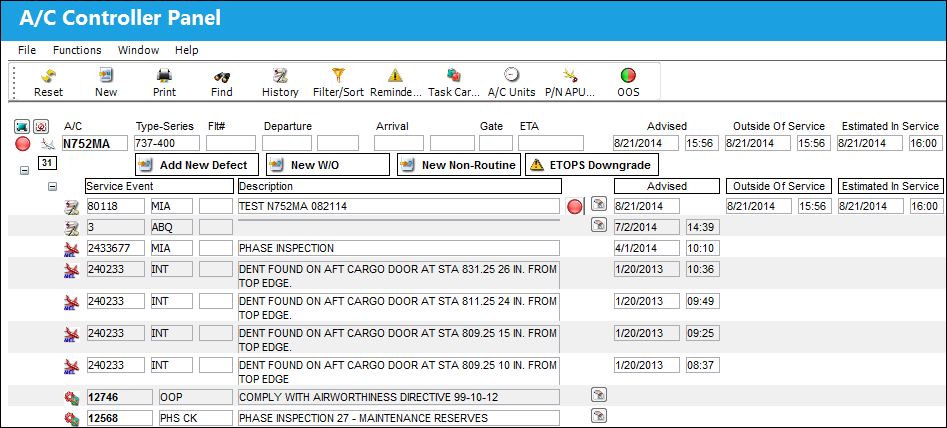
Second portion of the window. The following fields are displayed (use the scroll bar to navigate the entire screen):
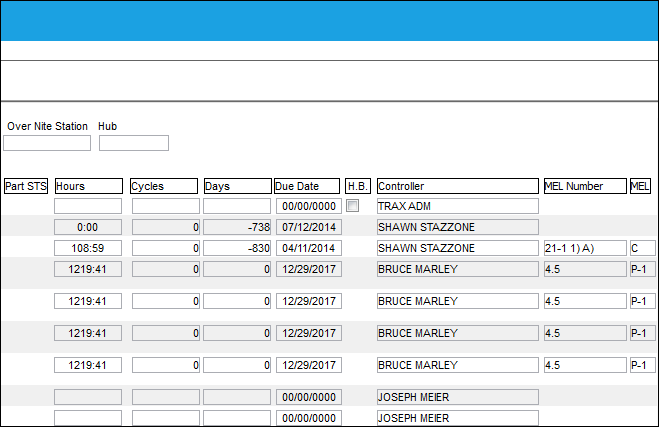
The following information/options are available in this window:
_____________________________________________________________________________________
A/C
The individual aircraft tail number. Right click on the aircraft symbol to access information dialog actions. Here the user can query the A/C Master details, view open defects, scheduled flights, and fault codes for the selected aircraft. For additional information, refer to Additional Information, via the A/C Controller Panel of the Technical Records Training Manual.
 Note: Selecting an A/C record with an associated W/O will display the W/O Detail window. For more information, refer to Work Order Detail.
Type/Series
The Aircraft Type and Series/Fleet assignment.
Flt #
The aircraft's next scheduled flight number.
Previous RON
The previous Remaining Overnight station. For additional information, refer to the A/C Master, Optional 2 Tab, via the A/C Master of the Settings Training Manual.
Departure
The departure time.
Arrival
The arrival time.
Gate
The arrival gate number.
ETA
The Estimated Time of Arrival. This information can assist the Maintenance Controller in planning gate activity along with providing advance notice to mechanics, as required.
Advised
The date and time that the discrepancy was reported. The default is the time that the Defect Report is being created and can be edited as required.
Outside Of Service
The date and time that the aircraft went out of service for required maintenance.
Estimated In Service
The date and time that the aircraft will be placed back in service.
Overnight Station
This field will display the destination location of the last scheduled flight of that day.
Picklist
List of reserved components for a maintenance event or for transfer.
Requisition
List of required parts for either a maintenance item or for restocking.
Hub
The code for the main connecting point for the specified location. The Hub field will populate with information from the Third Party interface.
Due At A/C Hours 
The Aircraft Hours that the item is due at. This information also appears in the A/C Planning Query Detail View. For additional information, refer to the Due At section via A/C Planning Details which can be found in the Planning Training Manual.
Expand/Collapse buttons 
Users may utilize the Expand  button and the Collapse
  button to view the details for each A/C Type/Series.
Note: These buttons also serve as a drop-down menu. Users can access the following options from the drop-down list: Non-Routine, Defects and W/O. This functionality is customer specific and may not be available to all users.
Add New Defect button
Select this button to add a new Defect to an aircraft. For additional information, refer to the Add New Defect Button, via the A/C Controller Panel, of the Technical Records Training Manual.
Note: Selecting the Add New Defect button will create an auto populated Defect Report Detail and selecting the Add New button will create a blank Defect Report. For more information, refer to Defect Report Detail.
New W/O button
Select this button to add a new Work Order to an aircraft. For additional information, refer to the New Work Order Button, via the A/C Controller Panel, of the Technical Records Training Manual.
New Non-Routine button
Select this button to add a new Non-Routine Task Card to an aircraft. For additional information, refer to the New Non-Routine Button, via the A/C Controller Panel, of the Technical Records Training Manual.
ETOPS Downgrade button
Select this button to downgrade the aircraft to an ETOPS aircraft. The following prompt will appear:
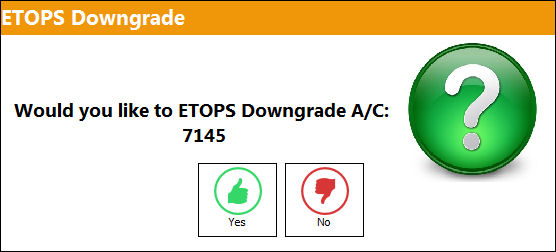
A System Notification will be sent once the aircraft ETOPS Downgraded.
This button is security controlled via Technical Records/ Update/ A/C Controller Panel/ ETOPS Downgrade. Wall security is also enabled for the use of this button. For additional information, refer to the Security Explorer, via the System Administration Training Manual.
ETOPS Restore button
Select this button to restore an aircraft to ETOPS aircraft. The following prompt will appear:
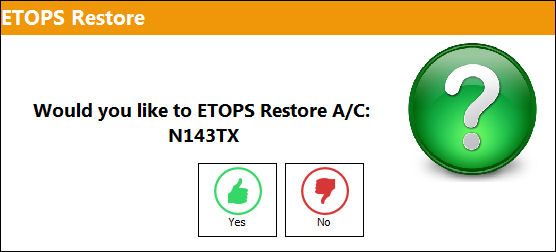
Once the aircraft is restored, the ETOPS Downgraded checkbox in the A/C Master, Optional 1 Tab will be automatically de-selected. A System Notification will be sent once the aircraft is restored back to ETOPS status.
OR
The user will receive the following error if the parts currently installed on the aircraft are not ETOPS authorized:
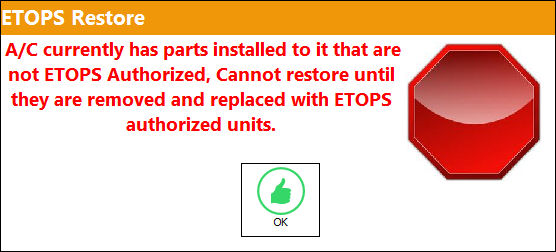
This button is security controlled via Technical Records/ Update/ A/C Controller Panel/ ETOPS Restore. Wall security is also enabled for the use of this button. For additional information, refer to the Security Explorer, via the System Administration Training Manual.
Quick Entry button
Select this button to quickly generate a Defect Report without having to exit the A/C Controller Panel window. For additional information refer to the Quick Entry Button, via the A/C Controller Panel, of the Technical Records Training Manual.
Oil Consumption button
Select this button to quickly add A/C Units to an aircraft without having to exit the A/C Controller Panel window. For additional information, refer to the Oil Consumption Button, via the A/C Controller Panel, of the Technical Records Training Manual.
History button
Select this button to access the Defect Query window to quickly search for all Defects associated to the specified aircraft.
Damage Chart button
Select this button to be taken to the Damage Chart Query. For additional information, refer to the Damage Chart Button, via the A/C Controller Panel, of the Technical Records Training Manual.
Plan EC button
Select this button to access the Planning/SDI window. For additional information, refer to the Plan EC Button, via the A/C Controller Panel, of the Technical Records Training Manual.
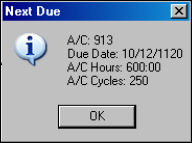
Next Due Information  button
Select this button to view the 'next due' information.
MTC Opportunities Button
For information regarding this button, refer to the MTC Opportunities Buttons, via the A/C Controller Panel, of the Technical Records Training Manual.
Contacted radio button
The Contacted radio button is selected to inform the user that the Work Order associated to the Defect has MTC functionality. For additional information regarding the MTC functionality, refer to the MTC Opportunities Button, via the A/C Controller Panel Buttons of the Technical Records Training Manual.
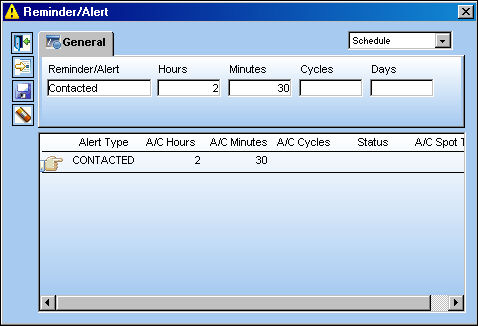
Alarm On radio button
When the 'Yes' radio button is selected, the system will display the following Reminder/Alert window where the user may set up a timer to alert the controller of overdue defects.
Plan EC button
Select this button to access the Planning/SDI window. For additional information, refer to the Plan EC Button, via the A/C Controller Panel, of the Technical Records Training Manual.
Defer
Reason for the defect deferment; for example M.E.L., Dent, No Parts, WATCH item, etc. For additional information, refer to the Defect Report Detail, Defer Tab, via the Defect Report section of the Technical Records Training Manual.
Defect  line item
When the Defect button appears in the A/C Controller Panel, this indicates that a Defect is currently associated with the aircraft. Double click on the Defect button to view the selected Defect details. For additional information, refer to the Defect Report, General Tab, via Defect Reports of the Technical Records Training Manual.
- DACOUTSERV - (Default Flight Status radio button to In Service/Out of Service depending on configuration of switch DACOUTSERV). If the configuration switch is set to Yes, the Out of Service tab will default to 'In Service' in the Defect Report Window. The system will not bring the A/C in service if the defect has been deferred. If the user has set the record in service, and a defect is closed, only then will the A/C go back in service. If the configuration switch is set to No, the Out of Service tab will default to 'Out of Service' in the Defect Report Window.
- ATCONPNL - (A/C Controller Panel - Show Deferred Defects) - If set to Yes, the A/C Controller Panel will display both Deferred Defects and Open Defects (i.e., not deferred or resolved). If set to No the A/C Controller Panel will NOT display Deferred Defects. Only Open Defects (i.e. not deferred or resolved) will be displayed.
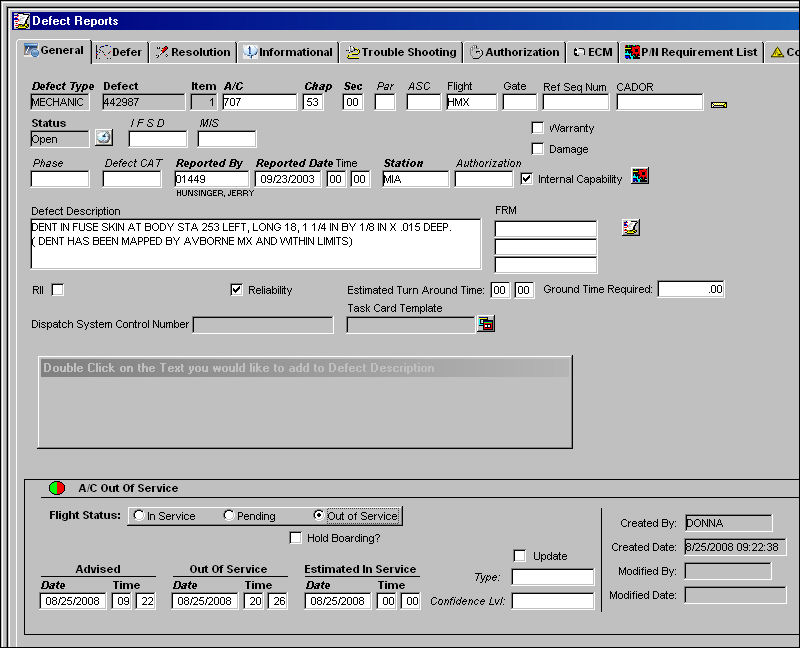
The Authorization  icon will appear to the left of the Defect Report icon for Defect Reports that are Pending Authorization. For more information refer to the Defect Report Defer Authorization via Defect Reports of the Technical Records Training Manual.
Defect - The defect number (or log book number). The Defect Number is typically the same number of the A/C log page.
MEL  line item
When the MEL  button appears in the A/C Controller Panel, this indicates that a MEL is currently associated with the aircraft. Double click on the MEL
  button to view the selected Defect details. For additional information, refer to the Defect Report, General Tab.
When an MEL has been flagged as EW (Elementary Work), via Settings/ Update/ MEL Master, the following checkbox will default to selected in the A/C Controller Panel.

For additional information, refer to the MEL Master, General Tab of the Settings Training Manual.
DMI - The MDDR of the MEL, also known as a Deferred Maintenance Item. This field shows the deferment of one Defect Report through using the MDDR number on another Defect Report so that the user may resolve the MDDR.
MEL - The Minimum Equipment List (MEL number) and MEL Category will appear in the A/C Controller Panel if a defect is deferred based on a MEL schedule.
Work Order  line item
When the Work Order button appears on the A/C Controller Panel, this indicates that a Work Order is currently associated with the aircraft. Double click on the Work Order button for additional information. Only Work Orders that hold the status of 'Open' or 'Line' will appear in the A/C Controller Panel. Double click on the currently selected item that contains the Work Order icon to view/modify the details of the Work Order. For additional information regarding the fields in a Work Order, refer to the Work Order, General tab via the Work Order section of the Production Training Manual. For additional information regarding the A/C Out Of Service Flight Status radio buttons, refer to the A/C In/Out Service Button via Defect Report buttons and A/C Controller Panel Lights section of the Technical Records Training Manual.
- ACTRLWOPN - (Only Show W/Os that are in Line, Open, and Generation Status on the Controller Panel) - When set to Yes, the A/C Controller Panel will show Work Orders that are in Line, Open, and Generation Status.
- ACTRLWOTD - (On the Controller Panel, Only Show Work Orders Scheduled for Today) - If this switch is set to Yes, the A/C Controller Panel will only show Work Orders that are scheduled for today.
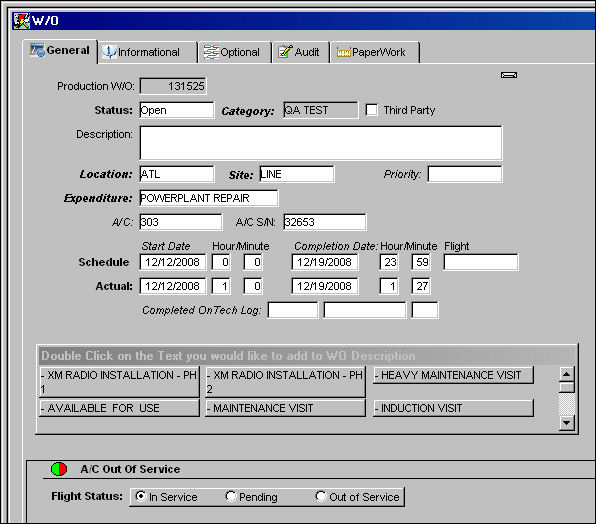
W/O - The Work Order used to categorize, manage, and schedule work requirements for aircraft maintenance.
Task Card - The Task Card / Job Card that details the scheduled maintenance work. The icon in front of the Task Card field indicates that this scheduled Task Card placed the specified aircraft Out of Service (OOS).
Non-Routine Task Card - The Non-Routine Task Card that details non-scheduled maintenance work / findings. The icon in front of the Task Card field indicates that this unscheduled Task Card placed the specified aircraft Out of Service (OOS).
Fault Code  button
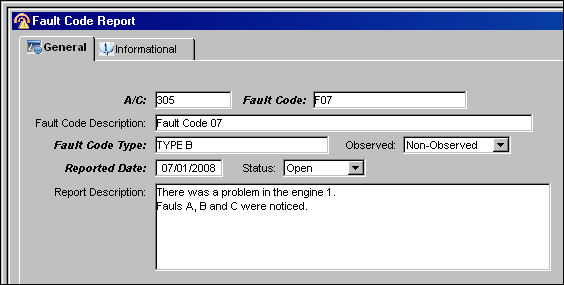
When the Fault Code button appears on the A/C Controller panel, this indicates that a Fault Code is currently associated with the aircraft. Double click on the Fault Code button for more information. For additional information, refer to the Fault Code Master, General Tab via the Fault Code section of the Settings Training Manual.
Location/Station
The Location for maintenance events, inventory stores, orders, transactions, or training events. The Station where the Defect was reported.
Description
The Description of the Defect/MEL/W/O which describes the problem found or notes the service being performed.
Defect Notes
Additional notes regarding the Defect.
Reported Date
The Date the Defect was reported on.
Defer To Hours/Cycles/Days
The number of flight hours/cycles/days in which the deferment must be resolved from the beginning of the Report or Defer Date based on TRAX system configuration.
Defer To E/C
The E/C which the Deferred Defect will follow for a schedule. When this E/C is placed on a Work Order, a Non-Routine Task Card will be created for the associated Deferred Defect.
Panel Lights
Indicates the Status of the Service Event. For more information, refer to the A/C Controller Panel Lights.
PDSC Expires
The PDSC (Pre-Departure Service Check).
 - The PDSC date and time.
 - When the date and time of the PDSC is displayed in yellow, this means that the warning level is now in effect. For example, if a PDSC is created at 15:00 hrs and the warning level is set for 60 minutes, the PDSC date and time will appear in yellow at exactly 16:00 hrs. For additional information, refer to the PDSC Configuration Button, via Company Profile Buttons of the Settings Training Manual.
 - When the date and time of the PDSC is displayed in red, this means that the expiration alert is now in effect. For example, if a PDSC is created at 15:00 hrs and the warning level is set for 30 minutes, the PDSC date and time will appear in red at exactly 15:30 hrs. For additional information, refer to the PDSC Configuration Button, via Company Profile Buttons of the Settings Training Manual.
Lock/Unlock  button
Select this button to unlock the Out Of Service for this aircraft. This icon only appears if the Out Of Service for the specified aircraft has a current 'Request to Unlock' it. For additional information, refer to the Out Of Service Button, via the A/C Controller Panel, of the Technical Records Training Manual. Once selected, the cursor will remain on the specified A/C regardless of how many times the user refreshes the window.
Requisition button
Select the Requisition  button to view any existing requisitions associated to a part required for the selected aircraft/Defect/Work Order. Selecting this button displays any open, canceled, etc. requisitions. From the pop-up window, users can create Requisitions, view existing Requisition details, and/or de-link existing Requisitions. The first half of the sub-window displays all Open requisitions for various parts and locations. The lower half of the pop-up window displays any status (open, canceled) Requisitions for the selected aircraft/Defect. For additional information, refer to the Requisition Button.
ETOPS
Extended Twin Engine Operation (Over water designator). The impact of this designation is to alert when installing parts that are non ETOPS rated on an ETOPS rated aircraft.
CAT Rating
The Category Rating as entered through the System Transaction Code Cat Rating via Settings.The CAT Rating is the description of the type of A/C landing system and is informational only.
Advised Date / Time
The date and time that the discrepancy was reported. The default is the time that the Defect Report is being created and can be edited as required.
Outside Of Service Date / Time
The date and time that the aircraft went out of service for required maintenance.
Restriction checkboxes
Displays which types of restrictions exists for the MEL.
Operation - Indicates the Operation Restriction that exists for the MEL.
Maintenance - Indicates the Maintenance Restriction that exists for the MEL.
ETOPS - Indicates that ETOPS Restrictions exist for the MEL.
Pax. Conv. - Indicates that Pax. Conv. Restrictions exist for the MEL.
RVSM  - The RVSM (Reduced Vertical Separation Minimum) value for the MEL.
Re-Inspect checkbox
Indicates that the Service Event will require a re-inspection.
Estimated In Service Date / Time
The date and time that the aircraft will be placed back in service.
Part STS
Indicates the availability of the part/tool required for the service event.
Hours/Cycles/Days
The system automatically calculates based on the mean hours and cycles per day, the remaining hours/cycles/days which can be flown on that Due Date without the maintenance event being overflown. If a parameter is overdue, it is listed as a negative number (e.g., -5). For additional information, refer to the Due At section via A/C Planning Details which can be found in the Planning Training Manual.
Due Date
The Due Date is calculated based on the Defect Report's Defer Schedule information and the aircraft's mean hours and cycles per day. For additional information, refer to the Defect Report Detail, Defer Tab, via Defect Reports of the Technical Records Training Manual.
H.B. checkbox
Check to indicate that boarding of the aircraft should be “On Hold” (pending the related maintenance defect).
Controller
The employee who created the record. This information comes from the A/C Flight Schedule. If the Hub field in the A/C Master, Optional 2 tab is NULL, this information will be pulled from the Schedule. For additional information, refer to the A/C Flight Schedule Detail, Optional Tab, via A/C Flight Schedule of the Technical Records Training Manual.
 This field is only available for customers who have an Interface set up. For additional information, contact the TRAX Interface Administrator.
Last Known A/C Actual Flight Data
The last actual A/C Flight number.
APU Oil
The quantity of APU/ENG oil consumed for the applicable A/C service unit. If the APU/Engine Oil consumption is greater than the Oil Consumption Limit QTS. Per Hr., the APU/Engine Oil field will be highlighted in red. This field can only be edited for the last actual A/C flight number.
Note: This functionality only applies to the 1st Level of consumption.
Note: This functionality is customer specific and may not be available to all users.
ENG Oil 1
The quantity of APU/ENG oil consumed for the applicable A/C service unit. If the APU/Engine Oil consumption is greater than the Oil Consumption Limit QTS. Per Hr., the APU/Engine Oil field will be highlighted in red. This field can only be edited for the last actual A/C flight number.
Note: This functionality only applies to the 1st Level of consumption.
Note: This functionality is customer specific and may not be available to all users.
ENG Oil 2
The quantity of APU/ENG oil consumed for the applicable A/C service unit. If the APU/Engine Oil consumption is greater than the Oil Consumption Limit QTS. Per Hr., the APU/Engine Oil field will be highlighted in red. This field can only be edited for the last actual A/C flight number.
Note: This functionality only applies to the 1st Level of consumption.
Note: This functionality is customer specific and may not be available to all users.
Edit A/C Unit button
The Edit Service Unit button allows users to make changes to the quantity of oil (in quarts) to the APU/Engine Oil fields.
Note: This functionality is customer specific and may not be available to all users.
Oil Consumption Limit QTS. Per HR.
The quantity of APU/Engine Oil consumed per hour in quarts. The results of any oil uplifts that were added after a flight will be displayed here. The system will round the quantity to four decimal places.
Note: This functionality is customer specific and may not be available to all users.
_____________________________________________________________________________________
The displayed buttons indicate temporarily out-of-service (Red) and pending (Yellow) status for the Aircraft.
A/C field:
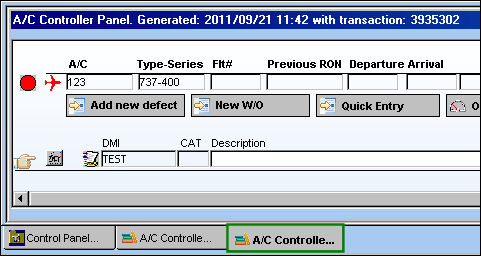
When the user double-clicks in the A/C field, a second A/C Controller Panel tab appears displaying only the information only for the specified A/C.
From the A/C Controller Panel, double click on any of the A/C fields:
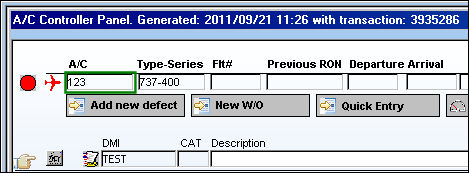
TRAX displays a second A/C Controller Panel tab displaying information only for the A/C:
This update window is also available in query mode where users can view the records provided in this window but cannot create new records or edit existing data. Refer to this module's Query menu.
Share
Print
|
©1997-2026 Trax USA Corp. All rights reserved. This manual may not be copied, photocopied, reproduced, translated, or converted to any electronic or machine-readable form, in whole or in part, without prior written approval from Trax USA Corp. |
 |