
 Share
Share
 Print
Print
|
|
|
|
|


A/C Flight Delay Update
The A/C Flight Delay Update, General Tab is used to query for Delay Reports based on the following search criteria. Enter any of the below search criteria to query for a desired Delay Report and select the Find  button.
This option allows users to update the delay information for delays not associated to a defect. This information can also be updated even if the flight is closed.
Only flights with delays will appear in this query.
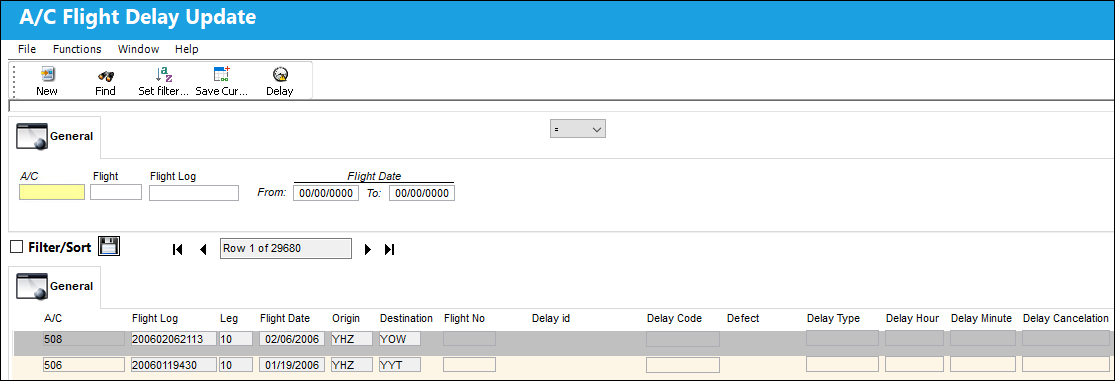
Query:
The following information/options are available in this window:
_____________________________________________________________________________________
Logic drop down 
Select one of the following logic functions to filter for data:
<= Less than or equal to.
<> Not equal to.
= Equal to.
>= Greater than or equal to.
Like Show data like or similar to.
A/C
The individual aircraft tail number. The aircraft selected for the delay query.
Flight Log
The unique Flight Log number for the flight.
Flight Date (From-To)
Enter the Flight (From-To) Date range for the delay query.
_____________________________________________________________________________________
Results:
The following information/options are available in this window:
_____________________________________________________________________________________
Save Current Filter Setting  button
Select this button to save the currently applied filter settings and create a new filter criteria based on the current selections. For more information on saving filters, refer to Saving Filters/Sort via the System Standards manual.
Note: If the Private checkbox is selected when saving the filter, the filter will not be available for all users in the system. Additionally, Users can select the Set Persistent  button to automatically enable this filter upon accessing the window. However, only one filter can be set as persistent at a time. Persistent filters will have a Globe
  displayed alongside them in the Filter Set window and can be queried via the Persistent checkbox.
Leg
The Flight Leg number for the flight.
Flight Date
The date of the flight.
Origin
The airport of Origin for the flight. Select into this field to access a drop down of available routes as entered in Settings/Update/Routes. If a route is entered that is not known to the system, a message will pop up, the route can nevertheless be used. For routes that are entered into the system, the system will compare actual flight duration with the entered duration.
Destination
The airport of destination for the flight.
Flight No.
The flight reference number/information. This number is linked to the FLT No. of the Delay window.
This field is not linked to the Flight field of the A/C Actual Flights window.
Delay  icon
icon
This icon indicates that there is/was a delay associated to a flight.
Delay Code
The Delay Code (i.e. Equipment Failure, Scheduled Ground Time).
Defect
The defect associated with the flight record. This field will display a brief description that details the issue and/or service.
Delay Type
The Delay Type (Engineer, FAA etc.).
Delay Hour/Minute
The hour/minute of the delay.
Delay Cancellation
The flight cancellation code if applicable (i.e. Maintenance Repairs, Ground Servicing). These codes can be set up via the Technical Records Transaction Codes. Go to Settings/ Explorer/ System Transaction Code/ Technical Records.
_____________________________________________________________________________________
The Delay window appears. Create a Delay report and save the record. Exit the window.
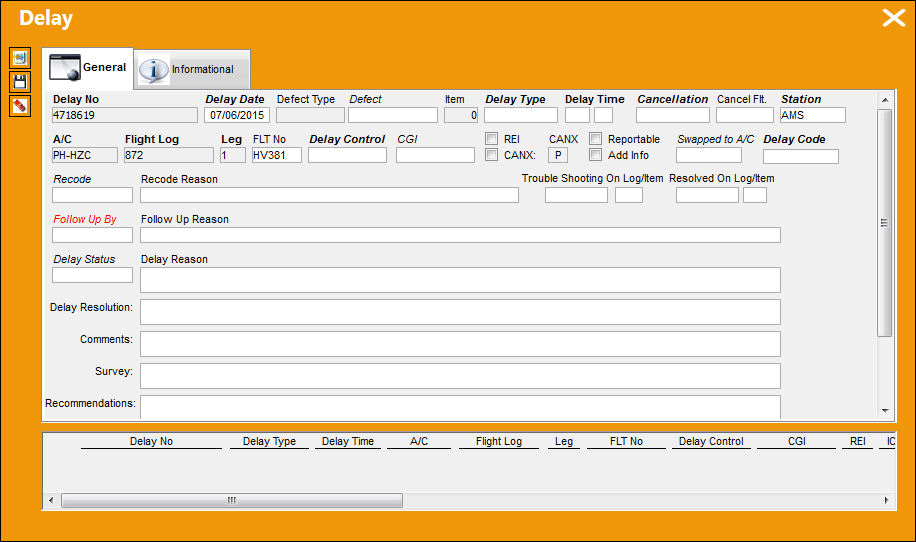
Note: The Delay Type field is called "Flight Date" and the Delay Time Hours field supports up to four digit entries.
From the A/C Flight Delay Update window, place the Hand pointer on the same record and select the Delay button.
The Delay record appears as shown below:
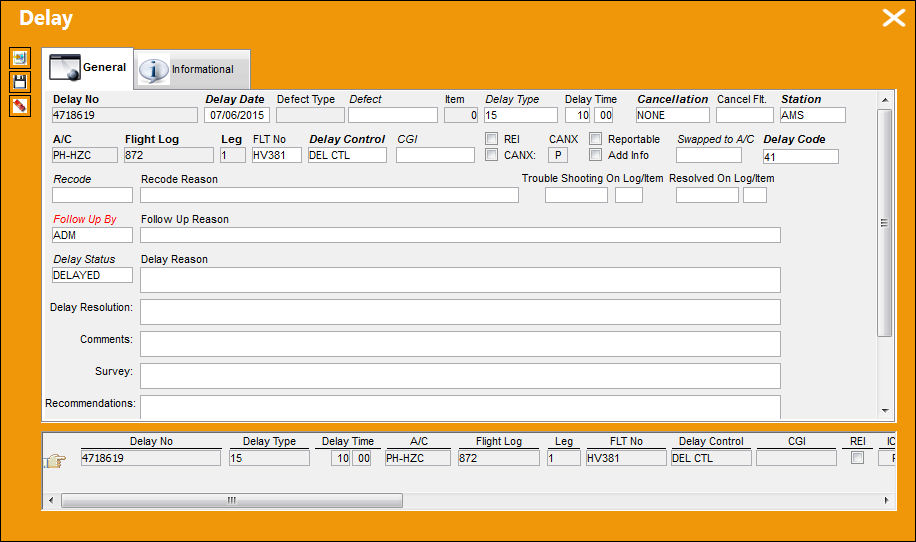
For additional information regarding the Delay Report, refer to the Delay Button, via A/C Actual Flights which can be found in the Technical Records Training Manual.
Share
Print
|
©1997-2026 Trax USA Corp. All rights reserved. This manual may not be copied, photocopied, reproduced, translated, or converted to any electronic or machine-readable form, in whole or in part, without prior written approval from Trax USA Corp. |
 |