
 Share
Share
 Print
Print
|
|
|
|
|


Seat Mapping

The Seat Mapping window allows users to physically mark indicators on images of the aircraft cabin where one or more defects have been identified. This all inclusive window allows the user to query for specific defects depending on the search criteria entered in the Query Area. The user is able to utilize the Work Area while viewing all images or only effective images to an aircraft. This Seat Mapping window offers many features to enhance the seat mapping process.
 Note: This feature is compatible with the CabinLog iOS application, a separate TRAX product. For more information, contact the appropriate system administrator at sales@trax.aero.
 This window is security controlled via the Security Explorer/ Technical Records/ Update/ Seat Mapping. For additional information, refer to the Security Explorer section of the System Administration Training Manual.
The Seat Configuration record must be created for images to be uploaded prior to the use of the Seat Mapping window. For additional information, refer to the A/C Type/Series Seat Configuration and A/C Seat Configuration.
Enter any desired search criteria and select the Find  button.
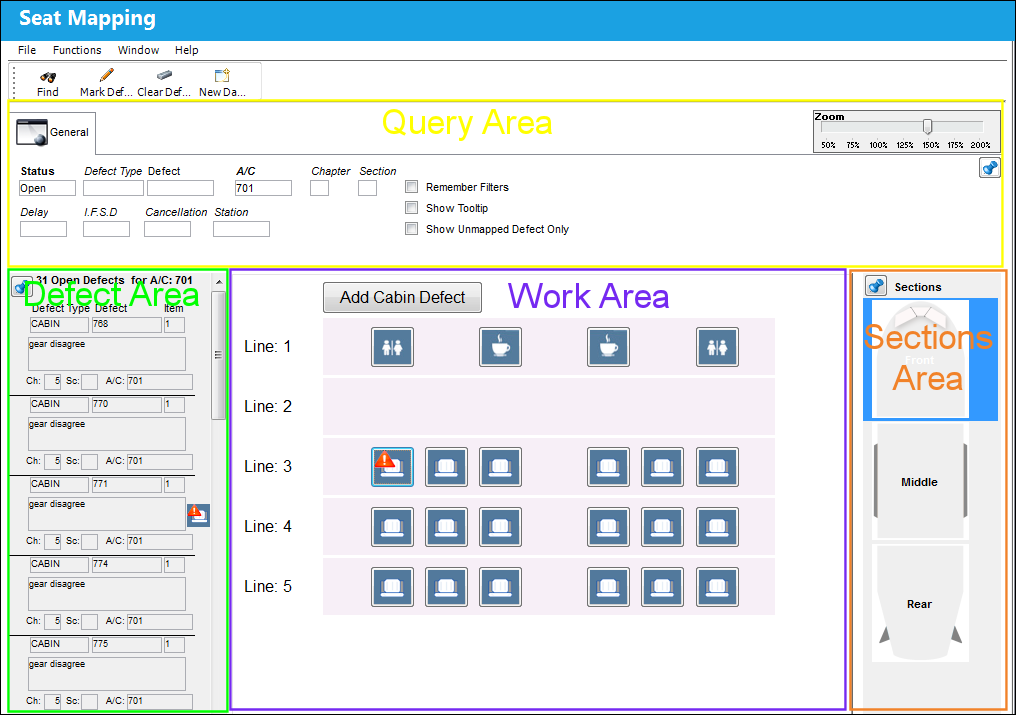
After querying the cabin image of the desired A/C, select the appropriate Section for which work must be conducted. Then, from the Defect Area, Work Area, and Mark Defect  button of the window, associate Defects to different objects of the cabin. This is done through selecting the necessary Defect and choosing which spot it can be found or selecting the Mark Defect button and choosing a spot to specify a Defect via the A/C Catalog. Additionally, there is the option to select the Add Cabin Defect button to mark a Defect on a spot in the Cabin that exists without a particular object image, but has been created in the A/C Catalog. For more information regarding the different areas of the window that offer various functionality, the following topics cover the different areas of the Seat Mapping:
- Query Area (Yellow) - Allows the user to filter for defects depending on the criteria entered
- Defect Area (Green) - Displays all open defects for the aircraft that the user is currently working with
- Work Area (Purple) - Allows the user to mark defects on images of the Aircraft Cabin
- Sections Area (Orange) - Displays all of the different Aircraft Cabin sections that have been created
Additionally, the following buttons are available:
- Mark Defect Button
- Clear Defect Button
- New Defect Chart Button
- Pin Button
Share
Print
|
©1997-2026 Trax USA Corp. All rights reserved. This manual may not be copied, photocopied, reproduced, translated, or converted to any electronic or machine-readable form, in whole or in part, without prior written approval from Trax USA Corp. |
 |