
 Share
Share
 Print
Print
|
|
|
|
|


A/C Initial P/N Load
This option is used to initially load parts directly onto aircraft from manual records (for example if taking delivery of a used aircraft, without any digital data). Any associated Time Controls, Assemblies, and E/C's will be loaded at this point too. The system will check the P/N Effectivity and Configuration if required (according to system parameters). Assembly parts can be created and any Time Controls update. The P/N Transaction History will show a transaction type of INT/INST as opposed to INSTALL for a normal installation.
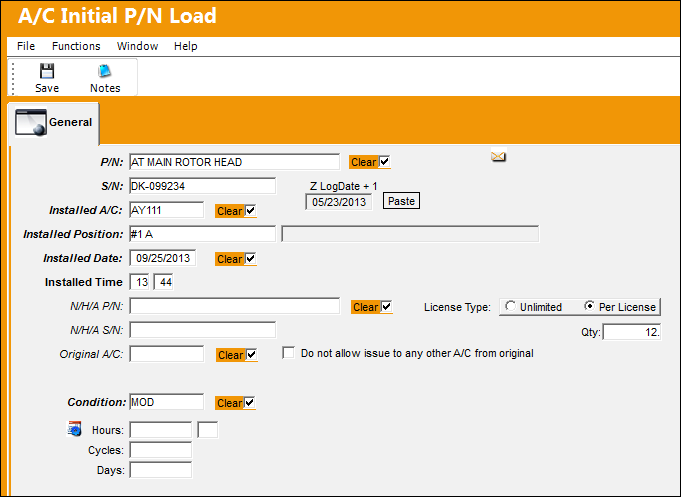
The following information/options are available in this window:
_____________________________________________________________________________________
P/N
The Part Number reference for the aircraft part.
Clear checkbox
De-select the Clear checkbox to save the fields where the Clear checkbox is de-selected when entering a new record. Select the Clear checkboxes beside the fields to be cleared out when entering a new record.
S/N
The Serial Number for the specific serialized part.
Installed A/C
The aircraft in which the part is currently installed.
Z-Log Date + 1
This is provided so that the user can automatically update the Installed Date field with the Z-Log Date + 1 (by clicking on the Paste button). The user can also enter any date manually.
Installed Position
The position on the aircraft of the installed part.
Installed Date
The Date that the part was Installed. The Z-Log Date + 1 is provided so that the user can automatically update the Installed Date field with the Z-Log Date + 1 (by clicking on the Paste button). The user can also enter any date manually. The user can enter an Installed Date that is less than the Z-Log Date. However, if the reset date of the P/N Control is less than the Z-Log Date, the reset date will be used.
Installed Time
Time of part installation.
N/H/A P/N
The part’s Next Higher Assembly P/N (if applicable).
N/H/A S/N
Next Higher Assembly (NHA) serial number.
Original A/C
The original aircraft that the part was Installed on.
Do not allow issue to any other A/C from original checkbox
Select this checkbox to disallow issue of part to an A/C other than the original A/C.
NLA Position
The position of the Next Lower Assembly. This field is only available if the P/N being installed is an NLA.
Only NLA positions available for the part being loaded appear in the drop down selection menu.
Condition
The condition of the part.
Times Accrual Hours/Cycles/Days
Total time accrued against a serialized part.
License Type
The type of license for the P/N. Either unlimited of limited.
Unlimited radio button - When selected, this indicates that there is an unlimited number of licenses available for the part.
Per license radio button - When selected, this indicates that there is a specific number of licenses available for the part, indicated through the Qty field that becomes available.
Qty - The quantity of licenses for the part.
This field only appears when the Per license radio button is selected.
The License Type option is only available if the Digital Radio button is selected for the specified transaction code via the P/N Category Transaction Code.
_____________________________________________________________________________________
NLA Position will appear if a Next Higher Assembly (NHA) P/N and Serial Number (S/N) is entered.
Enter the Part Number and Serial Number of the item that the user wishes to load, along with the aircraft, installed date (and time if applicable).
If the part itself or any of the assembly parts have Time Controls, the following screen will appear for each Serial Number. This will allow the user to enter current times of the parts.
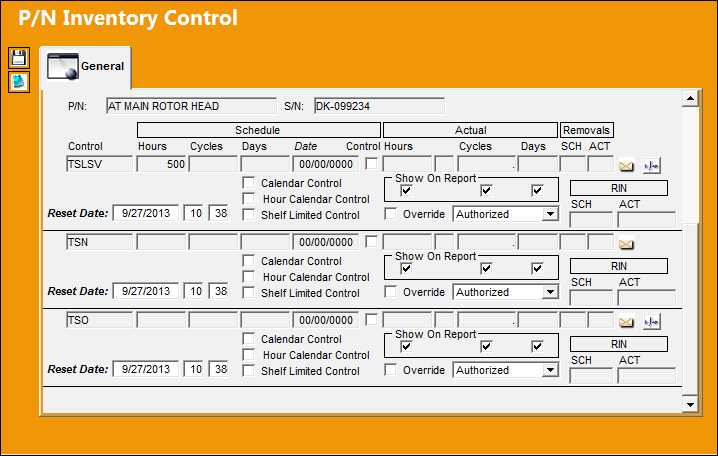
The following information/options are available in this window:
_____________________________________________________________________________________
P/N
The Part Number reference for the aircraft part.
S/N
The Serial Number for the specific serialized part.
Control
The time control related to the part (e.g., TSN, TSO, etc.) used to define its limits.
Schedule Hours/Cycles/Days
The control's hours/cycles/days schedule, as applicable.
Schedule Date
The controls scheduled due date for the selected P/N S/N, if applicable.
Date Control checkbox
The Date Control checkbox enables a schedule due date to be applied to the selected P/N S/Ns time control. If the P/N Control is marked with the Date Control checkbox, when a part is received into the system a scheduled due date is required. From the P/N Control Authorization window, the date control can be overridden by selecting the Date Control checkbox. The Date Control checkbox must remain selected in order to maintain the date entered.
Actual Hours/Cycles/Days
The number of hours/cycles/days accumulated against the time control schedule.
Removal Schedule
The Removal Schedule allows for a method of tracking tire removal information. Upon removal from the aircraft this number will automatically increment for each removal. At Receiving, the Removal Schedule information will appear, can be edited as required or reset with the reset of the P/N Control. Security access to this feature must be granted. The Removal Schedule information can also be updated via Technical Records/ Update/ P/N Control Adjustment.
Removal Actual
The number of times the component has been removed from an aircraft. The actuals' figure is automatically adjusted with each A/C P/N transaction.
Reset Date
Date and time at which control information was reset for having been performed/complied.
Calendar Control checkbox
When the Calendar Days/Control checkbox is selected, planning calculates the controls due date based on calendar days starting from the controls Effective Date (reset/last compliance date). When the Calendar Days/Control checkbox is not selected, planning calculates the controls due date starting from the associated P/N S/N installed date (if the P/N S/Ns installed date is after the controls Effective Date).
Hour Calendar Control checkbox
This checkbox is selected if the P/N Control Schedule is by calendar hours instead of flight hours.
Shelf Limited Control checkbox
This checkbox is selected when the shelf life of a part is being tracked while in inventory. When a part is installed on an aircraft, the Shelf Limited Control will not appear in the P/N Inventory Control window. The reset date will be deleted and the actuals will reset to zero. Once the part is removed from the aircraft, the Reset Date of the Shelf Limited Controls is set to the Removal Date. Tracking will begin upon the Removal Date. For additional information regarding the set up of the Shelf Limited Control checkbox, refer to the P/N Control Button, via P/N Master which can be found in the Settings Training manual.
Show On Report checkboxes
The Show On Report checkboxes can be checked to have the hours/cycles/days appear on certain technical records and inventory reports. It is recommended to keep the checkboxes checked (as defaulted) in order to maintain as much information about the part received as possible.
Override checkbox
Check to override calendar control information for the part. This works with the Override checkbox.
Leaving the Override checkbox selected, the user can change the P/N Control Schedule (security privileges apply here) for a Serial Numbers which are prorated or de-rated from the defaulted P/N Control as indicated in the P/N Master, P/N Control Button.
Authorization Status drop-list
Use the Authorization Status drop-list to change the status of the P/N Control to: Acknowledge, Authorized, Pending, or Unknown.
This drop-list is controlled by the Technical Records.
 PCPEATHS (P/N Control/P/N E/C Authorization Steps Only) switch.
- If set to YES, the Authorization Status drop-list will not be visible in the P/N Inventory Control Window (via Receiving/Update/Order Receiving) when receiving an appropriate part. Although the Authorization Statuses cannot be changed at Order Receiving, all P/N E/C's and P/N controls can have their Authorization Statuses updated via Technical Records/Update/P/N E/C Authorization or P/N Control Authorization.
- If set to NO, the Authorization Status drop-list will be visible in the P/N Inventory Control Window (via Receiving/Update/Order Receiving) when receiving an appropriate part.
Prorate  button
The Prorate button will only appear for those P/N Controls which have been defined as having prorateable A/C Type/Series or NHAs. Select the Prorate button to update the P/N Control Loaded Times Proration window.
If the actuals are null (blank), upon selecting the Prorate button, the following hard warning will appear:
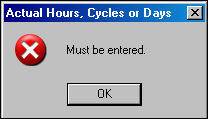
To enter actuals, select the Override checkbox for the P/N Control.
RIN SCH/ACT 
The Retirement Index Number. The RIN control to apply to this Time Control (if applicable).
_____________________________________________________________________________________
Enter the time data (if known) and click on the Save  button when finished. The actual time entered is the time as of the reset date.
If the schedule for the item needs amending for this serial number only, the override flag can be selected which will allow the schedule to be changed. Following entry of the required data, the part will now be installed on the selected aircraft.
The P/N Inventory Next Lower Assembly window appears where the position field can be selected from the A/C Positions Configuration (as set up in the P/N Master). If the item being loaded is part of an assembly (such as engines or landing gear), the next higher P/N and S/N can be entered. If the part is configured as an assembly, the following assembly screen will appear for each level of assembly required after saving the entry.
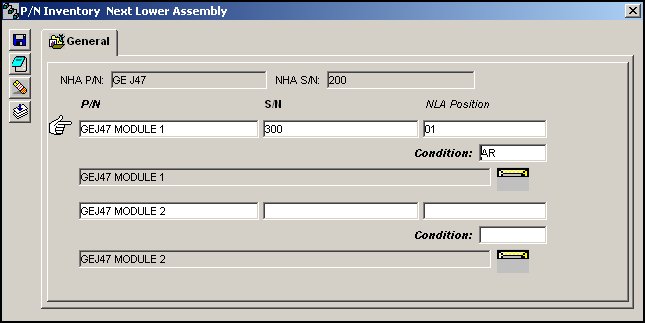
Enter the correct Part Number and Serial numbers (if not known, the P/N NLA Creation - via Technical Records/Update - feature may be used later to build the assembly with the correct Serial Number information).
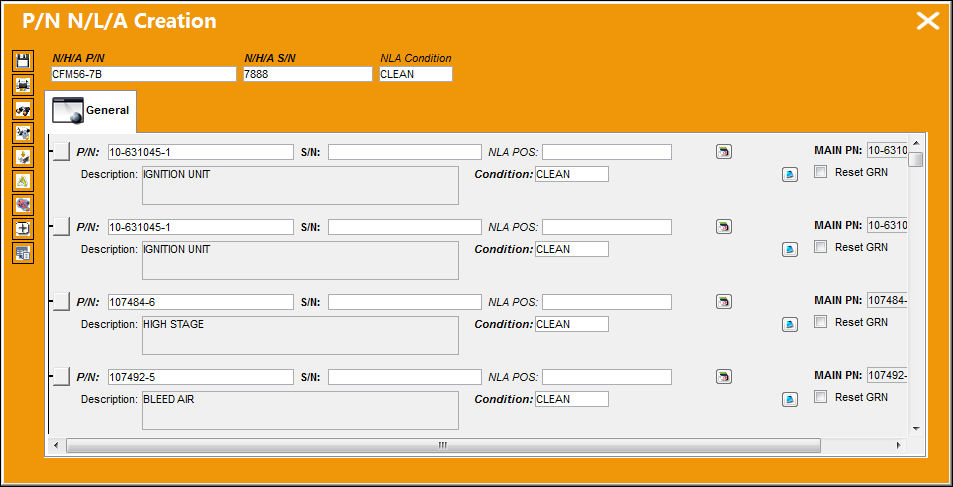
P/N N/L/A Creation:
When Initial Loading an N/H/A, the P/N N/L/A Creation window appears instead of the P/N Inventory Next Lower Assembly window. For more information refer to the P/N N/L/A Creation via the Technical Records Training Manual.
Company Field:
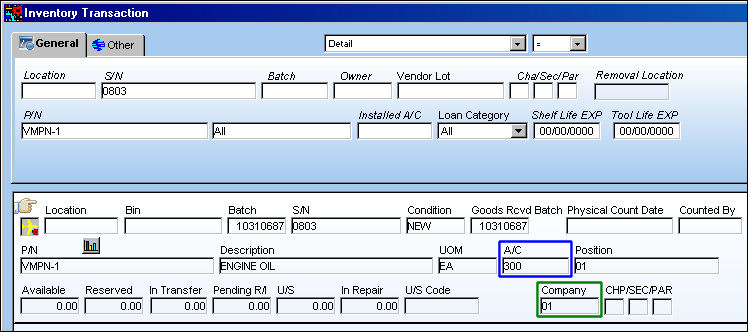
The Company that the A/C Initial P/N Load was created for can be registered against the Aircraft that the part was loaded into. To do so, the Company field must be populated in the A/C Master, Other 1 tab. Once the A/C Initial P/N Load is completed, the Company name is listed in the Inventory Transaction window for the part.
The Company must be entered in the A/C Master, Other 1 tab.
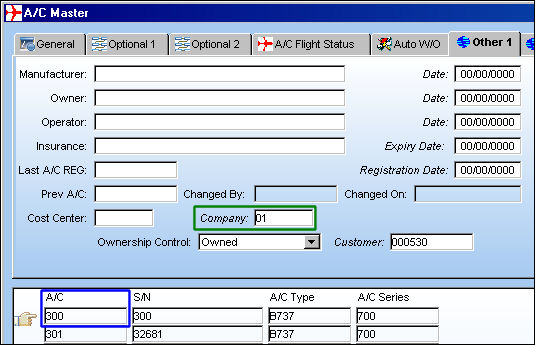
For more information refer to the A/C Master, Other 1 Tab via the Settings Training Manual.
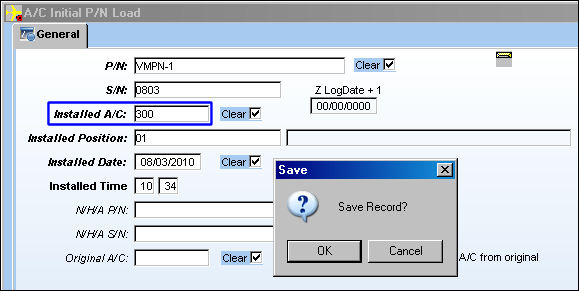
The A/C Initial P/N Load is created for the above A/C (300).
From the Inventory Transaction window, notice that the Company listed against the initial loaded part is the same one listed against the Aircraft via the A/C Master, Other 1 tab.
 Assembly Not Complete:
The user will receive a soft warning when attempting to Initial Load a P/N on an aircraft before creating the NLA(s) in the P/N N/L/A Creation window.
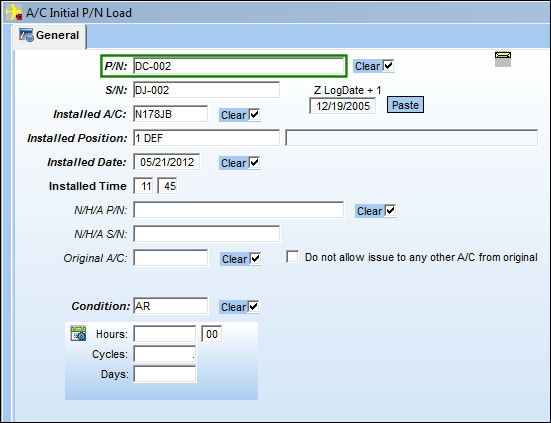
Select the Exit  button without creating the NLAs:
TRAX displays the following soft warning:
If the user selects Yes, the user will be able to create the NHA as an incomplete assembly. If they select No, they will be taken back to the P/N N/L/A Creation window to create the NLAs.
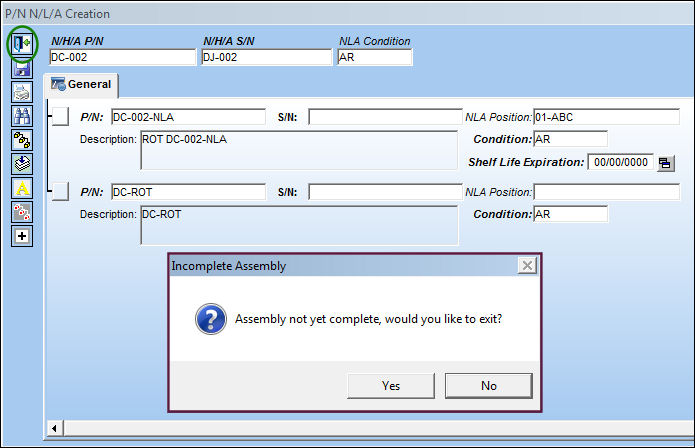
The user will also receive the soft warning if the next lower NLAs are left incomplete.
ETOPS Aircraft:
TRAX prevents ETOPS Not Authorized parts from being installed on an ETOPS non-restricted aircraft:
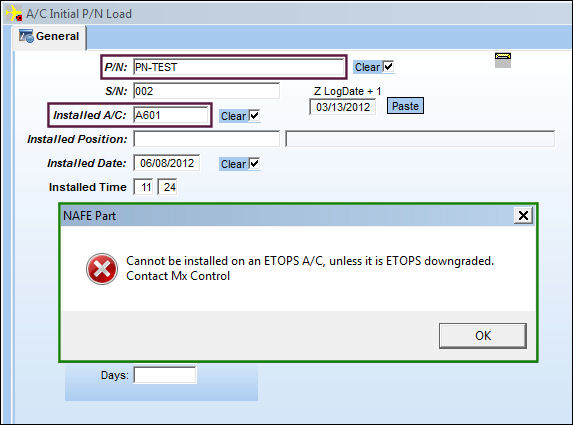
Load P/N Software
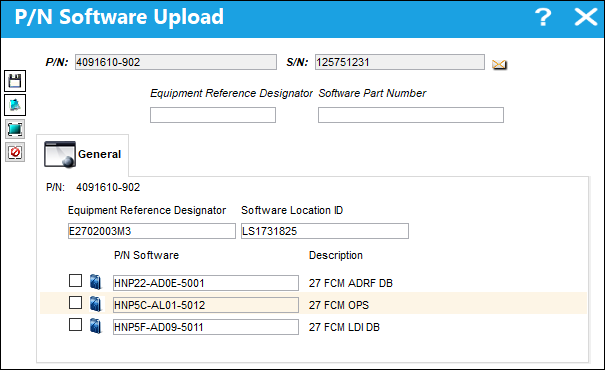
When Switch PNNOTSOFT is set to No, during an A/C Initial P/N Load transaction, the P/N Software Upload window appears allowing the user to add software to the part being loaded (for applicable P/N Software Configurations).
 Note: Switch PNSOFTEC must be set to No for PNNOTSOFT to function.
Additional information relevant to the record can be included through the Notes  button.
 Aircraft Initial P/N Load Process
Share
Print
|
©1997-2026 Trax USA Corp. All rights reserved. This manual may not be copied, photocopied, reproduced, translated, or converted to any electronic or machine-readable form, in whole or in part, without prior written approval from Trax USA Corp. |
 |