|
TRAX MANUALS > Technical Records > Technical Records Module > Technical Records, Update Menu > A/C Controller Panel > A/C Controller Panel Buttons > Requisition Button, via the A/C Controller Panel
Requisition Button, via the A/C Controller Panel
Select the Requisition  button to view any Open requisitions associated to a part. button to view any Open requisitions associated to a part.
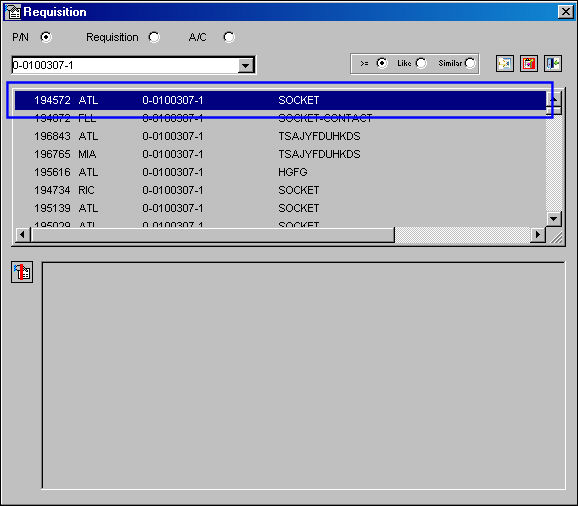
The Requisition window appears. Double click on one or more part numbers (highlighted below) to view any Open requisitions associated to that part.
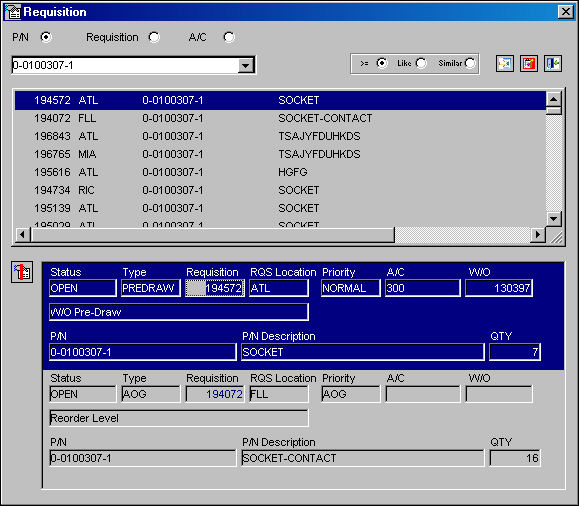
The lower half of the window displays requisition(s) already created for the selected aircraft. Double click on the selected (highlighted in blue) requisition in the lower half of the window.
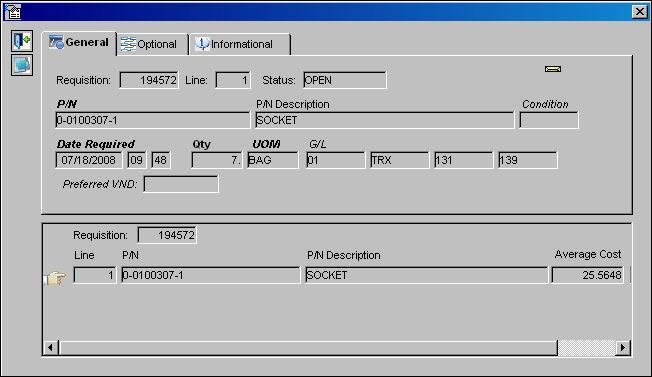
The following window shows more detailed information regarding the selected requisition:
|
In This Section Create A New Requisition Requisition De-Link Button |
See Also A/C Controller Panel Buttons Reset Button, via the A/C Controller Panel Find Button, via the A/C Controller Panel History Button, via the A/C Controller Panel Filter/Sort Button, via the A/C Controller Panel Reminder/Alert Button, via the A/C Controller Panel Task Card Template Button, via the A/C Controller Panel A/C Units Button, via the A/C Controller Panel P/N APU Reading Button, via the A/C Controller Panel A/C Out Of Service Button, via the A/C Controller Panel Add New Defect Button, via the A/C Controller Panel New Work Order Button, via the A/C Controller Panel Quick Entry Button, via the A/C Controller Panel Oil Consumption Button, via the A/C Controller Panel History Button, via the A/C Controller Panel Damage Chart Button, via the A/C Controller Panel Plan EC Button, via the A/C Controller Panel New Non-Routine Button, via the A/C Controller Panel Most Due Date Button, via the A/C Controller Panel MTC Opportunities Button, via the A/C Controller Panel |
|

 Share
Share
 Print
Print


