
 Share
Share
 Print
Print
|
|
|
|
|


The A/C Controller Find/Quick Entry window allows the user to narrow the search criteria in the A/C Controller Panel screen.
The following window will be discussed in two sections; the Find and the Defect Quick Entry.
Find:
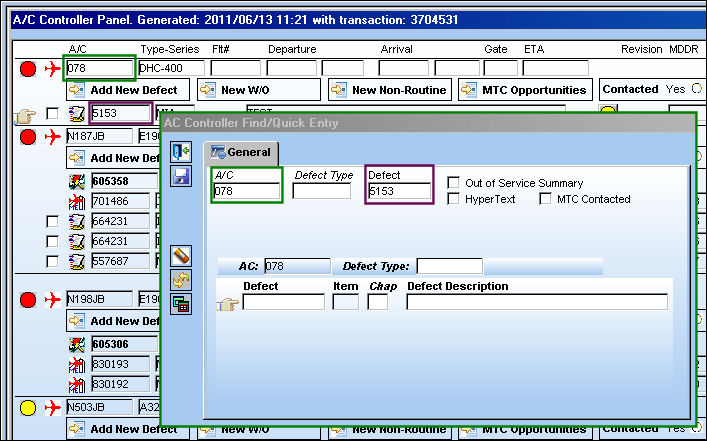
TRAX displays the A/C Controller Find/Quick Entry window. Enter one or more of the following criteria to search for a Defect. In the following example, the user will query by A/C and Defect.
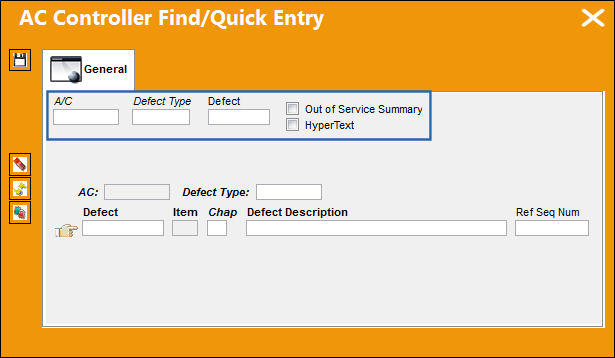
The following information/options are available in this window:
_____________________________________________________________________________________
A/C
The individual aircraft tail number. Select the aircraft the user would like to find in the A/C Controller Panel.
Defect Type
The type of defect found on the aircraft (for example, Pilot Report, MX Report). For additional information, refer to the Defect Type Transaction Code, via the Technical Records Transaction Code Manual. For additional information regarding the Defect Type, refer to the Defect Report Detail, General Tab.
Defect
The defect number (or log book number). Select the Defect to include in the search parameter. For additional information regarding the Defect Type, refer to the Defect Report Detail, General Tab.
Out of Service Summary
Selecting the Out of Service Summary checkbox will create an 'A/C Out Of Service Summary' sub-window at the top of the screen with a list of Out of Service Aircraft for easy viewing.

Hyper Text
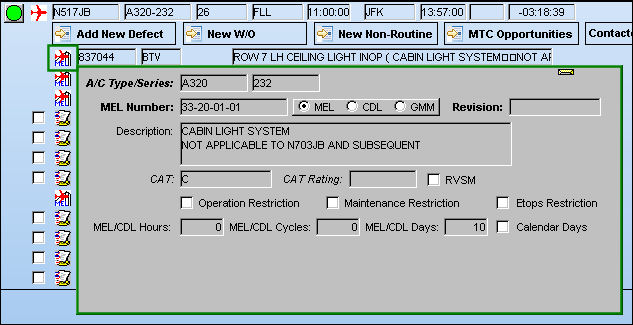
Select the Hyper Text checkbox to enable TRAX to display a pop-up message next to the record with additional information when the user hovers over the Defect button:
MTC Contacted checkbox
Select the MTC Contacted checkbox to include in the search parameter. For additional information, refer to the MTC Opportunities Button, via the A/C Controller Panel Buttons of the Technical Records Training Manual. For additional information, refer to the A/C Controller Panel, via the Technical Records Training Manual.
When this checkbox is selected, the Contacted Yes radio button will be selected by default for this Defect.
_____________________________________________________________________________________
Once the A/C and Defect are entered, the system automatically searches for the aircraft that matches the search criteria entered and the Hand  pointer moves to the selected record.
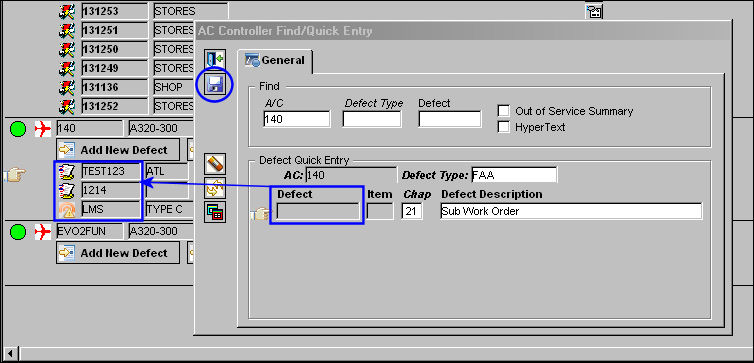
To complete the Defect Quick Entry, complete the Defect, Item, Chapter, Section and Defect Description fields as necessary.
Once the above information is completed and saved, the user may double click on the record where the Hand pointer is pointing to and be taken to the Defect Report window. The user may make any changes to the Defect Report, select the Exit  button and return to the A/C Controller Find/Quick Entry window.
Quick Entry:
The A/C Controller Find/Quick Entry option allows the user to enter quick Defect information without having to go through Technical Records/Update/Defect Report.
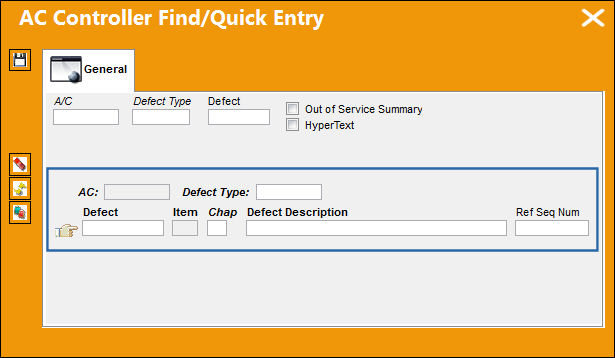
The following information/options are available in this window:
_____________________________________________________________________________________
A/C
The individual aircraft tail number. This field is grayed out and must be populated in the 'Find' portion of the window. The aircraft must exist in the A/C Controller Panel in order for the user to create a Defect Quick Entry.
Defect Type
The type of defect found on the aircraft (for example, Pilot Report, MX Report). For additional information, refer to the Defect Type Transaction Code, via the Technical Records Transaction Code Manual. For additional information regarding the Defect Type, refer to the Defect Report Detail, General Tab.
Defect
The defect number (or log book number). This is a system generated, sequential number that is created upon selecting the Save  button. For additional information regarding the Defect Type, refer to the Defect Report Detail, General Tab.
Item
The defect log item number. For additional information regarding the Defect Type, refer to the Defect Report Detail, General Tab.
Chap
The ATA Chapter classification of the Defect. For additional information regarding the Defect Type, refer to the Defect Report Detail, General Tab.
Defect Description
The Description of the Defect which describes the problem found or notes the service being performed. For additional information regarding the Defect Type, refer to the Defect Report Detail, General Tab.
_____________________________________________________________________________________
Select the Save button. TRAX saves the Quick Entry.
Select the Delete  button to delete the record.
Select the Reset  button to reset the information entered in the window.
Select the Task Card Template  button to add Task Cards to Defects by using keywords.
For additional information, refer to the Task Card Template Button.
Enter a Defect and all other required information and select the Save button. The Save prompt will appear. Select 'OK'. The newly created Defect will appear where the arrow is pointing below:
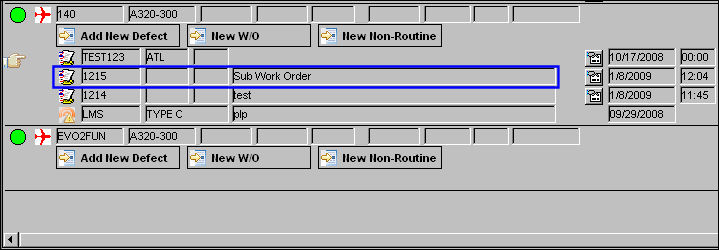
The newly created defect is shown below:
Share
Print
|
©1997-2026 Trax USA Corp. All rights reserved. This manual may not be copied, photocopied, reproduced, translated, or converted to any electronic or machine-readable form, in whole or in part, without prior written approval from Trax USA Corp. |
 |