
 Share
Share
 Print
Print
|
|
|
|
|


Select the Add New Defect  button to add new defect report to an aircraft. Creating a new Defect Report via the A/C Controller Panel is the same as creating one via Technical Records/Update/Defect Reports with the exception of the addition of the A/C Out of Service fields in the A/C Controller Panel option. For additional information, refer to the Defect Report section of the Technical Records manual.
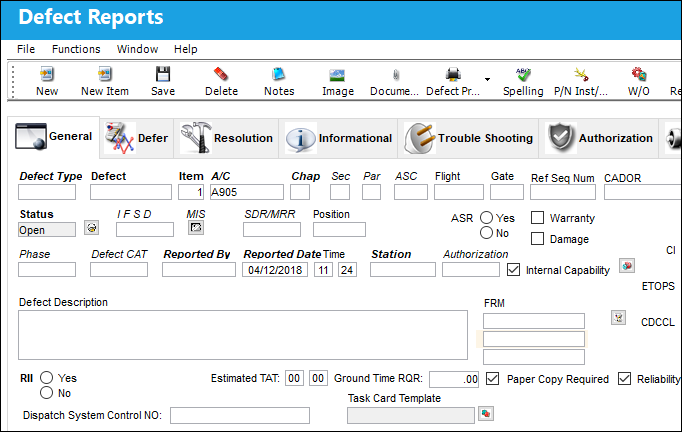
Please make note of the following Switch;
- DEFPILOT (Defect Report Make Category (field) Default To PILOT)
When creating the Defect Report with the Add New Defect  button, some fields will be populated by default (A/C Tail Number, Station, Reported Date, and Flight Number).
Enter/verify the following information for the A/C Out of Service section:
_____________________________________________________________________________________
Flight Status
The current flight status of the A/C will appear. When creating a new Defect Report, the default Flight Status is 'Out Of Service.'
 DACOUTSERV - (Default Flight Status radio button to In Service/Out of Service depending on configuration of this switch.) If switch is set to Yes, the Out of Service tab will default to 'In Service' in the Defect Report Window. The system will not bring the A/C in service if the defect has been deferred. If the user has set the record to 'In Service', and a Defect is closed, only then will the A/C go back to 'In Service'. If switch is set to No, the Out of Service tab will default to 'Out of Service' in the Defect Report Window.
In Service radio button - Choose this radio button to place the aircraft 'In Service' and ready to fly. This is selected when all Defects have been resolved or deferred. The Green  light will then appear for this aircraft in the A/C Controller Panel when the record is saved.
Pending radio button - Choose this radio button if the aircraft status is pending review of any related Defect Reports. This is selected when all Defects are in pending status. The Yellow  light will appear for this aircraft in the A/C Controller Panel when the record is saved.
Out of Service - Choose this radio button to place the aircraft out of service and unable to fly. This is selected when the Aircraft is out of service due to a Defect. The Red  light will appear for this aircraft in the A/C Controller Panel.
Notes  button
Select the Notes button to enter any notes that will be associated to the currently selected item. For additional information regarding the Notes Button, refer to Notes Button, via Standard Buttons which can be found in the System Standards Training manual.
Advised
The date and time that the discrepancy was reported. The default is the time that the Defect Report is being created and can be edited as required.
Out Of Service
The date and time that the aircraft went out of service for maintenance. If the Advised time is less than the Out Of Service time, then the Advised time equals the current time. If the Advised time is greater than the Estimated In Service time, then the Advised time equals the Out Of Service time.
Estimated In Service
The estimated date and time that the aircraft will be back in service.
Hold Boarding checkbox
Check to indicate that boarding of the aircraft should be “On Hold."
Type
The type of "out of service" record used by customers with a Third Party interface.
Confidence Level
This field is used by customers with a Third Party interface.
Station
The station at which the aircraft is placed Out of Service or in Pending status. This field is not available when the aircraft is In Service.
Part Estimated Arrival Time (Date/Time)
The estimated date and time that the part will arrive. These fields are not available when the aircraft is In Service. For additional information, refer to the Type of Out of service Event Transaction Code, which can be found in the Technical Records Transaction Code manual.
This field becomes mandatory if the Part Estimated Arrival Time Field Mandatory checkbox is selected for the Transaction Code selected in the Type field.
Update checkbox
When selected, the estimated in-service title will change to "update". This is used to specify a time in which further information will be available on the status of the A/C.
Reminder/Alert notes may be impacted with the Update checkbox.
_____________________________________________________________________________________
Entering and saving information on the Defer or Resolution tab will refresh the aircraft status on the A/C Controller Panel. Entering information on the Resolution tab will place the A/C status to 'In Service' upon save of the Defect Report. If information is entered on the Defer Tab, the user must manually update the A/C Out-of-Service section to place the A/C back to 'In-Service' status. Please refer to the Defect Reports section for additional information regarding creating Defect Reports.
Share
Print
|
©1997-2026 Trax USA Corp. All rights reserved. This manual may not be copied, photocopied, reproduced, translated, or converted to any electronic or machine-readable form, in whole or in part, without prior written approval from Trax USA Corp. |
 |