
 Share
Share
 Print
Print
|
|
|
|
|


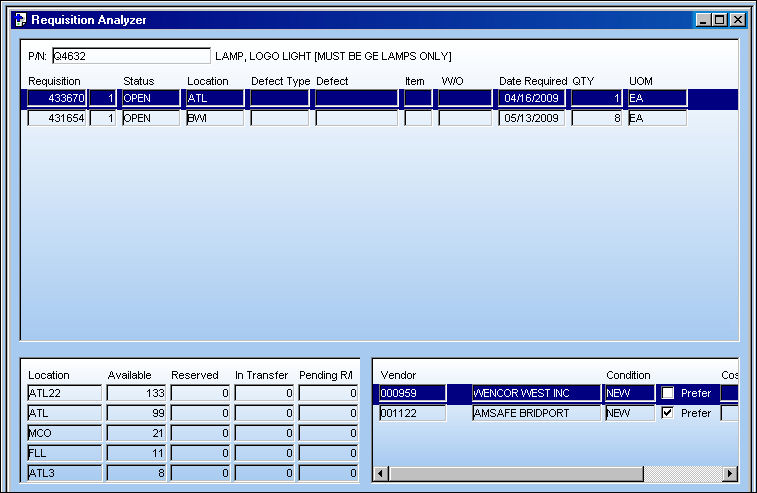
The Purchase Order  button is used to create a PO from the Requisition Analyzer window.
From the Requisition Analyzer window, select a requisition and a vendor and select the Purchase Order button.
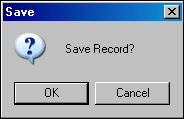
The Save Prompt is displayed. Select 'OK.'
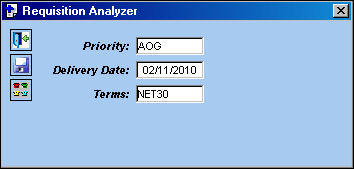
The following pop-up window is displayed. Populate all mandatory and desired information in the pop-up and select the Save  button.
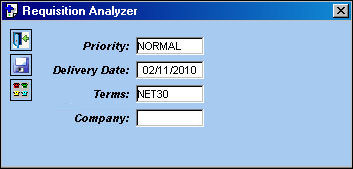
The following information/options are available in this window:
_____________________________________________________________________________________
Priority
The priority placed on the transaction (e.g., routine, AOG, etc.). For additional information and functionality, refer to the Priority transaction code via the Orders Transaction Codes.
Delivery Date
The number of lead days to be included in the delivery date. This number of days is added to the Order creation date to calculate the delivery date or date of expected delivery.
Terms
The terms of payment, including the amount of days in which the payment must be made, may be defined by selecting from the pre-defined listing established in the System Transaction Codes. Terms may be changed for a particular order as required. For additional information, please refer to the Terms section of the System Trans Codes Training Manual.
Company
The company the order is being created for. The user may update/change the Company specified in the Requisition Header in this field. Once the PO is created, it will reflect the new Company.
This field only appears when Switch  REQANYOVRCOM and Switch COMPANYMULTI is set to 'Yes.'
- REQANYOVRCOM - (Requisition Analyzer P/O Company Override.) When set to Yes, the user may override the Company specified in the Requisition Header when creating a Purchase Order from the Requisition Analyzer. When set to No, the user may not override the Company specified in the Requisition Header when creating a Purchase Order from the Requisition Analyzer.
- COMPANYMULTI - This feature is part of the Multi-Company functionality. Parent company's airlines are entered into this field. Then, when the P/N is entered into the detail window, the G/L field will be auto-populated with this airline's previously created G/L Account. When the switch is set to 'No' the field is titled Category and functions as defined above. For more information see the note in the G/L field of the Purchase Order Detail, General Tab and in the G/L Interface switch COMPANYMULTI via the G/L Interface Switches Manual.
_____________________________________________________________________________________
TRAX displays the Purchase Order detail pop-up window, as shown below:
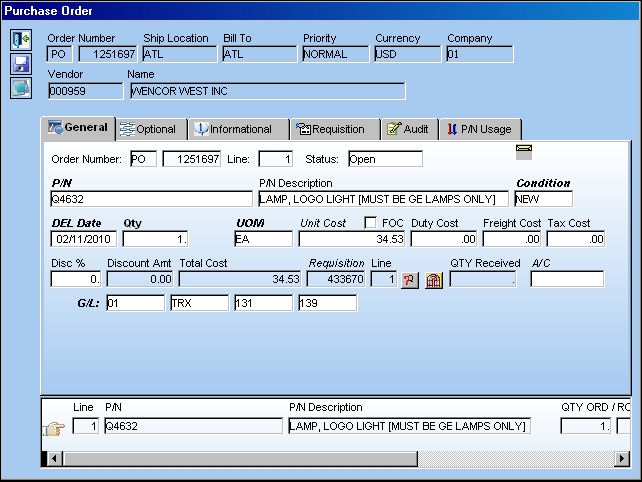
The Purchase Order Detail, Optional Tab contains the following radio buttons which allow the user designate if the requisition is to be an auto issue, auto reserve, or none:
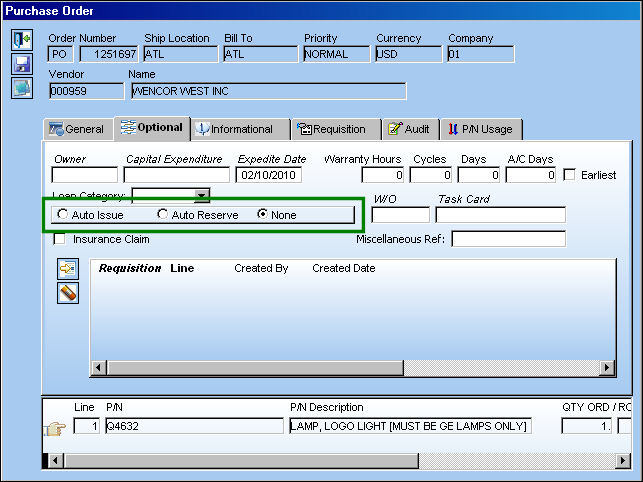
The following information/options are available in this window:
_____________________________________________________________________________________
Auto Issue
Check this box to automatically issue the associated part to the order. If checked, the W/O field will be mandatory. Upon completion of Order Receiving or Receiving Inspection (if applicable), the system will auto generate a Manual Issue print and the part will be issued from inventory and expensed to Work Order. The Auto Issue allows for the inventory binning step to bypassed and the immediate issue to occur. Typically this is used with any AOG situations and any aircraft undergoing heavy maintenance checks which will require a lot of ground time (especially useful if the aircraft is location at a vendor for maintenance).
Auto Reserve
Will automatically generate a pick list for the indicated W/O which will reserve the part upon receiving, via Order Receiving or Receiving Inspection as defined per the R/I Required flag against the part.
None
Is selected by default, allows for the placing of the part in inventory upon the completion of the required receiving processes.
_____________________________________________________________________________________
For complete information on Purchase Orders, please refer to the TRAX Orders Training Manual.
After all fields are completed, click on the Save button to complete the transaction.
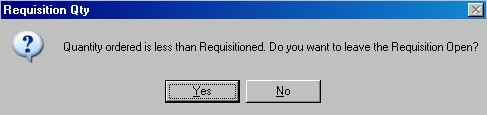
If for some reason the PO is void (empty) or not saved, the user may receive the following warning. Select ‘Yes’ to leave the Requisition Open or select ‘No’ to place the Requisition in Ordered status.
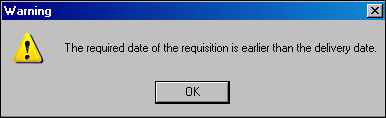
If the required date is earlier than the delivery date, the following error will appear:
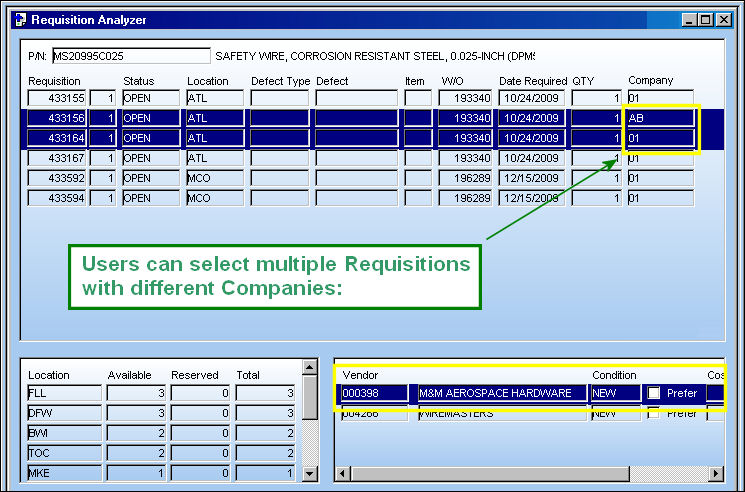
Create POs Using Multiple Requisitions:
Users can now create POs using multiple Requisitions that have different Companies.
From the Requisition Analyzer window, select one or more Requisition and a Vendor. Select the Purchase Order button.
The Save Prompt is displayed. Select 'OK.'
The following pop-up window is displayed. Populate all mandatory and desired information in the pop-up and select the Save button.
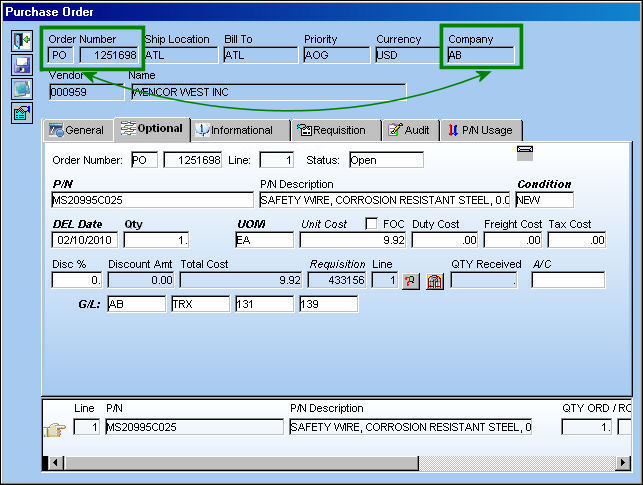
PO 1251698 was created for Company AB:
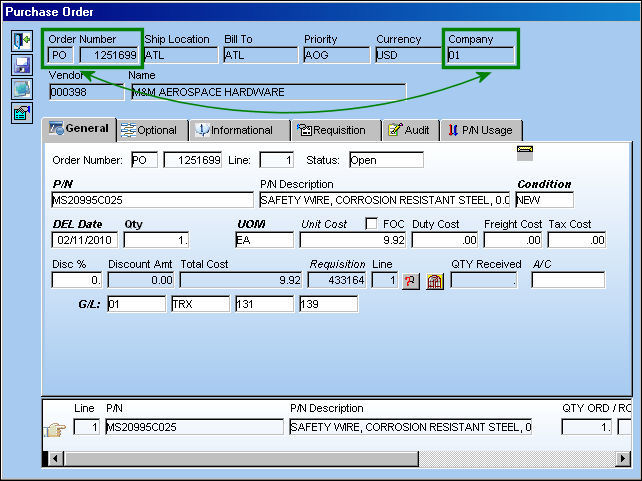
PO 1251699 was created for Company 01:
The following tab and buttons offer additional functionality:
Share
Print
|
©1997-2026 Trax USA Corp. All rights reserved. This manual may not be copied, photocopied, reproduced, translated, or converted to any electronic or machine-readable form, in whole or in part, without prior written approval from Trax USA Corp. |
 |