
 Share
Share
 Print
Print
|
|
|
|
|


The Projected tab allows users to query for P/Ns by filtering using the below fields.
From the Shop Tasks Detail Area, populate the following information and select the Find  button.
The user may also right click in the P/N field to access a drop down menu to select a P/N from.
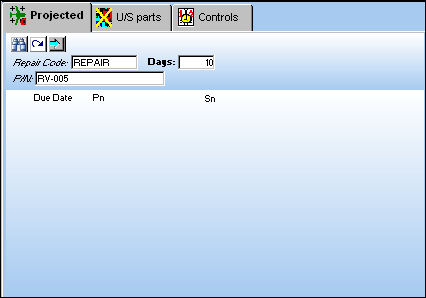
The following information/options are available in this window:
_____________________________________________________________________________________
Repair Code
The repair code associated to the part number.
Days
Enter the amount of days.
P/N
The Part Number reference for the aircraft part.
_____________________________________________________________________________________
The following buttons are also available in this tab for additional functionality:
Be sure a Work Order is selected prior to running the P/N Query.
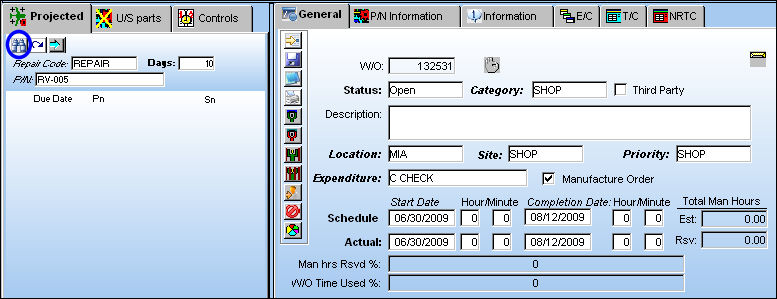
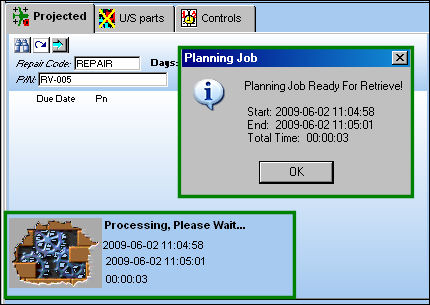
The following information boxes appear. Select 'OK' in the Planning Job information box.
Select (highlight) a P/N:
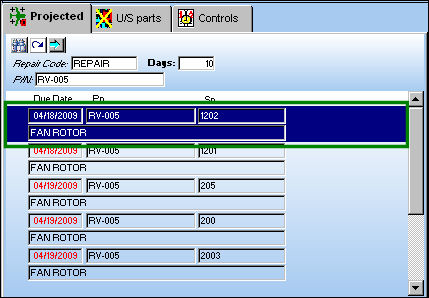
The following information/options are available in this window:
_____________________________________________________________________________________
Due Date
Shelf Life expiration date.
P/N
The Part Number reference for the aircraft part.
S/N
The Serial Number for the specific serialized part.
_____________________________________________________________________________________
TRAX takes the user to the Controls tab as shown below.
For information regarding the Controls tab, refer to the Controls Tab, Via Shop Tasks Detail Area which can be found in the Planning Training manual.

Share
Print
|
©1997-2026 Trax USA Corp. All rights reserved. This manual may not be copied, photocopied, reproduced, translated, or converted to any electronic or machine-readable form, in whole or in part, without prior written approval from Trax USA Corp. |
 |