
 Share
Share
 Print
Print
|
|
|
|
|


Loading an OEM Manual into TraxDoc
In the following instructions, an AMM will be used as the example OEM Manual.
- Setup a TraxDoc record to contain the OEM Manual data. See document "TraxDoc OEM Manuals.doc" for information on this.
- Once the OEM Manual has been loaded into TraxDoc, you will be able to run a routine to auto-create Task Card records in Trax, from the loaded OEM Manual tasks.
System Configuration:
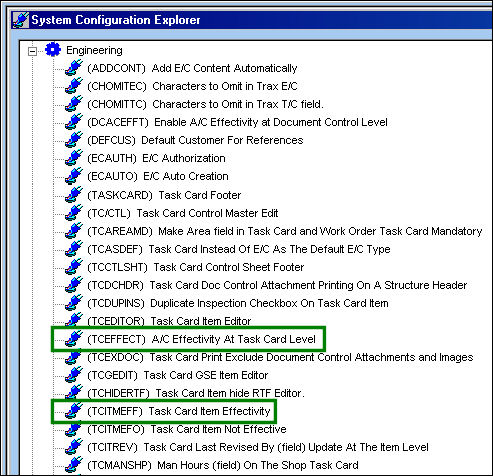
Make sure that Trax is set up correctly for the import. The two Switches  TCEFFECT and TCITMEFF, determine whether or not effectivity can be set for Task Cards and items.
Go to System Administration/Explorer/System Transaction Codes/Engineering.
If these switches are turned off, the import program will not write effectivity data for the Task Cards and Task Card items that it creates. If the switches are off, effectivity is not required anyway.
Set up A/Cs:
There is a new field in the A/C Master, Optional 2 tab window called 'SGML Designator'. This is a number that the OEM MANUAL publisher uses to identify the aircraft in a fleet. It is usually the line number that is specific to a particular operator.
Go to Settings/Update/Aircraft
Select the A/C Master, Optional 2 tab:
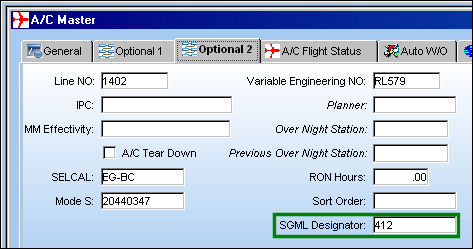
Be sure to add the appropriate number in this field for every aircraft, otherwise tail-level effectivity will not be set for the Task Cards and items imported from the OEM Manual.
It is common for Boeing and Airbus to use this effectivity range to specify the effectivity of a particular item (such as a TASK) to all the related fleet: 001999. This means it encompasses all A/C that the manual is for. To be specific to a particular set of A/C, they may use something like this: 007009, 111115. That means it is effective to the A/C with these line numbers: 007, 008, 009, 111, 112, 113, 114, 115.
The following is an example of how effectivity is displayed:
<effect effrg="408409 412412 415416 418418 491999">
It is important to note that these line numbers are not unique the way an A/C serial number is unique. They are unique only in the context of a particular operator, for whom the manual (AMM manual, etc) is made for.
Set up Type/Series:
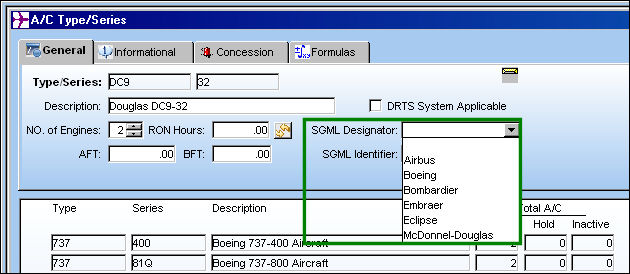
There is a new setting in the AC Type/Series Master window, also called 'SGML Designator' which must be configured before running the Task Card Import program. This setting indicates the publisher of maintenance manuals for each type and series (or the manufacturer of the aircraft). Make the appropriate selection for each type and series before running the task card import, otherwise tail-level effectivity will not be set for the Task Cards and items imported from the OEM Manual.
Go to Settings/Update/Aircraft Type/Series:
The user may now run the OEM Manual Task Card Import program.
Go to TraxDoc/Update/TraxDoc Master
Find or create a TraxDoc and select the Import from OEM Manual  button.
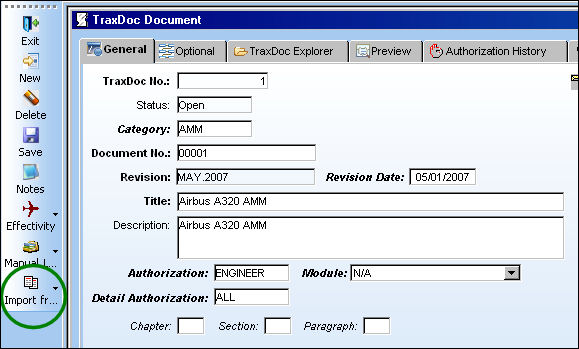
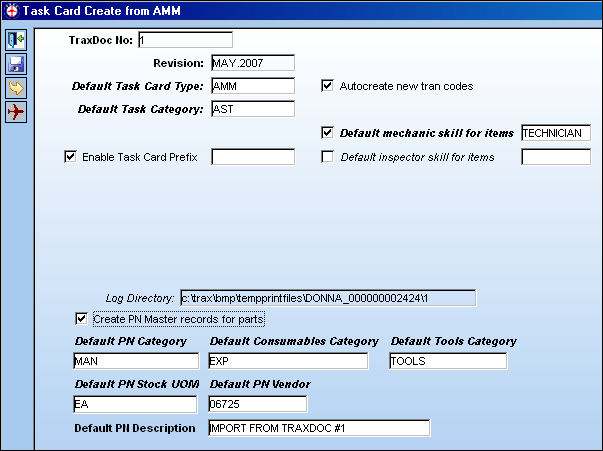
TRAX displays the Task Card Create from AMM window.
For additional information regarding the fields and checkboxes in the Task Card Create from AMM window, refer to Import TC's/EC's from OEM Manual via Add Electronic Files to a TraxDoc Document which can be found in the TraxDoc Training manual.
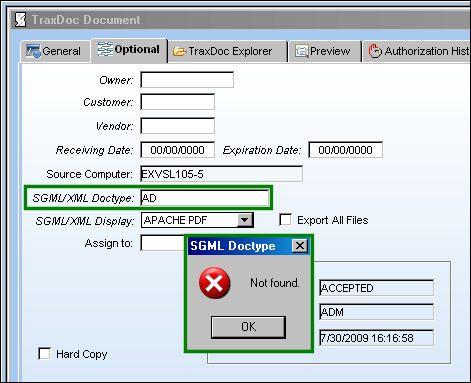
SGML Doctype Restrictions:
If the SGML Doctype is not recognized, the following error message will appear:
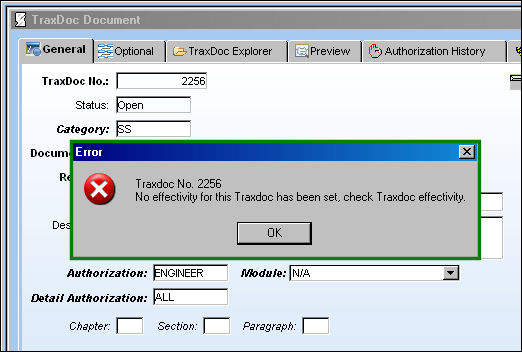
Effectivity Restrictions:
The TraxDoc must be effective to at least one Type/Series (excluding EMM and EIPC TraxDocs). If this TraxDoc has no effectivity, TRAX will display the following error message:
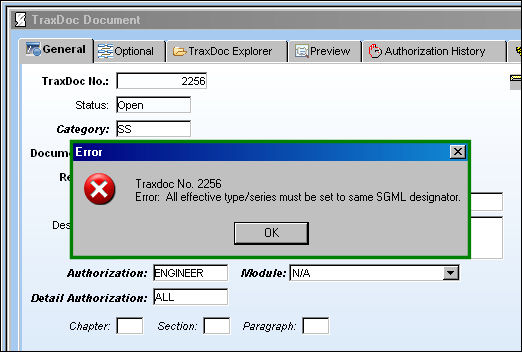
If the TraxDoc is effective to multiple Type/Series, then the SGML Designator for each Type/Series must be set to the same value (see Page 6). If any of the effective Type/Series do not have this field set, or if they are set to different values, the system will display the following error message:
Once mandatory fields are populated, select the Next  button.
TRAX displays the Task Card Create from AMM window.
The user may select from any number of tasks on the right side of the window by using the arrows as shown below:
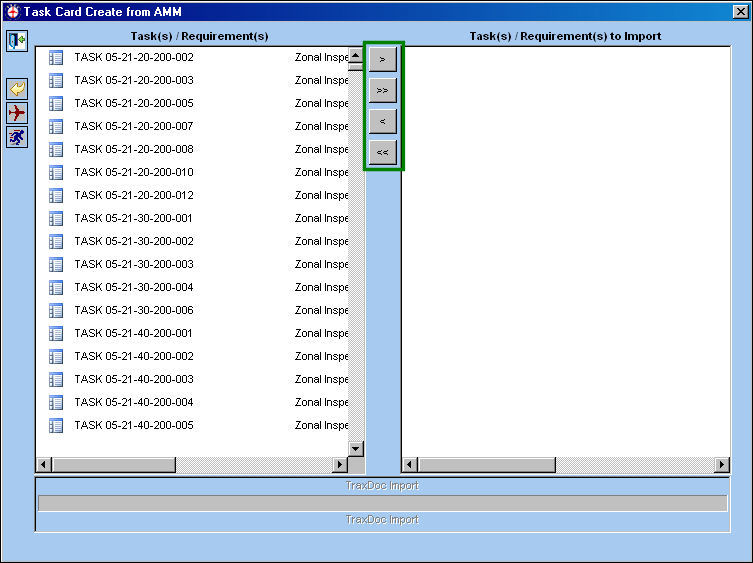
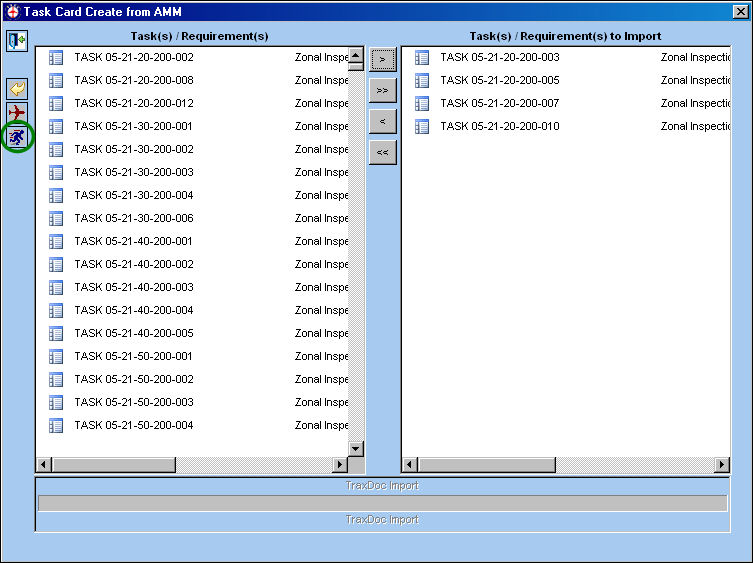
Once the user has selected desired tasks, select the Run  button.
This process will take anywhere from a few seconds to many hours, depending on the number of Task Cards being imported.
If nothing from the left pane is selected, when the Run button is selected, Task Cards will be created for all tasks.
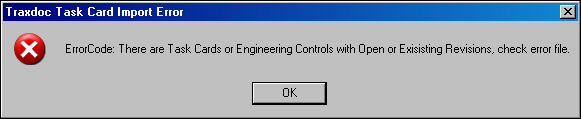
If there are open/existing revisions, the following error message will appear:
A file with the error details (a list of the Task Cards/ECs with open/existing revisions) will appear. The import process will stop. Any open revision must be authorized and the user must provide a revision never used before.
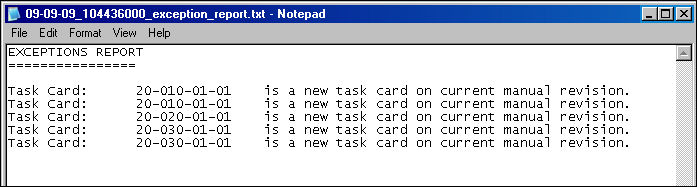
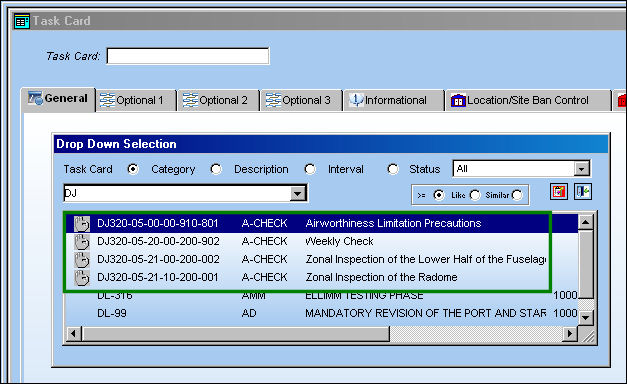
If no exceptions or errors are found, the Task Cards will be created as shown below:
Share
Print
|
©1997-2026 Trax USA Corp. All rights reserved. This manual may not be copied, photocopied, reproduced, translated, or converted to any electronic or machine-readable form, in whole or in part, without prior written approval from Trax USA Corp. |
 |