
 Share
Share
 Print
Print
|
|
|
|
|


The Seven Day Forecast displays all flights by aircraft for the next seven days. This forecast includes the projected overnight station for each aircraft.
Once the Interactive Planner is ran, the user may query for a Seven Day Forecast by A/C Type/Series.

Switch  PLNAUTO7D must be set to Yes for the Seven Day Forecast field to become active within the Display Control Area.
Select an A/C Type/Series and select the Run  button:
The user may have multiple sessions of the Seven Day Forecast window running at the same time.
TRAX displays the Seven Day Forecast as shown below:
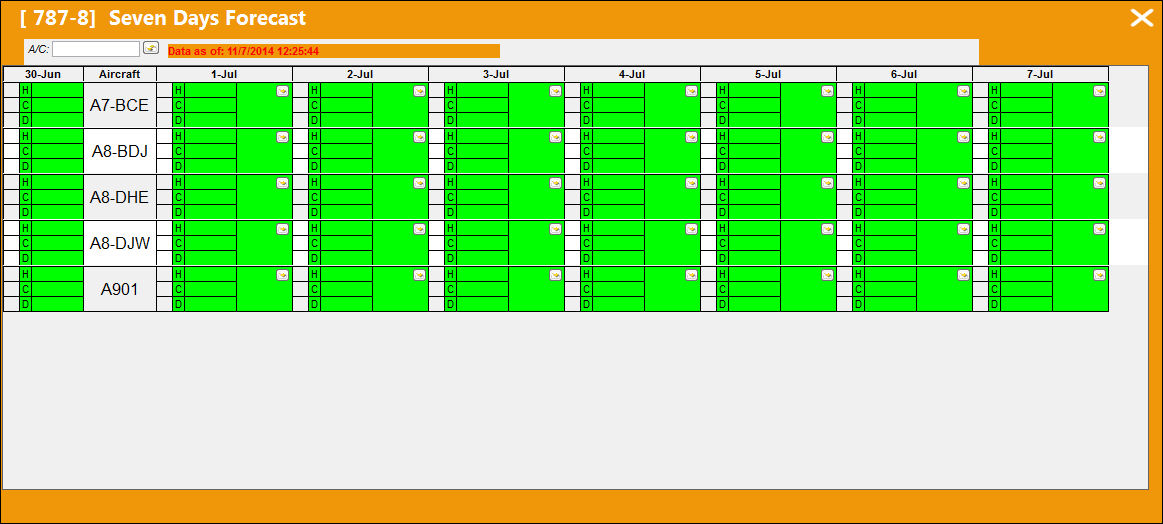
The following information/options are available in this window:
_____________________________________________________________________________________
Reset A/C  button
The Reset A/C button allows the user to update any changes made to an A/C. For additional information, refer to the Reset A/C Button, via the Display Control Area of the Planning Training Manual.
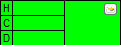
The overnight station for the aircraft. Each overnight station includes the number of hours/cycles/days.
- Green indicates that the flight hours/cycles/days are not overdue. The overnight station will default to green based on the numbers specified in the Configuration tab of the Switch PLNAUTO7D, via the Planning Switches Manual.
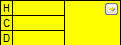 - Yellow indicates that the flight hours/cycles/days are about to become overdue. The overnight station will default to yellow when the remaining flight hours/cycles/days either less than the maximum criteria or more than the minimum criteria specified in the Configuration tab of the Switch PLNAUTO7D via the Planning Switches Manual.
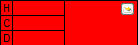 - Red indicates that the flight hours/cycles/days are overdue. The overnight station will default to red based on the numbers specified in the Configuration tab of the Switch PLNAUTO7D, via the Planning Switches Manual.
Select Daily Details  button
The Select Daily Details button allows the user to view all scheduled flights for a particular aircraft for a specific date as well as any Called On E/Cs against the tail number. For additional information, refer to the Select Daily Details Button, via the Display Control Area of the Planning Training Manual.
_____________________________________________________________________________________
Maintenance Events:
The following information/options are available in this window:
_____________________________________________________________________________________
E/C  button
Indicates that there is an Engineering Control associated to the aircraft.
P/N E/C  button
Indicates that there is a Part Number Engineering Control associated to the aircraft.
P/N Control  button
Indicates that there is a Part Number Control associated to the aircraft.
Work Order  button
Indicates that there is a Work Order associated to the aircraft.
Defect  button
Indicates that there is a Defect associated to the aircraft.
_____________________________________________________________________________________
Select any of the maintenance event buttons to access a detailed view of the event:
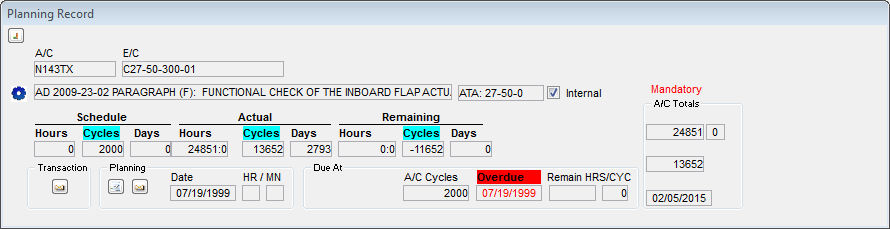
For additional information regarding the planning details in the Planning Record window, refer to A/C Planning Details.
Share
Print
|
©1997-2026 Trax USA Corp. All rights reserved. This manual may not be copied, photocopied, reproduced, translated, or converted to any electronic or machine-readable form, in whole or in part, without prior written approval from Trax USA Corp. |
 |