
 Share
Share
 Print
Print
|
|
|
|
|


PLNAUTO7D - Activate Seven Day Forecast Automatically at Set Interval
Activate Seven Day Forecast Automatically at Set Interval
Affected Window: w_ac_planning_sel
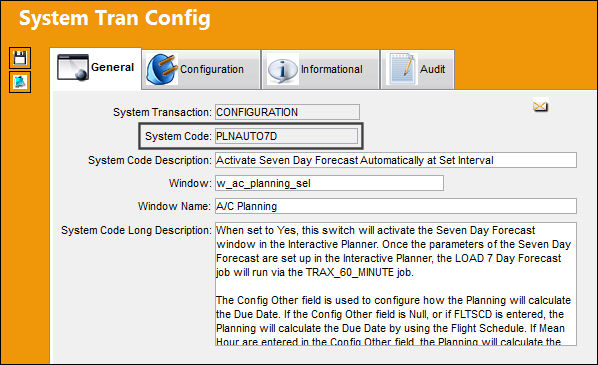
Setup:
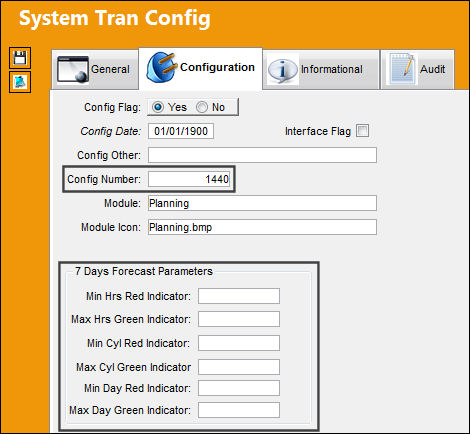
Enter/update the following information:
Field |
Function |
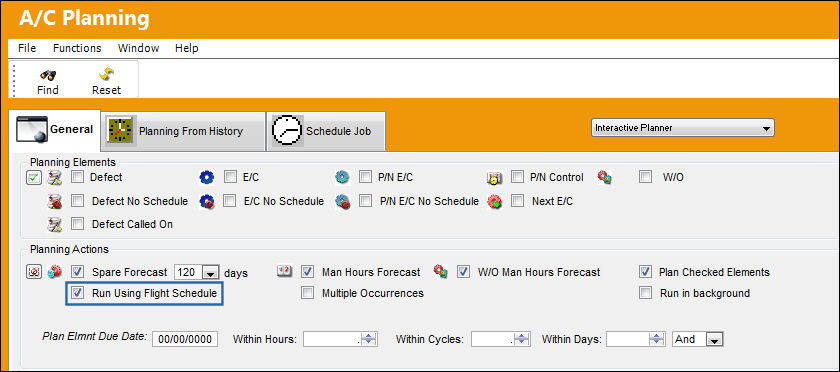
Config Other |
The Config Other field is used to configure how the Planning will calculate the Due Date. If the Config Other field is Null, or if FLTSCD is entered, the Planning will calculate the Due Date by using the Flight Schedule. If Mean Hour are entered in the Config Other field, the Planning will calculate the Due Date by using the Mean Hours for that A/C. |
Run Using Flight Schedule |
Select the Run Using Flight Schedule checkbox to query for elements by Flight Schedule. |
|
|
7 Days Forecast Parameters |
Function |
Config Number |
The Config Number is used to determine the refresh interval of the Planning Forecast. In the above example, the refresh interval is 45 minutes. |
Min Hrs Red Indicator |
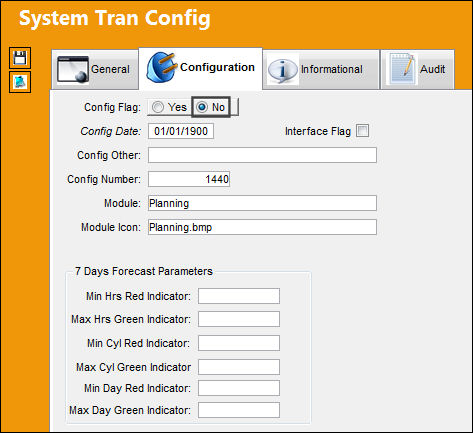
Enter the minimum number of flight hours for an aircraft to appear in the Seven Day Forecast parameters. For example, any aircraft that have accumulated less than 5 hours of flight time will appear in red. However, any aircraft that have accumulated 5 or more hours of flight time will appear in yellow. This number is specified in the Configuration tab of the switch PLNAUTO7D and can be updated at any time. For additional information, refer to the Seven Day Forecast via the A/C Planning Query of the Planning Training Manual. |
Max Hrs Green Indicator |
Enter the maximum number of flight hours for an aircraft to appear in the Seven Day Forecast parameters. For example, any aircraft that have accumulated 20 or more hours of flight time will appear in green. However, any aircraft that has accumulated less than 20 hours of flight time will appear in yellow. This number is specified in the Configuration tab of the switch PLNAUTO7D and can be updated at any time. For additional information, refer to the Seven Day Forecast via the A/C Planning Query of the Planning Training Manual. |
Min Cyl Red Indicator |
Enter the minimum number of flight cycles for an aircraft to appear in the Seven Day Forecast parameters. For example, any aircraft that have accumulated less than 3 cycles of flight time will appear in red. However, any aircraft that have accumulated 3 or more cycles of flight time will appear in yellow. This number is specified in the Configuration tab of the switch PLNAUTO7D and can be updated at any time. For additional information, refer to the Seven Day Forecast via the A/C Planning Query of the Planning Training Manual. |
Max Cyl Green Indicator |
Enter the maximum number of flight cycles for an aircraft to appear in the Seven Day Forecast parameters. For example, any aircraft that have accumulated 10 or more cycles of flight time will appear in green. However, any aircraft that has accumulated less than 10 cycles of flight time will appear in yellow. This number is specified in the Configuration tab of the switch PLNAUTO7D and can be updated at any time. For additional information, refer to the Seven Day Forecast via the A/C Planning Query of the Planning Training Manual. |
Min Day Red Indicator |
Enter the minimum number of flight days for an aircraft to appear in the Seven Day Forecast parameters. For example, any aircraft that have accumulated less than 1 day of flight time will appear in red. However, any aircraft that have accumulated 1 or more days of flight time will appear in yellow. This number is specified in the Configuration tab of the switch PLNAUTO7D and can be updated at any time. For additional information, refer to the Seven Day Forecast via the A/C Planning Query of the Planning Training Manual. |
Max Day Green Indicator |
Enter the maximum number of flight days for an aircraft to appear in the Seven Day Forecast parameters. For example, any aircraft this have accumulated 7 or more days of flight time will appear in green. However, any aircraft that has accumulated less than 7 days of flight time will appear in yellow. This number is specified in the Configuration tab of the switch PLNAUTO7D and can be updated at any time. For additional information, refer to the Seven Day Forecast via the A/C Planning Query of the Planning Training Manual. |
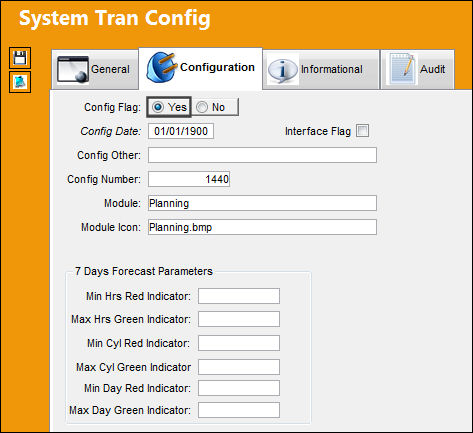
Switch Set to Yes:
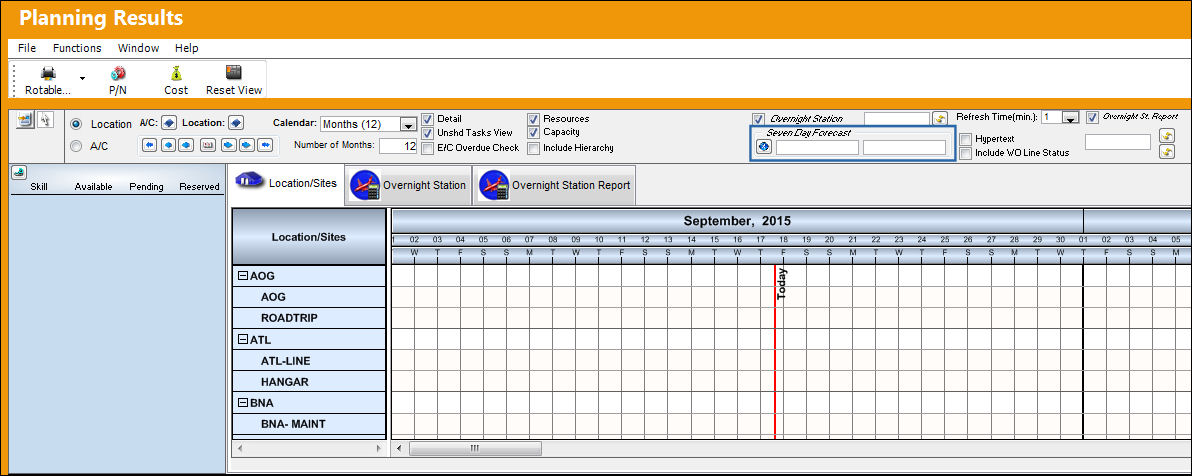
When set to Yes, this switch will activate the Seven Day Forecast window in the Interactive Planner. Once the parameters of the Seven Day Forecast are set up in the Interactive Planner, the LOAD 7 Day Forecast job will run via the TRAX_60_MINUTE job.
The following Interactive Planner is being utilized. Notice the Seven Day Forecast functionality is available.
Switch Set to No:
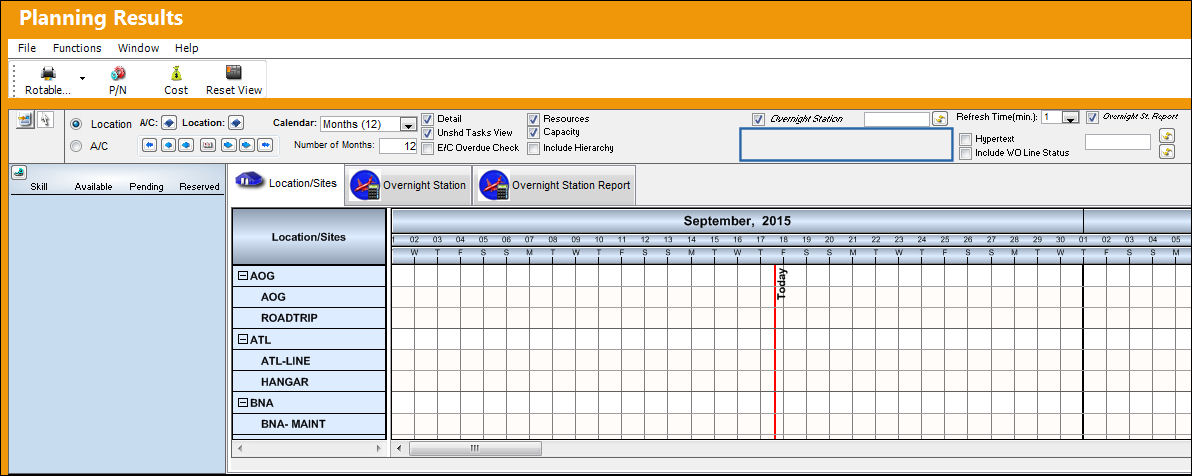
When set to No, the Seven Day Forecast will not be activated.
The following Interactive Planner is being utilized. Notice the Seven Day Forecast functionality is unavailable.
Share
Print
|
©1997-2026 Trax USA Corp. All rights reserved. This manual may not be copied, photocopied, reproduced, translated, or converted to any electronic or machine-readable form, in whole or in part, without prior written approval from Trax USA Corp. |
 |