Publication Date: 8/17/2026 Share Print

Previous Topic

Next Topic

Book Contents

Book Index

OVNDATADAYS - Define Number of Days to Display in Overnight Station Report Tab

but_X1 big switch

Define Number of Days to Display in Overnight Station Report Tab

Affected Windows: w_ac_planning_qry
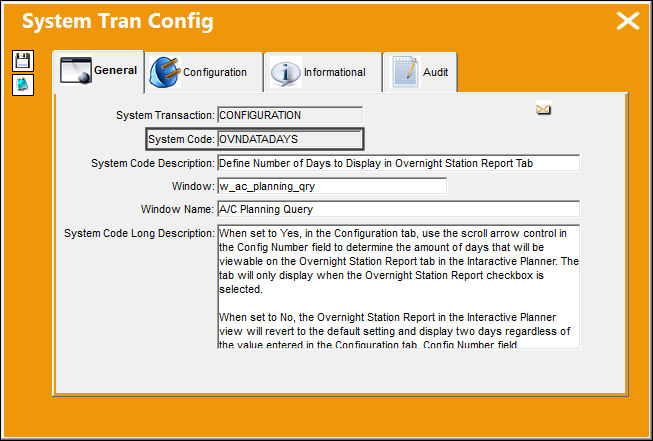
ovndatadays


Switch Set to Yes:

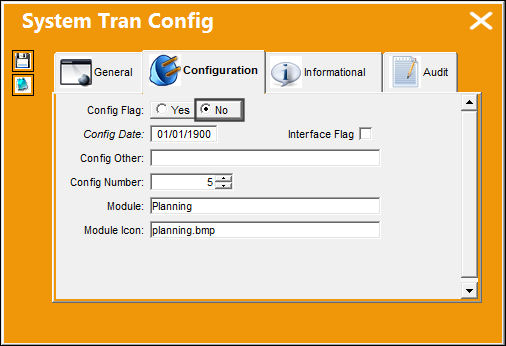
When set to Yes, in the Configuration tab, use the scroll arrow control in the Config Number field to determine the amount of days that will be viewable on the Overnight Station Report tab in the Interactive Planner. The tab will only display when the Overnight Station Report checkbox is selected.

The user can define the number of days to display in the Overnight Station Report tab in the Interactive Planner view. Select the number of days using the scroll arrow for the Config Number field. For example, to show five days in the Overnight Station Report then select the number 5, for seven days you would choose number 7 and so on.
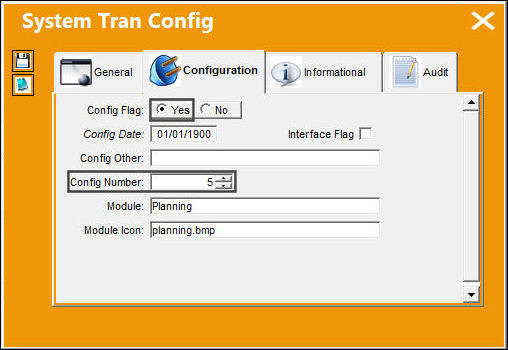
ovndatadays_config_number

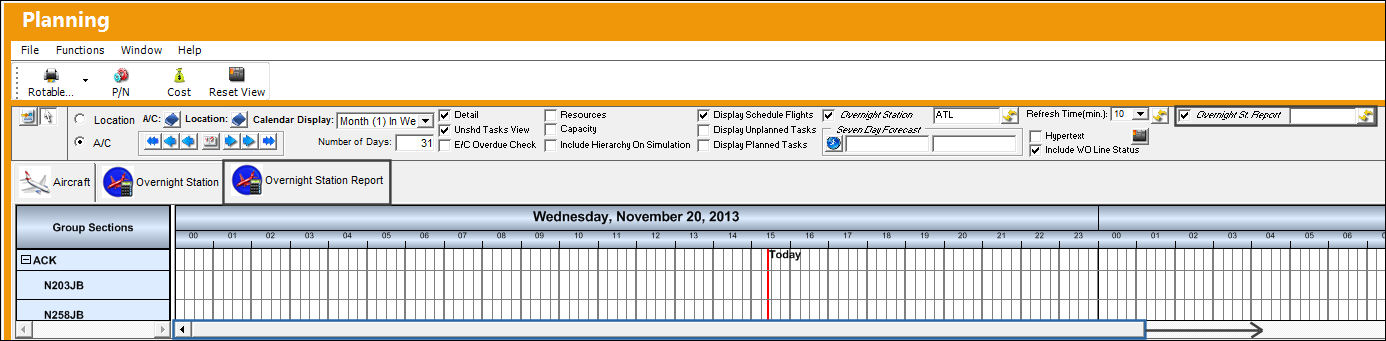
The Overnight (St) Station Report checkbox is displayed in the Display Control Area. Select the Overnight (St) Station Report checkbox to display the Overnight Station Report tab. For this example, the Config Number is set to five so the Overnight Station Report, when selected, will display five days for the report data. Use the scroll bar to view all five days of data.
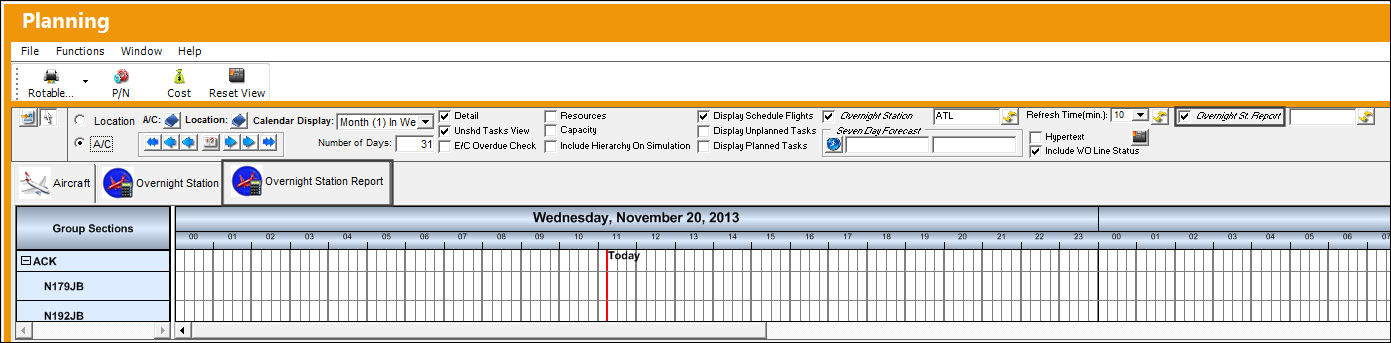
planning_overnight_station_report_tab

When the Overnight (St) Station Report checkbox is deselected, the Overnight Station Report tab is no longer available.
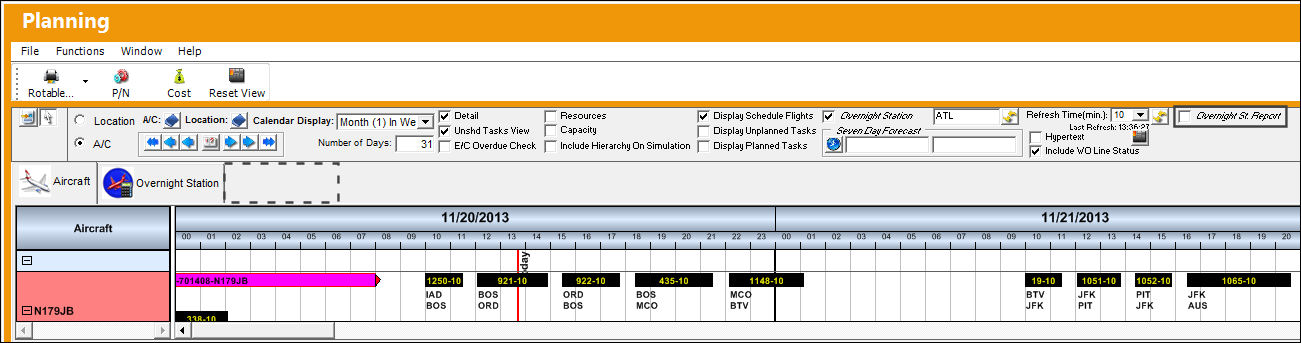
OVNDATADAYS_YES 2


Switch Set to No:

When set to No, the Overnight Station Report in the Interactive Planner view will revert to the default setting and display two days regardless of the value entered in the Configuration tab, Config Number field.

Note: You must log out of TRAX for this switch configuration to take effect.
PLAN_ NO

After selecting the Overnight (St) Station Report checkbox, the Overnight Station Report tab is displayed in the Display by Area. Only two days are displayed, use the scroll bar to scroll to the right and view the listed days.
OVNDATADAYS_NO1

See Also

Planning Switches

ACPLANQ - A/C Planning Query Fast Mode

ACROLAVG - Use A/C Rolling Average for Mean Hours and Cycles

ALWMULTTSK - Prevent Element from being Added to a Work Order

APUMEAN - Mean APU Calculation

AUTOWONHADESC - Enables Auto W/Os generated via Planning to automatically include NHA P/N, S/N and Position Info

AUTOMANHOURSCHEDULE - Allow AUTO_MANHOUR_SCHEDULE_JOB to Appear in Trax Database Jobs

AUTOTSKPRIORITY - Enable Auto Task Priority Functionality

CHILDECNOSH - Show Child E/Cs With No Schedule in A/C Planning Query

CPYSCHFROMTRANS - Use Planning Transaction Schedule for TCs on Work Orders with a Line Status

DUEATPRJCT - Project the Due At Hours and Cycles using the mean hours and cycles

EMPATTSEQ - Employee Attendance Sign-On / Sign-Off Next Sequence

INTERACTPLANMANHOURS - Interactive Planner Displays Daily Man Hours per Location/Site

LBRBYHCNT - System Labor by Head Count

LivePlan - Enables the Live Planning Functionality

MANHOURSAUTOCOMP - Auto complete certain fields in Man Hours Schedule Override

MANPLNDLF - Default Man Hour Schedule Planner to Location/Site of the Employee

MELDEFLOC - Deferred Defect Convert Reported/Deferred day to Local Time Zone

OVNTACMS - Overnight Station Default

PASTASCH - Create Past Absence Record

PLANBY - DO NOT CHANGE FROM NO Capacity Planning By: Week = (YES) or Month = (NO)

PLANDEPT - Planning Department and Planning Sub Department fields Mandatory

PLANDUE% - Planning Warning When Percent Due

PLANPNSEQ - Planning P/N Next Sequence Number

PLNAUTO7D - Activate Seven Day Forecast Automatically at Set Interval

PLNHISTML - Determine Planning History Time Limit

PLNJBDFLT - Default Planning Job Checkbox

PLNJOBACNO - Run Planning Jobs by Program Instead of Oracle Scheduler

PLNJOBQUE - Activate Planning Job by Java Queue

PLNTRNNO - Planning Transactions Sequence Number can only be changed by the TRAX Application

PLNWSHDCHLD - Hide Child E/C on Planning Control Workscope by Default

PN_EC_INSTDAYS - Count P/N E/Cs by E/C's Calendar Days or Part's Installed Days

SCHEDULEWORKG - Allow Work Group Selection Filter

SELFSCHLM - Self Assignment Schedule Date Range Limit

SHOPCAPNOT - Do Not Validate Against Shop Capability in the Shop Resource/Tasks Planner

SHPPLNDLF - Default Shops Resource/Tasks Planner to the Location/Site in Employee Master

STREAMLINE - Clean Up Employee Schedules

TOEXITMS - Turn Off Exit Pop Up Message in Planning Query

TOOLWARN - Issues warning if tool expires during W/O scheduled date range

Top of Page Publication Date: 8/17/2026 Share Print