
 Share
Share
 Print
Print
|
|
|
|
|


MANPLNDLF - Default Man Hour Schedule Planner to Location/Site of the Employee
Default Man Hour Schedule Planner to Location/Site of the Employee
Affected Window: w_man_hour_planner
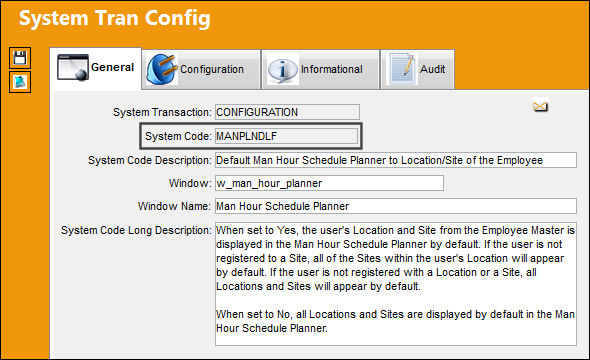
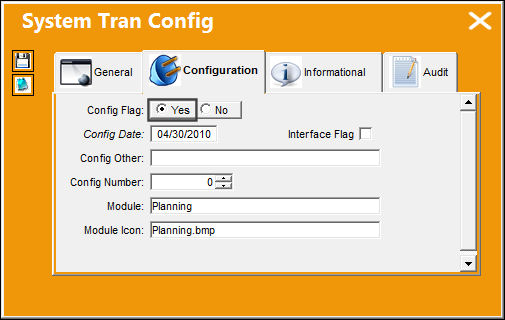
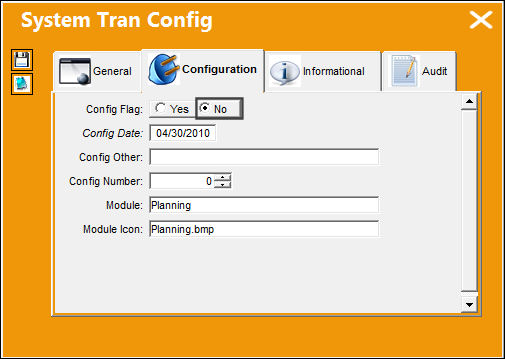
Switch Set to Yes:
When set to Yes, the user's Location and Site from the Employee Master is displayed in the Man Hour Schedule Planner by default. If the user is not registered to a Site, all of the Sites within the user's Location will appear by default. If the user is not registered with a Location or a Site, all Locations and Sites will appear by default.
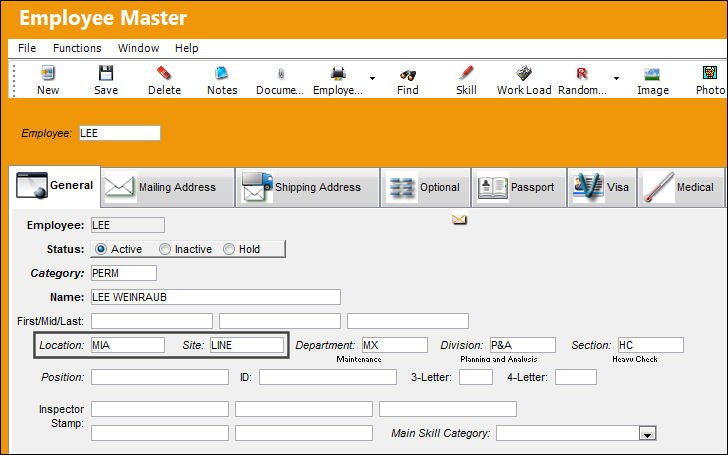
For example, notice the user's Location and Site via the Settings/Update/Employee Master.
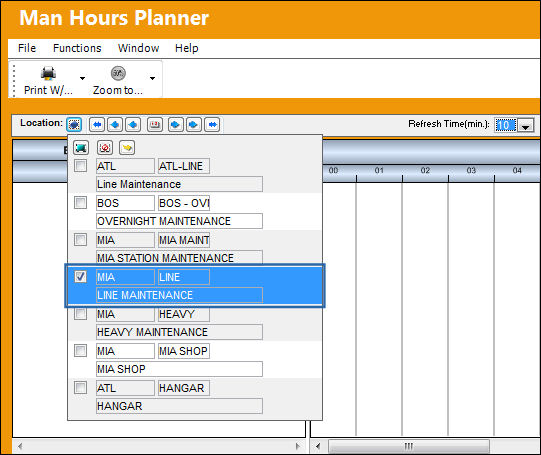
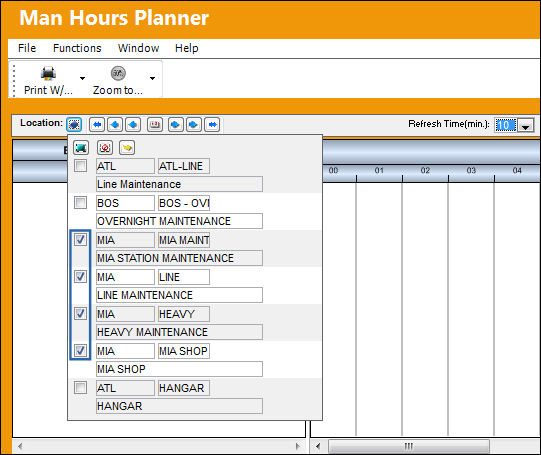
From the Man Hour Schedule Planner, notice that the Location and Site defaulted is the same as the user's listed above in the Employee Master. Users can view the defaulted Location/Site by selecting the Location  button. Only the work groups registered with the same Location and Site appear in the window.
The work groups are created via Planning/Update/Man Hour Schedule. For more information refer to the Man Hour Schedule via the Planning Training Manual.
If a user has a Location listed in the Employee Master but not a Site, all Sites for the Location are listed by default in the Man Hour Schedule Planner.
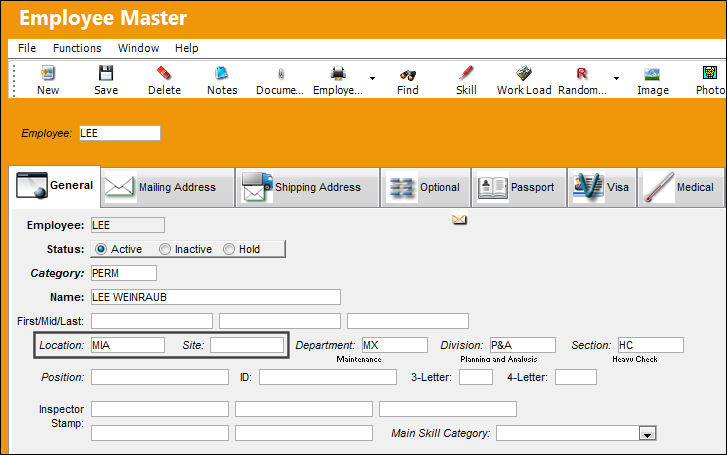
Notice all of the Sites for the Miami Location are displayed.
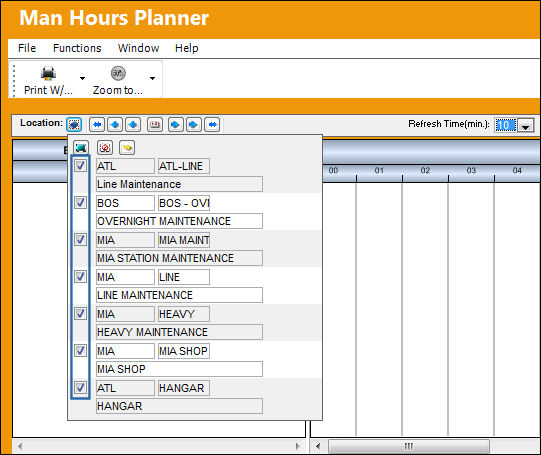
If a user does not have a Location or a Site listed in the Employee Master, all Locations and Sites are listed by default in the Man Hour Schedule Planner.
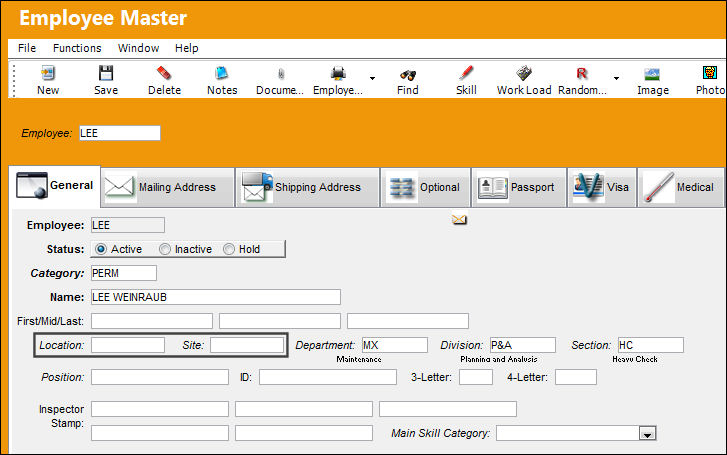
Notice all Locations and Sites are displayed.
Switch Set to No:
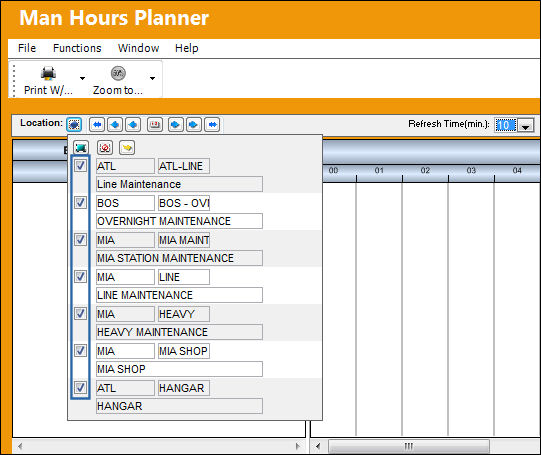
When set to No, all Locations and Sites are displayed by default in the Man Hour Schedule Planner.
For example, notice that the user has a Location and Site listed in the Employee Master.
But when the Man Hour Schedule Planner window is opened, all Locations and Sites are displayed.
For more information refer to the Man Hour Schedule Planner via the Planning Training Manual.
Share
Print
|
©1997-2026 Trax USA Corp. All rights reserved. This manual may not be copied, photocopied, reproduced, translated, or converted to any electronic or machine-readable form, in whole or in part, without prior written approval from Trax USA Corp. |
 |