
 Share
Share
 Print
Print
|
|
|
|
|


Task Card Discrepancy Authorization Group Explorer
The Task Card Discrepancy Authorization Group Explorer allows TRAX administrators or other designated users to manage which users are in each specific Task Card Discrepancy Authorization Group by adding or deleting users from each group. These groups are created via the Task Card Discrepancy Authorization Group System Tran Code.
This Authorization Group Explorer functions as part of Engineering Switch  TCDISCAUTH which allows administrators to require a certain amount of Authorization Steps to be performed in order for a Task Card Discrepancy to be authorized. For more information on the T/C Discrepancy Authorization process, refer to Switch TCDISCAUTH via the Engineering Training Manual.
To view the Task Card Discrepancy Authorization Group Explorer, go to Engineering/ Explorer/ Task Card Discrepancy Authorization Group Explorer and TRAX displays the following screen:
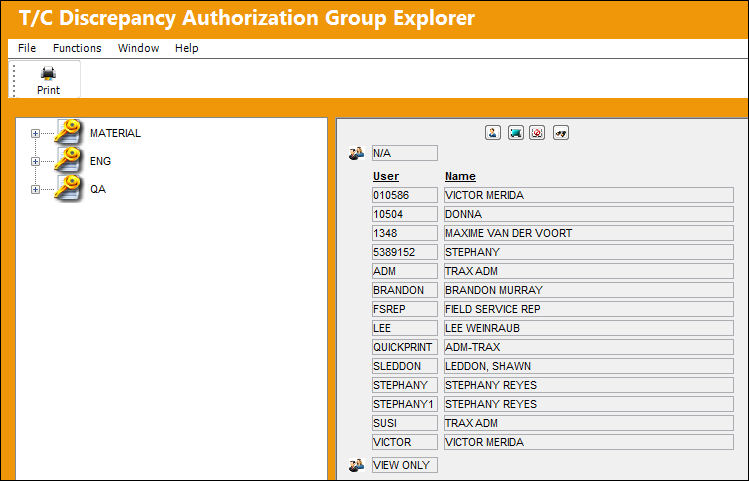
In the T/C Discrepancy Authorization Group Explorer window, users are categorized by the Adopted Group Profile they belong to in the Security Explorer. This is configured for each individual user, and if they are not associated to any Adopted Group Profile, then they fall into the 'N/A' Group Profile by default. For additional information regarding Group Profiles, refer to the System Administration Training Manual.
If there are no Task Card Discrepancy Authorization Groups displayed, or the T/C Discrepancy Authorization Group needs to be created, go to the System Transaction Code Explorer and select the Task Card DIscrepancy Authorization Group to create and manage these groups.
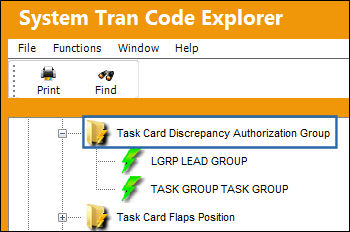
If the user would like to update the System Transaction Code, for example to change the long description, select the Update Record option and make the necessary changes.
Once TRAX displays the System Transaction Code window, enter the desired code for the System Code and the long description for the System Code Description.
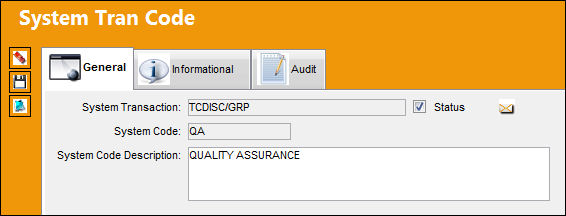
When completed, select Save  to save all information.
This process will successfully create the necessary Task Card Discrepancy Authorization Group tran codes in the Task Card Authorization Group Explorer's left pane.
To add a user or users to a Task Card Discrepancy Authorization Group, highlight the ID/Name(s). Select the User  icon and drag it to the selected Authorization Group tran code.
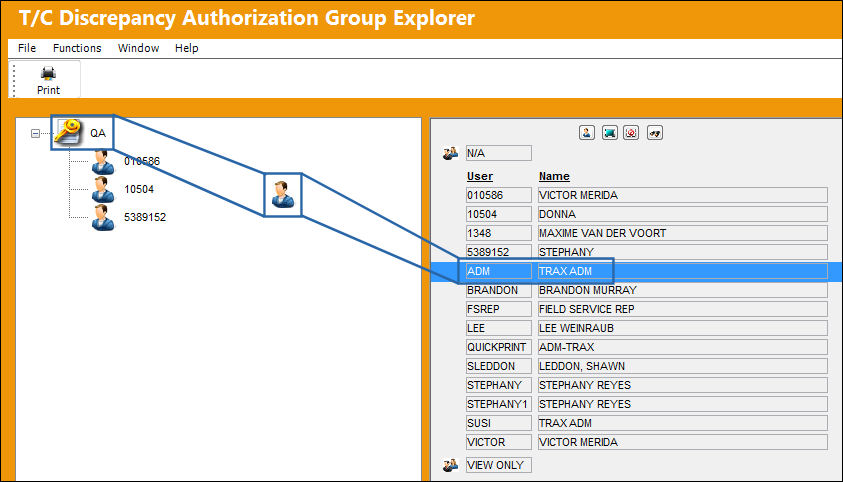
Either individual or multiple users can be added at the same time to a specific Task Card Discrepancy Authorization Group. If multiple users are added at the same time, highlight the required users. The Select All  option can be used if all users are going to be selected.
The ability to find a specific user can be accomplished by selecting the Find  button. This is extremely helpful when searching through a large number of users for one specific user. As the letters are typed into the field, the pane will scroll to that individual. For example, when typing 'C' it goes to the first user that begins with 'C.' Once the second letter is typed, 'H' in this case, it will go to the first user that begins with 'CH' and so on.
Once the user(s) are dragged and dropped on the specific group on the left pane using the User icon, the following warning message is displayed:
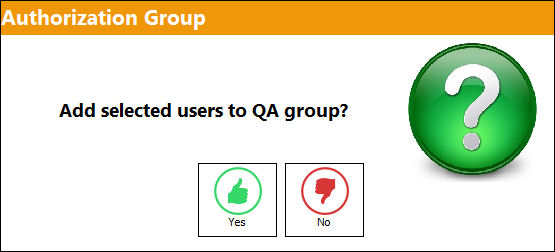
Select Yes to add the highlighted user(s) to the Task Card Discrepancy Authorization Group. Select No to return to the screen with no changes made.
If Yes is selected, then TRAX re-displays the above screen with new user(s) listed in the applicable Task Card Discrepancy Authorization Group.
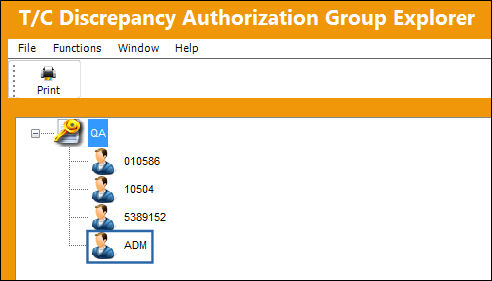
To remove a user from a selected Authorization Group, select the user's name and select to 'Remove User.' TRAX displays the following pop-up window:
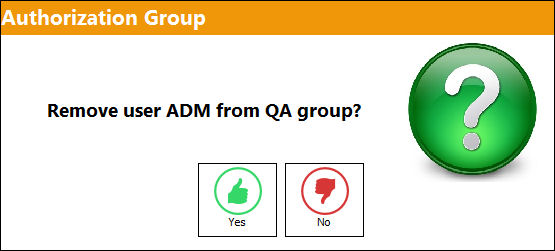
Select Yes to remove the selected user(s) from the Task Card Discrepancy Authorization Group, or select No to return to the screen with no changes made.
If Yes is selected, TRAX re-displays the Task Card Discrepancy Authorization Group Explorer screen without the selected user in the applicable Task Card Discrepancy Authorization Group.
Share
Print
|
©1997-2026 Trax USA Corp. All rights reserved. This manual may not be copied, photocopied, reproduced, translated, or converted to any electronic or machine-readable form, in whole or in part, without prior written approval from Trax USA Corp. |
 |