
 Share
Share
 Print
Print
|
|
|
|
|


Users can disable a selected job in the TRAX Database Jobs window from being run automatically by selecting the Disable Job  button. This allows users to modify the automatic job run features of the TRAX Database Jobs window.
For example, select a job that is currently set up to be run automatically, as indicated by the green Enabled Job  icon. Select the Disable Job button.
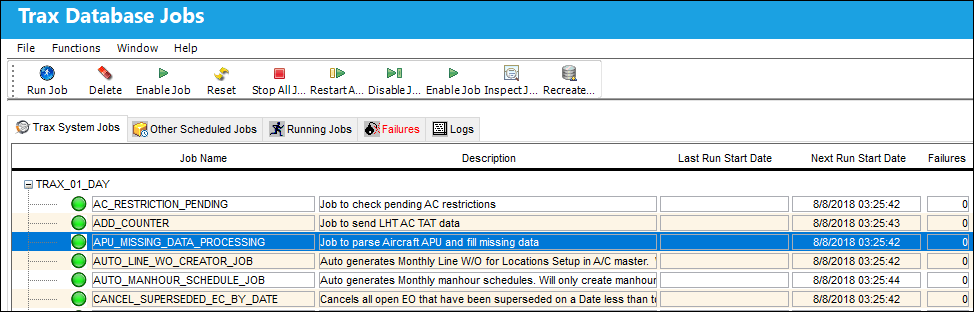
This can be applied to multiple jobs by holding the Shift key or Control key on the keyboard then selecting the different jobs.
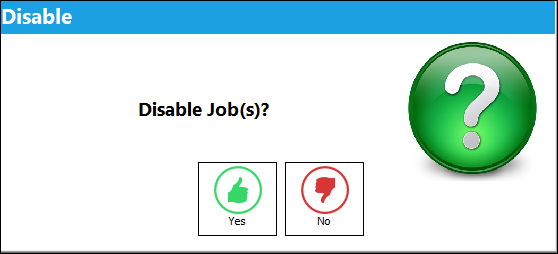
A Disable prompt appears to confirm. Select Yes.
The job has been disabled, as indicated by the yellow Disabled Job  icon.
icon.
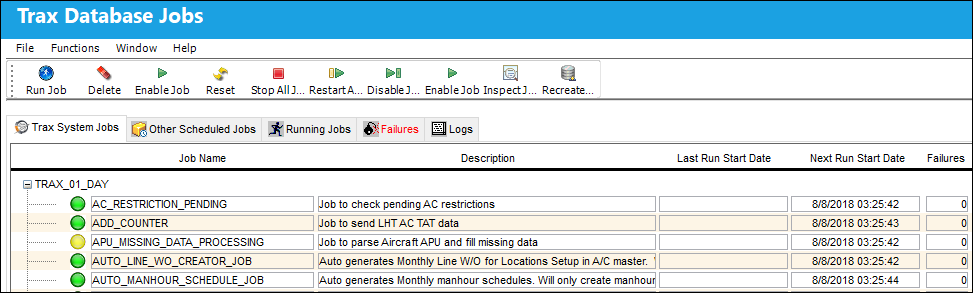
The disabled job will not be run automatically unless it is enabled. For more information refer to the Enable Job Button.
Share
Print
|
©1997-2026 Trax USA Corp. All rights reserved. This manual may not be copied, photocopied, reproduced, translated, or converted to any electronic or machine-readable form, in whole or in part, without prior written approval from Trax USA Corp. |
 |