
 Share
Share
 Print
Print
|
|
|
|
|


Inventory Detail Transaction History Buttons
Use the following buttons to better navigate through the Inventory Detail Transaction History window:
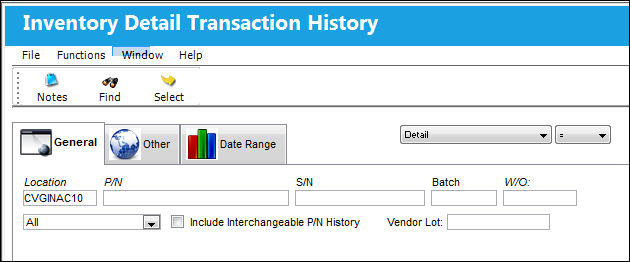
The following information/options are available in this window:
_____________________________________________________________________________________
Notes  button
Select the Notes button to enter any notes that will be associated with the currently selected item.
Print  button
Select the Print button to activate the print function (this may be a report or print of the current screen) for certain Transaction Types.
Find  button
Select the Find button to find data according to the selection entered.
Select  button
Place the Hand  pointer on the desired record and click on the Select button to view the details of the record. The Select button takes the user to the Inventory Detail for Audited Items window.
P/N Initial Load  button
Select the P/N Initial Load button for the 'LOST' Transaction Type to conduct a P/N Initial Load and bring a Lost component back into Inventory. Using this function preserves the original batch number and the original details of the Lost component. For additional information, refer to the Lost  button, via Inventory Transaction.

When a 'LOST' part is initial loaded through this button, the part's previously accumulated Actuals will not be loaded with the part. Users will be required to manually enter the part's Actual historical schedule.
 This button is security controlled via Inventory/ Query/ Inventory Transaction History Query/ P/N Initial Load of Lost Parts. For more information, refer to the Security Explorer via the System Administration Training Manual.
_____________________________________________________________________________________
Share
Print
|
©1997-2026 Trax USA Corp. All rights reserved. This manual may not be copied, photocopied, reproduced, translated, or converted to any electronic or machine-readable form, in whole or in part, without prior written approval from Trax USA Corp. |
 |