
 Share
Share
 Print
Print
|
|
|
|
|


Once the information in the above chapter Packing and Shipping has been entered, click on the Select  button.
This will display a list of all items that meet similar criteria to the order the user is currently placing. Specifically, the Ship From and Ship To criteria:
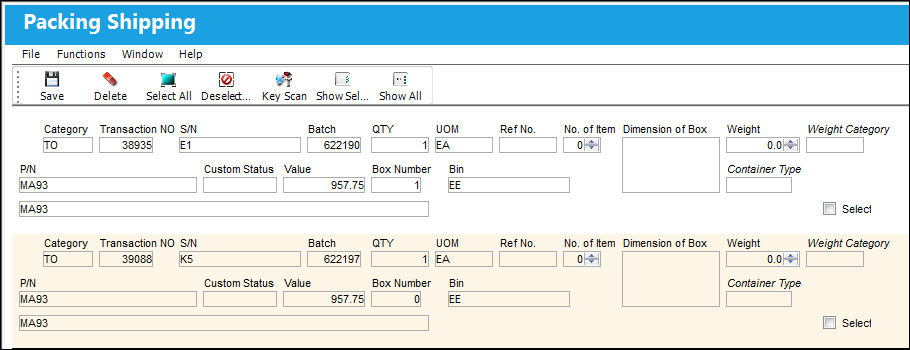
The following information/options are available in this window:
_____________________________________________________________________________________
Category
The shipment category (All, Owner, Vendor, Customer or Location).
Transaction No.
The sequential transaction number for the shipment.
S/N
The Serial Number for the specific serialized part.
Batch
The inventory number that is currently associated with a part or group of parts. A part's Batch number can change after various types of transactions take place.
Expected Receiving Date
The expected arrival date of the shipment at the receiving location.
QTY
The quantity of items of the shipment.
UOM
The unit of measure. This will default if associated with a Part Number as defined in the P/N Master. Transactions for parts can be conducted in a different UOM than defined in the P/N Master. However, upon receiving the UOM, conversion will automatically adjust the quantities, providing that the conversion rate is defined in the UOM System Transaction Code (via Setting/Explorer/System Transaction Code).
Ref. No.
Reference Number.
No. of Item
The number of items in the shipment.
Dimension of Box
The size of the boxes on the shipment.
Weight
The weight of the shipment.
Weight Category
The category of weight (lb, kg etc). These categories are set up in the System Transaction Code SHIP/WGT. For further information, please contact the System Administrator.
P/N
The Part Number reference for the aircraft part.
Customer Status
Status of the customer.
Value
Value of the part number.
Box Number
Number of the box.
Bin
The specific storage bin within the inventory location.
Container Type
Type of container (e.g. box). These types are set up in the System Transaction Code CONTAINER/TYPE. For further information, please contact the System Administrator.
Hazardous Material  icon
icon
This icon appears if the part being shipped contains hazardous materials.
Cond Hazmat InActive status
The Condition Hazardous Material InActive status appears if this part has the Hazardous Material at Receiving checkbox selected in the P/N Master, Inventory tab and the part has not been removed from an aircraft. Having not been removed from an aircraft, this status indicates that the part is not currently considered Hazardous Material. For additional information, refer to the P/N Master, Inventory Tab via P/N Master of the Settings Training Manual.
Cond Hazmat Active Status
The Condition Hazardous Material Active status appears if this part has the Hazardous Material at Receiving checkbox selected in the P/N Master, Inventory tab and the part has been removed from an aircraft. Having been removed from an aircraft, this status indicates that the part is currently considered Hazardous Material. When this status is displayed, Hazardous Material At Removal checkbox will also be displayed. For additional information, refer to the P/N Master, Inventory Tab via P/N Master of the Settings Training Manual. Once this Hazmat part is repaired, the Cond Hazmat Active checkbox must be deselected when receiving the R/O. Deselecting this checkbox resets the part as Cond Hazmat InActive. For more information refer to the Repair Order Receiving, General Tab via the Receiving Training Manual.
Override checkbox
When this checkbox is selected, the Cond Hazmat Active message and icon appear in the Packing and Shipping print.
Select checkbox
Select this checkbox to active certain fields.
_____________________________________________________________________________________
If there are no records found for this particular Ship From/Ship To criteria, then TRAX displays the following warning message:
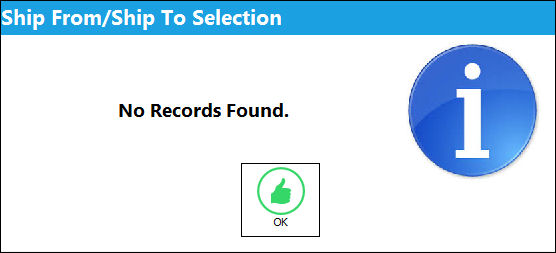
Click OK to return to the screen displayed above.
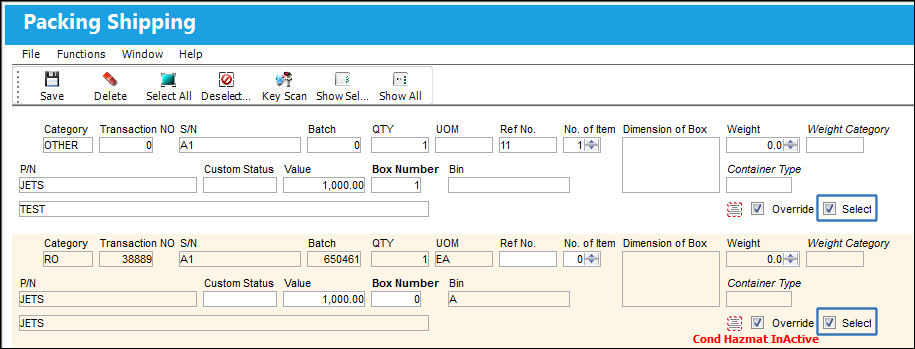
Check the Select checkbox for the item(s) you want to include in this shipment.
_____________________________________________________________________________________
Ref. No
Reference Number.
Customer Status
Status of the customer.
Value
Value of the part number.
Box Number
Number of the box.
Override checkbox
Click on this checkbox to complete the override.
_____________________________________________________________________________________
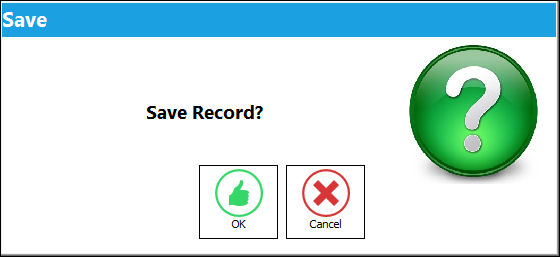
After saving, the system displays the following dialog box to confirm:
 Additional Functionality:
The following buttons are also available in this window for additional functionality:
- Key Scan
 button
 - Show Selected
 and Show All
  buttons
Share
Print
|
©1997-2026 Trax USA Corp. All rights reserved. This manual may not be copied, photocopied, reproduced, translated, or converted to any electronic or machine-readable form, in whole or in part, without prior written approval from Trax USA Corp. |
 |