|
TRAX MANUALS > TraxDoc > TraxDoc Module > TraxDoc, Update Menu > TraxDoc Master > TraxDoc Document Detail > TraxDoc Document Detail, TraxDoc Explorer Tab > Folder Content View Buttons, via TraxDoc Document Detail, TraxDoc Explorer Tab > Append XML Button, via TraxDoc Document Detail, TraxDoc Explorer Tab
Append XML Button, via TraxDoc Document Detail, TraxDoc Explorer Tab
The Append XML  button is a one step process that allows users to add a section of a manual to an already existing manual in TraxDoc without having to import an entire manual. This process simultaneously converts images and imports at the same time for maximized efficiency. button is a one step process that allows users to add a section of a manual to an already existing manual in TraxDoc without having to import an entire manual. This process simultaneously converts images and imports at the same time for maximized efficiency.
Note: The Append XML function only works for AMM and EMM manuals.
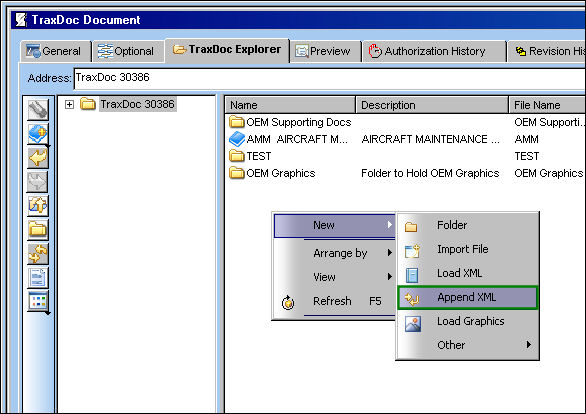
From the TraxDoc Document, TraxDoc Explorer tab, select the Append XML button:
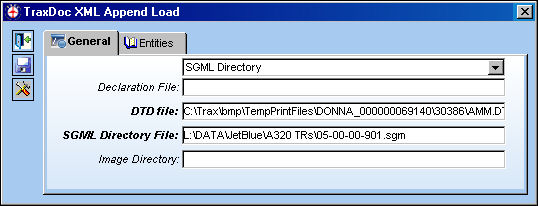
The TraxDoc XML Append Load window appears. Populate all mandatory and desired field and select the Save  button. button.
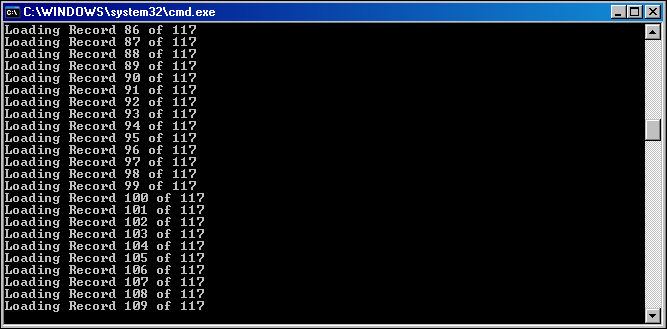
The following data window appears. Wait until the record has been loaded and the window is closed.
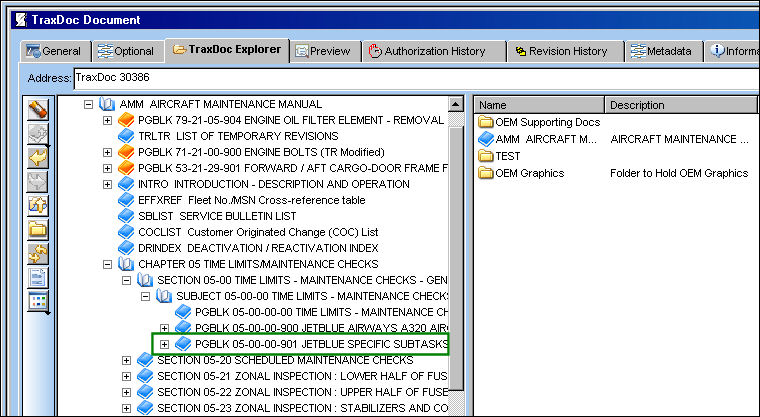
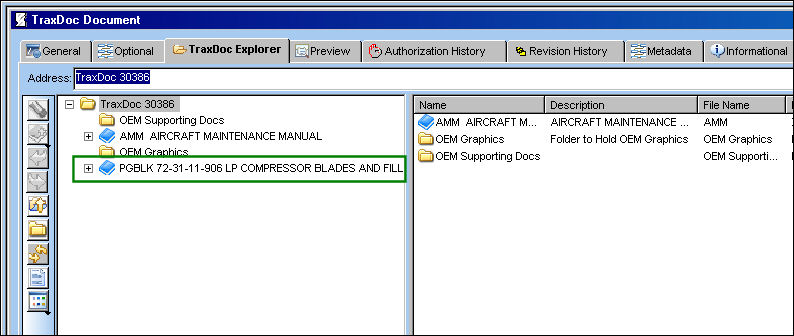
PGBLK 05-00-00901 has been appended to the manual:
If the section of the manual being appended is not in ATA format, the section will append outside of the manual:
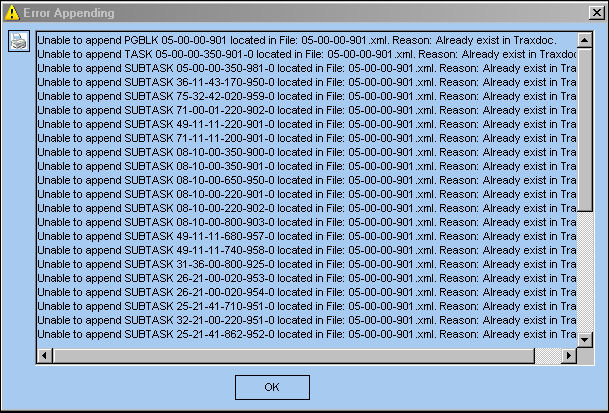
If the element already exists in the TraxDoc, the system will generate the following error. The user may select the Print  button to print the error(s). button to print the error(s).
|
See Also Folder Content View Buttons, via TraxDoc Document Detail, TraxDoc Explorer Tab New Folder Button, via TraxDoc Document Detail, TraxDoc Explorer Tab Import File Button, via TraxDoc Document Detail, TraxDoc Explorer Tab Load XML Button, via TraxDoc Document Detail, TraxDoc Explorer Tab Load Graphics Button, via TraxDoc Document Detail, TraxDoc Explorer Tab Load Directory Button, via TraxDoc Document Detail, TraxDoc Explorer Tab Arrange By Name Button, via TraxDoc Document Detail, TraxDoc Explorer Tab Arrange By Size Button, via TraxDoc Document Detail, TraxDoc Explorer Tab Arrange By Type Button, via TraxDoc Document Detail, TraxDoc Explorer Tab Arrange By Modified Button, via TraxDoc Document Detail, TraxDoc Explorer Tab Open Button, via TraxDoc Document Detail, TraxDoc Explorer Tab Preview Button, via TraxDoc Document Detail, TraxDoc Explorer Tab Edit Button, via TraxDoc Document Detail, TraxDoc Explorer Tab Rename Button, via TraxDoc Document Detail, TraxDoc Explorer Tab Cut/Paste Button, via TraxDoc Document Detail, TraxDoc Explorer Tab Delete Button, via TraxDoc Document Detail, TraxDoc Explorer Tab Import Button, via TraxDoc Document Detail, TraxDoc Explorer Tab Export Button, via TraxDoc Document Detail, TraxDoc Explorer Tab Properties Button, via TraxDoc Document Detail, TraxDoc Explorer Tab Edit File Properties Button, via TraxDoc Document Detail, TraxDoc Explorer Tab |
|

 Share
Share
 Print
Print


