
 Share
Share
 Print
Print
|
|
|
|
|


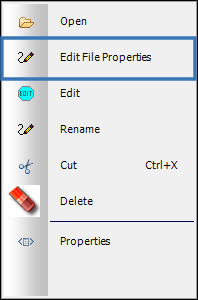
The Edit File Properties button allows users to change the Name, Description, Original Color and Group Sort of the applicable Folder or File via the TraxDoc Explorer tab.
 : When Switch
  SORTBYGROUPSORT is set to Yes, the items in the TraxDoc Explorer tab will be ordered by the value in the Group Sort instead of alphabetically by the File Name.
: When creating a Revision for a TraxDoc the changes made using the Group Sort will only be kept if the Create Empty Revision Checkbox is not selected via the TraxDoc Revision Control window.
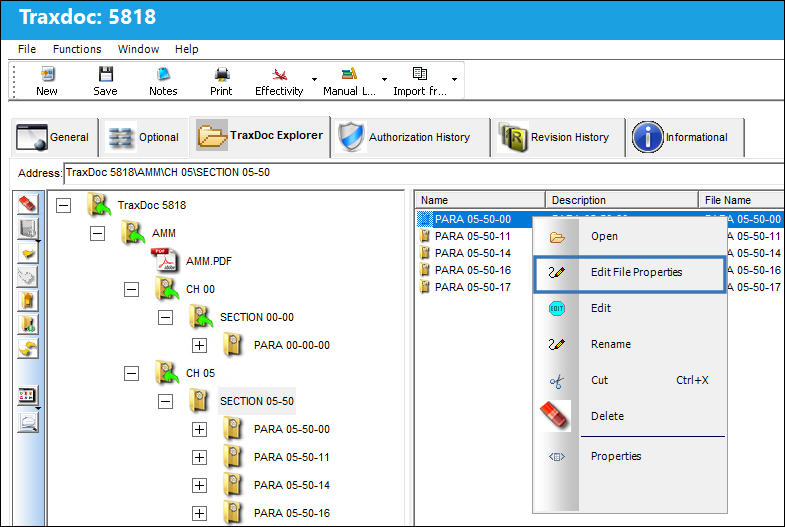
Select the Edit File Properties button from the Folder Content view.
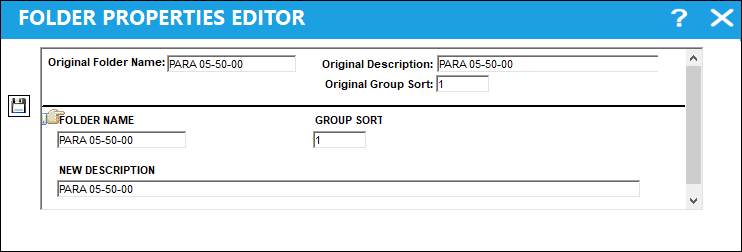
From the Folder Properties Editor window edit the Folder properties details as needed and select the Save  button.
From the File Properties Editor window edit the File properties details as needed and select the Save button.
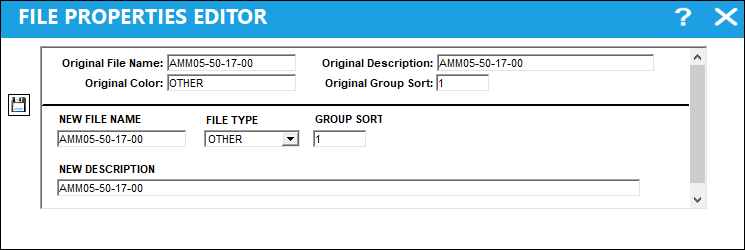
The following information/options are available in this window:
_____________________________________________________________________________________
Original Folder Name
The name of the folder.
Folder Name
The new name of the folder.
Original File Name
The name of the file.
New File Name
The new name for the file.
Original Description
The description of the folder or file.
New Description
The description of the folder or file.
Original Color
The File Type or image used to identify the file (e.g., Declaration, DTD, Entity, Graphic, Other, PDF).
File Type
The new File Type or image used to identify the file (e.g., Declaration, DTD, Entity, Graphic, Other, PDF).
Original Group Sort
The original Group Sort value for the folder or file in the Sort Column.
Group Sort
The new Group Sort value for the folder or file in the Sort Column.
: When creating a Revision for the TraxDoc the changes made using the Group Sort will only be kept if the Create Empty Revision Checkbox is not selected via the TraxDoc Revision Control window.
_____________________________________________________________________________________
Share
Print
|
©1997-2026 Trax USA Corp. All rights reserved. This manual may not be copied, photocopied, reproduced, translated, or converted to any electronic or machine-readable form, in whole or in part, without prior written approval from Trax USA Corp. |
 |