
 Share
Share
 Print
Print
|
|
|
|
|


The Authorized Configuration Export  button allows users to export authorized P/N Software Configurations to an XML document for the selected Aircraft. This report lists the accepted configurations (main parts and software) for a given aircraft. The exported files are the schema used by a Boeing SCX tool that compares what is configured in TRAX against what is installed in the Aircraft. This Boeing tool will then explain what needs to be updated in TRAX/the aircraft.
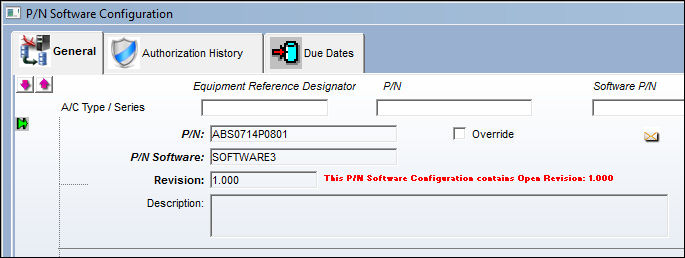
From the P/N Software Configuration window, select the Authorized Configuration Export button.
The Export Configuration window pops up. Enter the A/C.
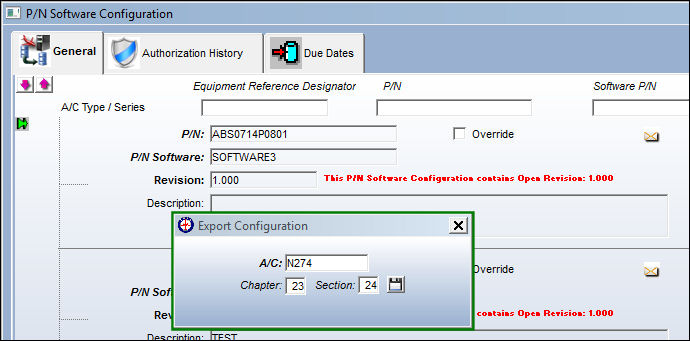
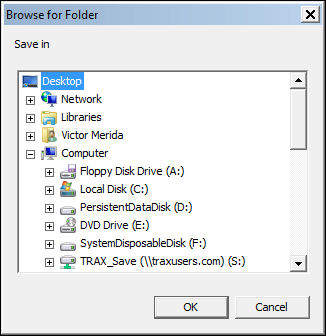
Select the Save  button to complete the export. At this point, the user must select a location for the files to be exported to.
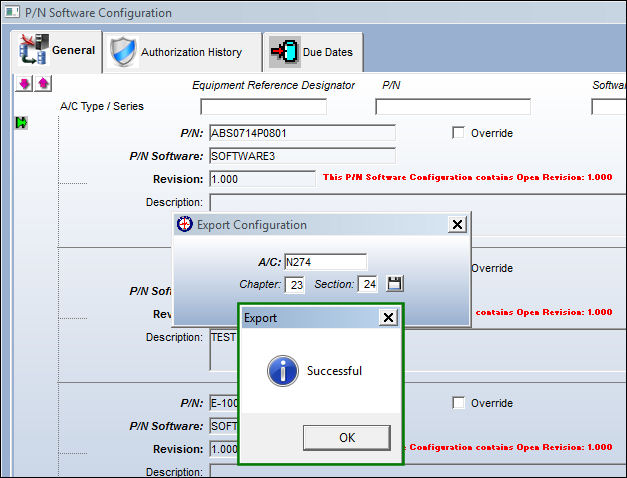
Once selected, the following prompt appears indicating that the export was successful.
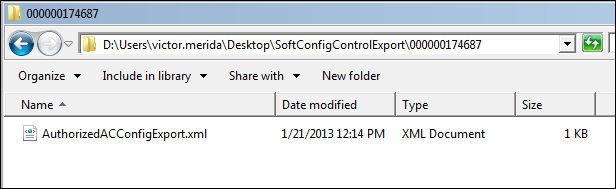
At the bottom of the TRAX window, the path where the files were exported to is listed.

Follow that path to view the exported file.
Share
Print
|
©1997-2026 Trax USA Corp. All rights reserved. This manual may not be copied, photocopied, reproduced, translated, or converted to any electronic or machine-readable form, in whole or in part, without prior written approval from Trax USA Corp. |
 |