
 Share
Share
 Print
Print
|
|
|
|
|


Load an Owner’s Parts into TRAX
The parts are loaded into inventory via the P/N Initial Multi Load option where an owner must be assigned and the parts are designated ‘Manage’.
- Go to Inventory / Update / P/N Initial Multi Load.
- Select a Location and Bin.
- Select an Owner and Select ‘Manage’.
- Select a Work Order.
Add parts as follows:
- Click the New
 button
 - Select a P/N Number and enter a Serial Number, Condition and Quantity.
- Click on the Allow Create P/N checkbox if applicable. This opens two fields: Rotable Category, Expendable Category. Complete as necessary.
- Click the Save
 button when you are finished adding parts.
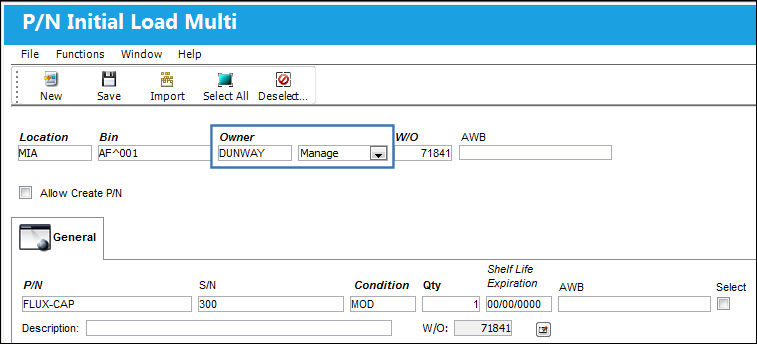
The quantity defaults to one for rotable parts. Enter the date for shelf life controlled parts to track expiration.
The parts are now loaded into inventory and are designated as Managed Parts.
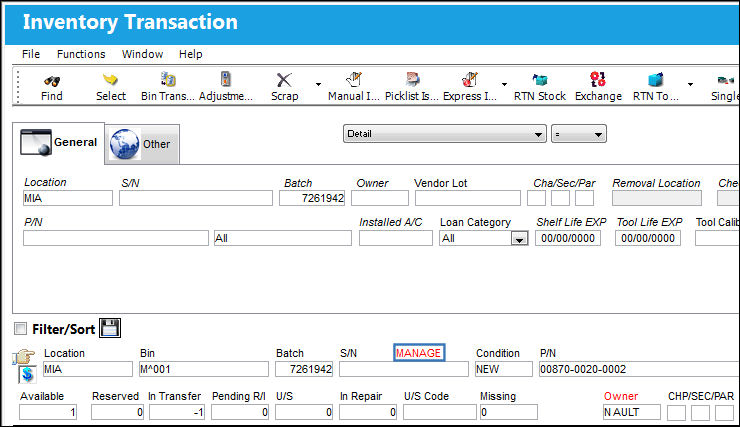
These managed parts (which have an owner) can now only be used on aircraft that have Managed Ownership Control for a Customer, and that Customer has an Inventory Owner that matches the part owner.
Please refer to the PN Initial Load section of this manual for further details on loading parts.
TRAX does not allow the same name to be used in the Customer Master and Owner Master.
For example, if your organization does third party maintenance work and the Customer and Inventory Owner are the same (i.e.) World Airlines, then create a customer called ‘World Airlines _C’ in the Customer Master, and create an owner ‘World Airlines _O’ in the Owner Master.
Share
Print
|
©1997-2026 Trax USA Corp. All rights reserved. This manual may not be copied, photocopied, reproduced, translated, or converted to any electronic or machine-readable form, in whole or in part, without prior written approval from Trax USA Corp. |
 |